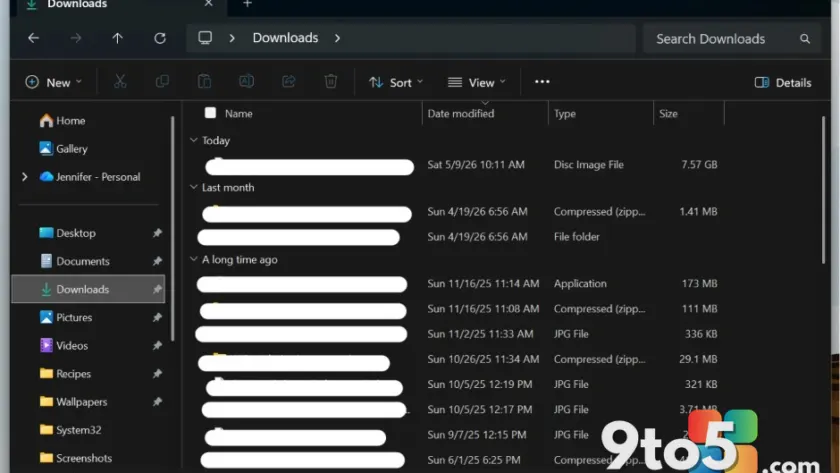
Microsoft has quietly rolled out a long-overdue adjustment to the Windows 11 file size display. If you have been staring at the Details view and wondering why a 12-gigabyte game folder is listed as 12,582,912 kilobytes, the new update finally fixes that. According to the official release notes for Windows 11 KB5101684, Microsoft has updated how the system reports file sizes in the Details view. Instead of forcing every entry into kilobytes, the shell now automatically selects the most readable unit, switching to megabytes or gigabytes when it makes sense.
What Exactly Changed in the Windows 11 File Size Display
The core change is straightforward but touches a fundamental part of how users interact with their drives. Previously, the Size column in File Explorer’s Details view rendered every value in kilobytes, regardless of the actual file scale. A 500-megabyte video would read as 512,000 KB, while a 2-gigabyte system image would show over 2 billion kilobytes. Microsoft confirmed the shift directly in the patch documentation, noting that file sizes now display using appropriate units (KB, MB, GB) instead of KB-only, making them easier to understand at a glance. The logic remains consistent: files under one megabyte still display in kilobytes, while anything larger automatically scales up.
Why Microsoft Made the Switch
This adjustment aligns with a broader push to simplify Windows for users migrating from other operating systems. For decades, Windows power users mentally converted kilobytes to megabytes without thinking, but that mental math creates friction for casual users and newcomers. The change also reduces visual clutter in the Details view, which is especially helpful when sorting or filtering large directories. From a technical standpoint, the File Explorer shell (explorer.exe) now runs a quick unit-scaling routine before rendering the column, rather than pulling the raw byte count and formatting it as kilobytes. This matches how macOS Finder and most Linux file managers have handled size reporting for years. The update was prompted by years of consistent user feedback on Microsoft’s own feedback hub, where the kilobyte-only formatting consistently ranked as one of the top complaints for File Explorer usability.
What This Means for You
If you regularly sort your Downloads folder, manage backups, or check disk space before installing updates, the new display cuts down on cognitive load. You will no longer need to count zeros to figure out whether a folder is 400 megabytes or 4 gigabytes. The change also improves accuracy when comparing file sizes across different storage tiers, since large numbers in kilobytes can sometimes trigger display truncation or formatting inconsistencies in older Windows versions. In practice, this means a cleaner, more intuitive browsing experience without altering how Windows actually stores or reports data at the file system level. The underlying NTFS metadata remains unchanged, so third-party disk utilities and command-line tools will continue to report raw byte counts as they always have.
How to Get It Right Now
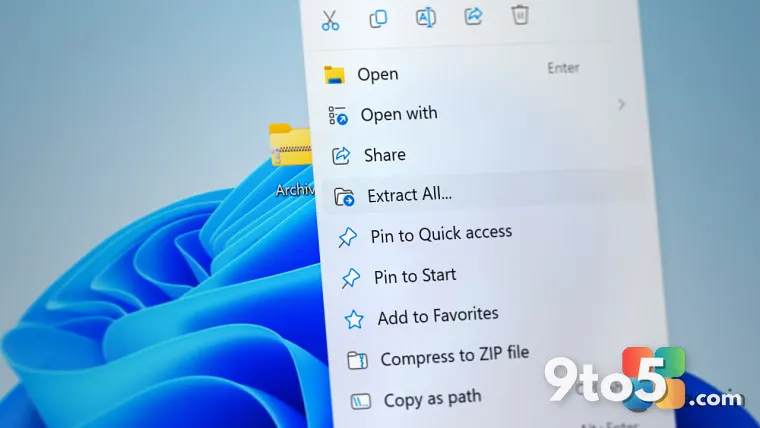
Microsoft is rolling out the update gradually through Windows Update, so it may not appear the moment you install KB5101684. If you want to test it immediately, you can force the feature using ViveTool, an open-source command-line utility from GitHub that unlocks gradually rolled-out Windows features. Download the latest release from the official repository, extract the archive, and open a command prompt in the folder containing vivetool.exe. Run the following command to enable the change: vivetool /enable /id:61014711. After restarting your PC, open File Explorer and verify that the Size column now reflects megabytes or gigabytes. To revert the change, simply run vivetool /disable /id:61014711 and restart again.
Will This Stay or Can You Revert It?
Microsoft has not yet added an official toggle in File Explorer settings to switch between the old kilobyte-only format and the new scaled display. That means the ViveTool method remains the only reversible path for now. IT administrators managing enterprise deployments should note that the feature ID can likely be controlled through Group Policy or Intune configuration profiles once Microsoft publishes the corresponding ADMX templates, though those have not been released yet. For most home users, the scaled unit display will become the default behavior within the next few Windows updates, and the kilobyte-only format will eventually be phased out entirely.
Source: Windows Latest
Build details:
- kb5101684
Over to you: Do you prefer the new scaled size display, or do you still want to see raw kilobytes for precise comparisons?