Microsoft has finally addressed one of Windows 11’s most persistent annoyances: the sluggish, cluttered right-click context menu. The redesigned menu is arriving with the October 2026 optional update, KB5127936. I installed it on my daily-driver PC running Build 26200.9818, and as expected, the new context menu opens instantly. For all the unwelcome app extensions, you can also pick which among them show up when you right-click a file. Options like Send to, Print, and the legacy menu can all be customized from a new Context menu Settings page.
However, Microsoft is rolling it out gradually, so installing the update doesn’t mean you’ll see the new menu right away. Fortunately, ViVeTool can turn it on in a couple of minutes, and we’ll tell you how to enable the new right-click menu.
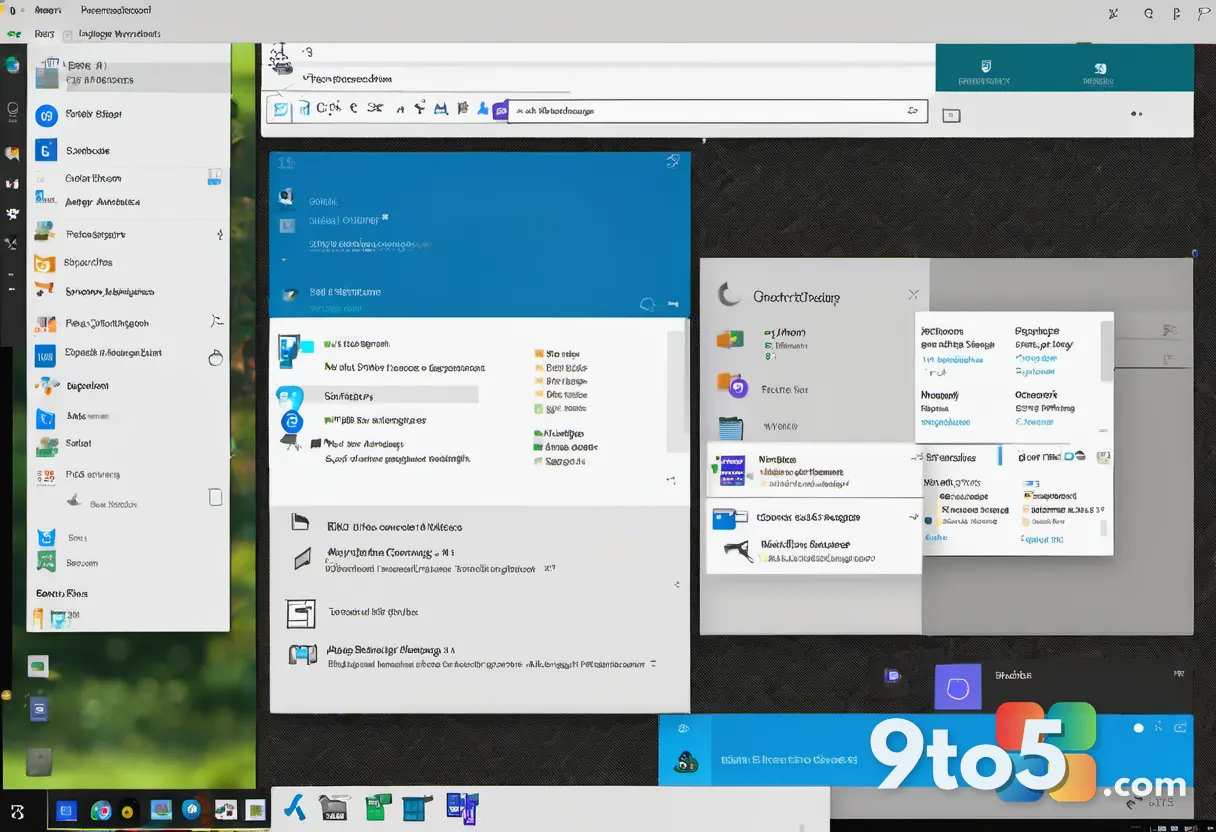
New Context menu in Windows 11 October 2026 optional update. Credit: Windows Latest
How to enable the new Windows 11 right-click menu
Step 1 — Install KB5127936
Open Settings > Windows Update and click Check for updates. If KB5127936 doesn’t show up, turn on Get the latest updates as soon as they’re available and check again. Install the 2026-10 Preview Update (KB5127936) and restart your PC. Run winver to make sure you’re on Build 26200.9818 or 26300.9818.
Step 2 — Check if you already have it
Right-click any file in File Explorer. If you see Customize menu at the bottom, consider yourself lucky, and you don’t need ViVeTool. If you didn’t get it, like the rest of us, follow the steps below:
Step 3 — Download ViVeTool
If you still see the old menu, download ViVeTool from its official GitHub page. Pick ViVeTool-v0.3.4-IntelAmd.zip for Intel and AMD PCs, or ViVeTool-v0.3.4-SnapdragonArm64.zip for Snapdragon PCs. Extract the zip to a folder named ViVeTool in your C drive, so that ViVeTool.exe is in C:\ViVeTool.
Step 4 — Run the command
Right-click the Start button, open Terminal (Admin), and run these two commands one after the other.
cd C:\ViVeTool
vivetool /enable /id:60813048
ViVeTool ID to force enable the new Context menu. Credit: Windows Latest
You should see Successfully set feature configuration(s). Restart your PC and right-click a file again.
Step 5 — Try the other IDs if it doesn’t show up
Some PCs need a second ID. Run this command and restart.
vivetool /enable /id:49453572,60813048
If that still doesn’t work, there’s a third ID for some builds.
vivetool /enable /id:49453572,60813048,61934903
On my PC, 60813048 was enough. Before that, I tried 61456288, which is intended for the redesigned Temporary files page in Settings.
If you want to undo the change, run the command again with /disable in place of /enable. Do keep in mind that ViVeTool turns on features Microsoft hasn’t rolled out to your PC yet, so use it at your own discretion.
Windows 11’s new context menu is rolling out with KB5127936
KB5127936 was released on October 28 for Windows 11 25H2 (Build 26200.9818) and 26H2 (Build 26300.9818). In the release notes, Microsoft says the new menu “opens more quickly, reduces clutter, and gives you more control over the commands and app extensions that appear when you right-click.”
Back in August, Microsoft admitted that the Windows 11 menu “became cluttered and sluggish,” after years of extensions like Ask Copilot and Edit with Clipchamp loading late and making you click the wrong item. Its first attempt at a fix, a Manage file submenu for less-used actions, only made the menu a few lines shorter.
The new menu has a Customize menu button at the bottom, which opens Settings > Personalization > Context menu. According to Microsoft, “No action is required to use the default configuration,” and if you still wish to see the old Windows 10-style menu, just hold down Shift and right-click on your desktop or the file.
I tested Windows 11’s new right-click menu, and it’s finally fast
When I first tested the new menu in August, it was on an Insider build which I ran on an underpowered VM with 4GB RAM. For this test, I’m using my daily PC, where even apps like Google’s Quick Share add their own right-click options.
Before the update, right-clicking an image gave me 20 items below the Cut, Copy, Rename, Share, and Delete icons. Among them were AI actions, Send to My Phone, Share with, Rotate right, Rotate left, and Copy as path, plus seven app extensions (Send with Quick Share, Ask Copilot, Edit with Clipchamp, Edit in Notepad, Edit with Paint, Edit with Photos, and Add to Share hub) and Show more options. This was insanity, and I don’t even use most of these.
The old menu took a good one to two seconds to settle. In my screen recording, it first shows up with AI actions greyed out and the icons missing, and the app extensions are clearly what made it jittery.
The new default menu for that image has just eight items, which are Open, Open with, Compress to, Set as desktop background, Add to Favorites, Properties, App extensions, and Customize menu. All seven app extensions moved to the App extensions submenu, with a new Manage extensions option. AI actions, Send to My Phone, and Share with are gone from the default menu.
And it’s instant. In my recording, the menu shows up fully loaded in the first frame. Since the app extensions only load when I open the submenu, they can’t slow down the main menu anymore.
Every setting you can customize in the new context menu
Settings > Personalization > Context menu has three sections, and Microsoft notes that “Only relevant items will be displayed,” based on the file you right-click.
File actions
- Send to adds the Send to submenu. I don’t use this and kept it disabled.
- Print adds Print (of course), which is handy for documents and images, but most of us may not need this anyway.
- Create shortcut adds an option to create a shortcut to the file, which I kept disabled.
- Copy as path copies the file’s full path, and I know power users who use it often, but I later disabled it.
- Rotate image adds Rotate left and Rotate right, but this option shows up in the ribbon when we select an image, so I kept this too disabled.
App extensions
Microsoft describes this as “Choose which app extensions appear in the main context menu instead of in a submenu.” On my PC, there are toggles for Send with Quick Share (shown as Context menu in the screenshot below, which is a bug), Copilot, Microsoft Clipchamp, Notepad, OneDrive, Paint, Photos, Smart Connect (courtesy of Motorola), and Terminal. Your list will change based on the apps you’ve installed.
Turning on an extension moves it to the main menu. Ask Copilot showed up above App extensions by default, while the rest were in the submenu. It’s fine, though, as I can turn it off easily, and I did. Kudos for not having Copilot in the Context menu!
The Show app extensions submenu toggle is interesting, and shows just how customizable Windows can be. When it’s on, extensions that aren’t in the main menu appear in the submenu. When it’s off, they don’t appear in the context menu. So, if you don’t want Ask Copilot, Clipchamp, or any other extension when you right-click, keep their toggles off and turn off the submenu.
Additional options
- Arrange primary actions inline replaces the row of icons with Cut, Copy, Paste, Rename, Share, and Delete as regular menu items, in a vertical way, which was how Windows 10 did it.
- Keep cloud storage actions in their own section shows OneDrive and other cloud storage actions in a separate section, but only in folders managed by that provider. When it’s off, they show up with other app extensions.
- Show more options brings back the legacy Windows 10-era menu entry. Microsoft’s Marcus Ash said it’s “off by default” and “can be turned on in settings if a user has legacy extensions.” If you use old apps like 7-Zip that only show up in the legacy menu, turn it on. Otherwise, there’s no reason to.
- Move Properties to the bottom of the context menu puts Properties last, like in Windows 10. If you combine it with inline actions, the menu feels a lot like Windows 10, with a modern look.
Windows 11’s right-click menu is finally something you can make your own
Along with the faster File Explorer launch from June, Microsoft has now fixed the two things that made right-clicking in Windows 11 annoying: the frustrating delay and the annoying clutter. The fact that you don’t need registry hacks or third-party apps to clean things like Copilot and Clipchamp is definitely a win in my books.
There’s nothing to complain about here. If the new menu isn’t on your PC yet, ViVeTool is there for you. Note that if you skip the Optional update, your PC will still get this new context menu in the mandatory November 2026 update.
Do you think Microsoft should have included this in the mandatory update instead of the optional one? Let us know in the comments.
Source: Windows Latest
Over to you: Do you think Microsoft should have included this in the mandatory update instead of the optional one?