Windows 11 quietly enables the Windows 11 advertising ID by default, a feature designed to personalize ads across the apps you use. While this can make your experience more relevant, it also raises questions about how much of your activity is being tracked. If you value your privacy, understanding what this ID does and how to manage it is essential.
This guide breaks down exactly what the Advertising ID is, why it matters, and the steps you need to take to turn it off or reset it. Whether you are a casual user or a privacy-conscious power user, knowing how to control this setting puts you back in charge of your digital footprint.
What is the Advertising ID?
The Advertising ID is a unique, random string of characters assigned to your user account on Windows 11. It is generated by Microsoft and used by apps and developers to serve you personalized advertisements. Unlike a traditional cookie that tracks your web browsing, this ID is specific to the apps installed on your device.
It does not directly identify you as an individual, but it helps advertisers build a profile of your interests based on the apps you use and the content you interact with. For example, if you frequently use a fitness app, you might see ads for health products. The ID allows advertisers to target you without needing your personal data like your name or email.
One key feature of the Advertising ID is that it is resettable. If you feel your ad profile has become too detailed or inaccurate, you can reset the ID at any time. This generates a new random string, effectively starting your ad profile from scratch. However, resetting the ID does not stop ads; it just changes the identifier used to target them.
Why should you care about privacy?
While the Advertising ID is not as invasive as some tracking methods, it still contributes to the broader ecosystem of digital advertising. Every time you use an app, that ID is sent to advertisers, allowing them to refine their targeting over time.
For many users, the trade-off between personalized ads and privacy is worth considering. If you prefer a more anonymous experience, turning off the Advertising ID is a simple step that can help reduce the amount of data collected about your app usage. It is important to note that turning off the ID does not stop ads entirely; it just means the ads you see will be less relevant to your interests.
How to turn off the Advertising ID
Disabling the Advertising ID in Windows 11 is straightforward and can be done through the Settings app. Here is how you can take control of this feature:
- Open Settings: Click on the Start menu and select the gear icon, or press Windows + I on your keyboard.
- Navigate to Privacy: In the left sidebar, click on Privacy & security.
- Find General Settings: Scroll down to the General section and click on it.
- Toggle the Switch: Look for the option labeled Let apps show me personalized ads by using my advertising ID. Toggle this switch to Off.
Once you disable this setting, apps will no longer be able to use your Advertising ID to target ads. You may notice that the ads you see become less relevant, but your privacy is enhanced. If you change your mind later, you can simply toggle the switch back on.
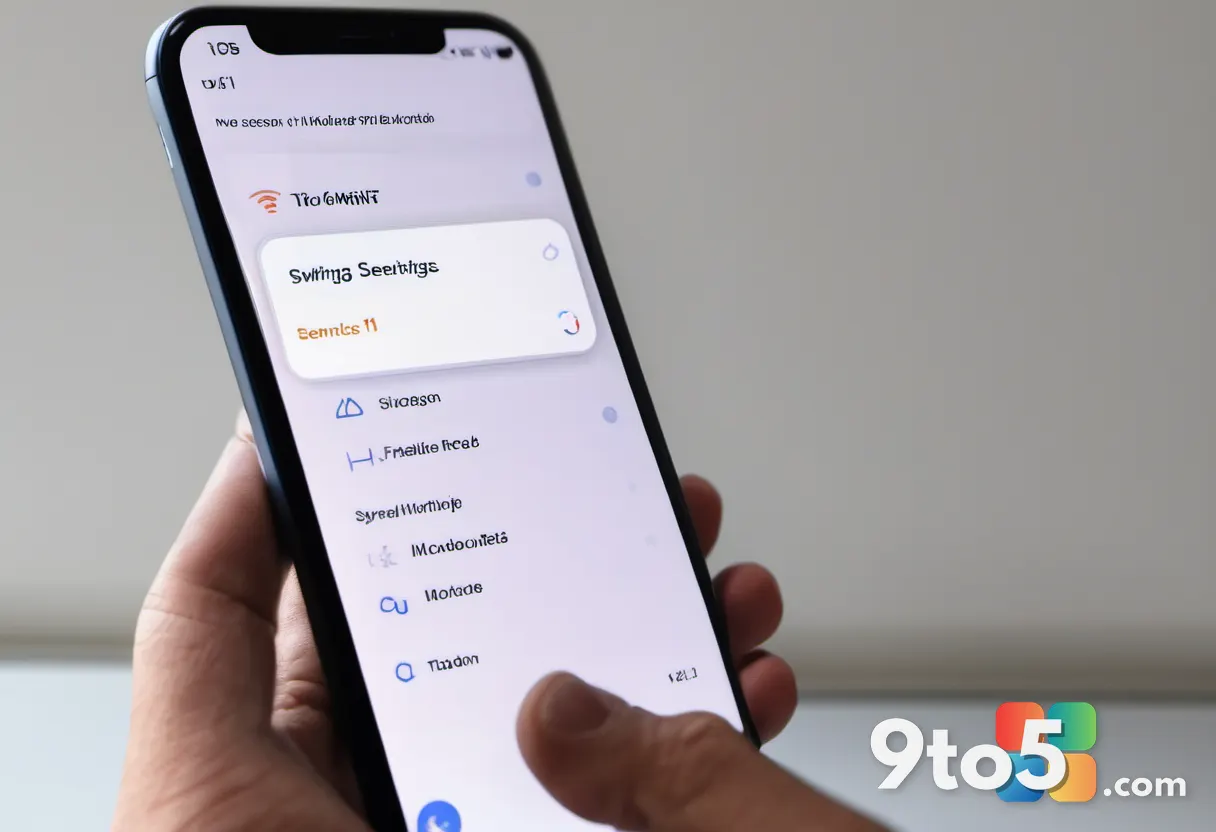
What happens when you disable it?
When you turn off the Advertising ID, apps will receive a generic, non-personalized identifier instead. This means advertisers lose the ability to track your app usage patterns for ad targeting purposes. However, this does not mean you will be bombarded with irrelevant ads; it simply means the ads will be based on the content you are currently viewing rather than your long-term interests.
Some users report that disabling the Advertising ID has a minimal impact on their experience, as many apps rely on other methods for ad targeting. Others find that it significantly reduces the amount of targeted advertising they encounter. It is worth experimenting with this setting to see how it affects your device.
Additionally, you can still reset the Advertising ID even if it is turned off. This can be useful if you want to start fresh with a new ad profile without permanently disabling the feature. To reset the ID, go to Settings > Privacy & security > General and click the Reset button next to the Advertising ID option.
What this means for you
For everyday Windows 11 users, the Advertising ID is a behind-the-scenes feature that can be easily managed. If you are comfortable with personalized ads, you may choose to leave the setting as is. However, if you are concerned about privacy, taking a few minutes to disable the Advertising ID can help you maintain a more anonymous experience.
This change is particularly relevant for users who share their devices with others or who use their PCs for sensitive tasks. By controlling the Advertising ID, you can limit the amount of data that is collected and shared with third-party advertisers. It is a small step that can make a meaningful difference in your digital privacy.
How to manage your privacy settings
Turning off the Advertising ID is just one of many privacy settings available in Windows 11. You can further enhance your privacy by reviewing other options in the Privacy & security section, such as disabling location tracking, restricting app diagnostics, and managing background apps.
Microsoft has made it easier than ever to customize your privacy preferences, and taking the time to review these settings can help you create a more secure and personalized computing environment. Whether you choose to disable the Advertising ID or keep it enabled, being informed about how your data is used is the first step toward protecting your privacy.
Source: Neowin
Over to you: Have you already turned off the Advertising ID, or do you prefer the personalized ads?
You may also like
 How to Set Up Windows Hello Face Recognition or Fingerprint Login on Windows 11
 How to Enable Windows Hello Face Recognition or Fingerprint Login on Windows 11
 How to Set Up Windows Hello Face Recognition or Fingerprint Login on Windows 11
 Make Your Windows 11 Desktop Calmer: 7 Features to Disable Immediately