Microsoft is rolling out fresh Windows 11 Insider Preview builds, and the headline addition is a redesigned Windows Search that lets you run quick actions without leaving the results pane. Coming right after the Windows + Surface event, the new releases land on the Beta and Experimental channels with a couple of notable features riding along.
#1 The new builds this week
Microsoft released new Windows 11 Insider Preview builds on 7 October 2026, landing straight after its Windows + Surface event. Here is the full list, with build numbers preserved exactly as published:
- Beta channel: Build 26220.9606
- Experimental channel: Build 26340.9616
- Beta (26H1): Build 28020.3172
- Experimental (26H1): Build 28120.3181
- Experimental (Future Platforms): Build 29683.1000
The Future Platforms build is a new addition to the lineup. It targets hardware and features that are further out on Microsoft’s roadmap, so expect it to be the most experimental of the group. The 26H1 builds track the next major feature update, while the standard Beta and Experimental builds follow the current servicing line.
Insiders typically use the Experimental channel to test the most cutting-edge changes before they reach the more stable Beta channel. This week’s Experimental builds are where the new Windows Search and Battery Status widget are being tested first.
#2 New Windows Search experience with inline actions
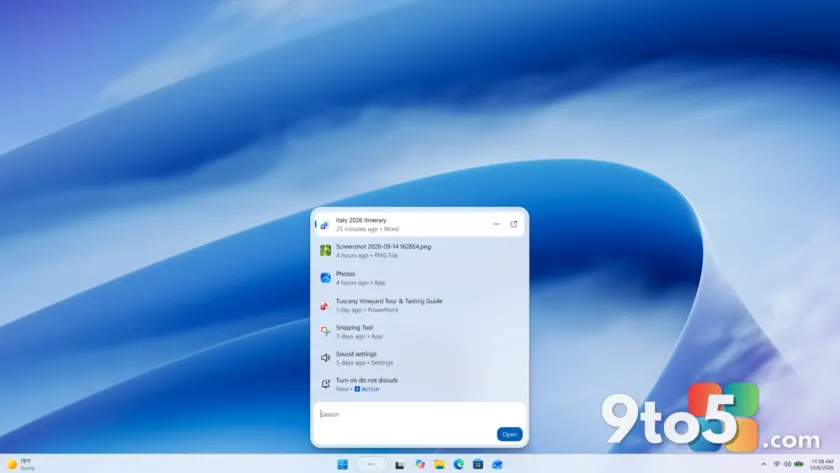
The biggest change is a brand-new Windows Search experience, and it is worth a look. According to the Windows Insider Blog, the redesigned search is built on WinUI 3, which Microsoft says makes it faster and more efficient than the previous version. WinUI 3 is Microsoft’s modern UI framework, and building search on it is part of a longer effort to refresh core system apps with a lighter, more consistent design.
The layout has been streamlined so results are easier to scan at a glance. What stands out, though, is the addition of inline actions. Instead of just finding an app or file, you can complete small tasks directly from the search results. As described by Microsoft, you can turn on dark mode or Bluetooth, adjust your screen brightness, mute your device, or arrange open windows — all without opening a separate settings menu.
Microsoft is also improving how Windows Search understands what you are looking for, with better matching for typos and synonyms. The team noted it will keep fine-tuning these improvements over the coming weeks, so the experience is expected to get sharper as the rollout continues.
#3 Battery Status widget
On the Experimental channel, Microsoft is adding a Battery Status widget to the Widgets board. The idea is straightforward: give you a unified view of battery levels for both your PC and connected peripheral devices in one place, so you do not have to hunt through multiple UI locations to check power status.
This is part of Microsoft’s broader push to make the Widgets board more useful for everyday moments, rather than just a place for weather and news headlines. Adding it is simple — open the Widgets board, tap Add widgets, and select Battery Status from the list.
It is currently available only on newer Experimental builds, so if you do not see it yet, you will need to move to the appropriate channel. Insiders running the Experimental (26H1) build should look for it there as well.
What This Means for You
For most Windows users, these updates are incremental rather than disruptive. The Battery Status widget is a small quality-of-life improvement that saves a few taps when you want a quick power check. The redesigned Windows Search is the more significant change, and it is the kind of thing you will notice as you reach for the search box more often.
Because these features are on the Experimental channel, they are not ready for every machine. Experimental is Microsoft’s most volatile Insider channel, so you may encounter bugs. If you want a smoother day-to-day experience, the Beta channel is the sweet spot for most Insiders who want to try new features without living on the edge.
How to Get It
To try the new Windows Search and Battery Status widget, switch to the Experimental channel and download the matching build. You can change channels in Settings > Windows Update > Windows Insider Program, then check for updates. Insiders on the Beta channel will receive Build 26220.9606 (or Build 28020.3172 for 26H1 testers) instead.
If you prefer to stick with your current build, there is nothing to do — these changes simply have not rolled out to your channel yet. You can also watch the dedicated Windows Insider Blog post for the latest details on the new search experience as Microsoft continues to refine it.
Source: Windows Blog
Over to you: Will you switch to the Experimental channel to try the new Windows Search, or stay put on Beta?