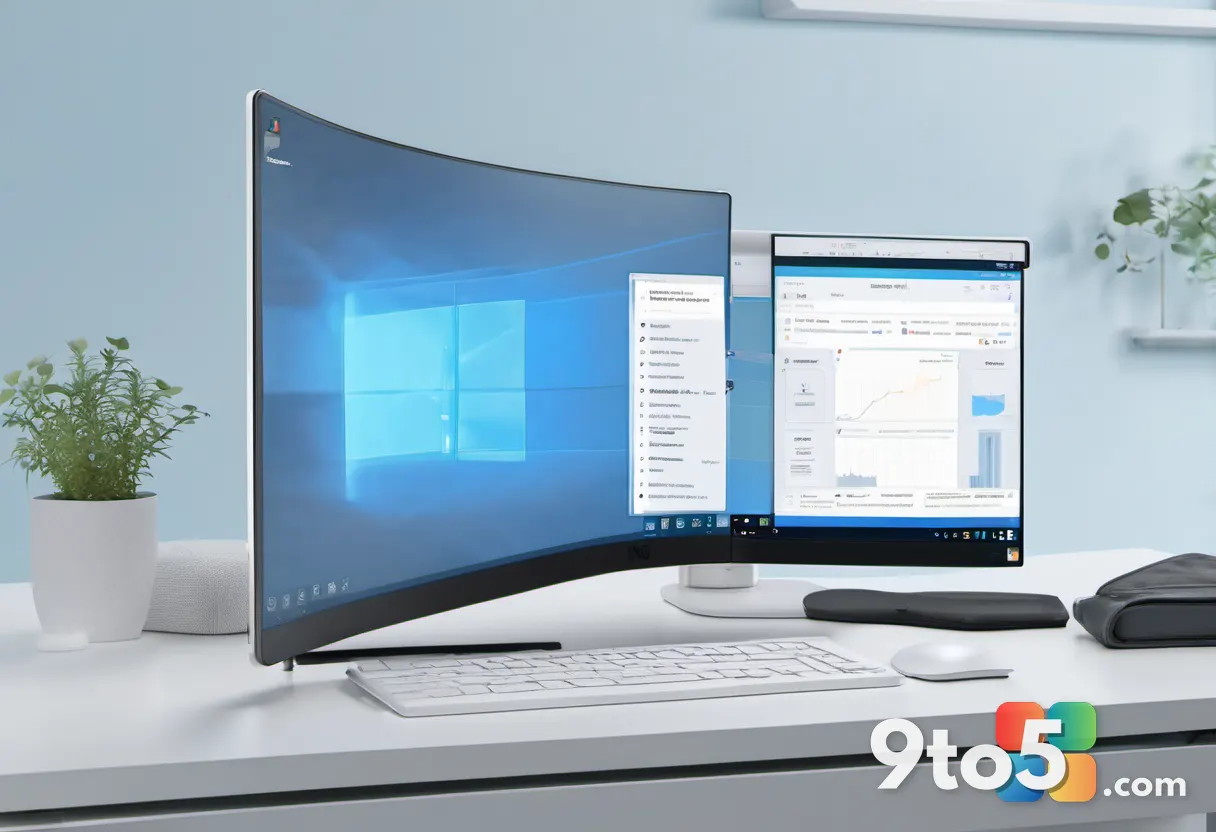
Windows 11 is closing a long-standing privacy gap between Microsoft Store apps and traditional Win32 desktop software. In the latest Experimental build, users can now manage permissions for individual desktop applications, granting or revoking access to the camera, microphone, and location on a per-app basis. This shift marks a significant evolution in how Windows handles hardware access, moving away from blanket policies toward granular, user-driven security.
According to reports from the Windows Insider community, this change first appeared in Build 26340.9212, which rolled out to the Experimental Channel on August 17, 2026. While Microsoft has not officially documented the feature in its release notes, independent testing confirms that the operating system now treats desktop apps with the same granular privacy controls previously reserved for sandboxed Store applications.
Ending the era of the shared desktop toggle
For years, Windows has maintained a strict boundary between Store apps and Win32 programs. Store apps were required to request permissions through a standardized system, allowing users to grant access to specific apps like Teams or Xbox without affecting others. Win32 applications, however, operated under a blanket policy. If you wanted to allow microphone access for Discord, you had to enable it for every desktop application installed on your system, including background utilities that might not need such access.
The new update fundamentally alters this dynamic. When you navigate to Settings > Privacy & security, you will no longer see a single, monolithic switch labeled “Let desktop apps access your camera” or “Let desktop apps access your microphone.” Instead, the interface now lists individual applications. Apps like Microsoft Edge, Brave, Chrome, and Steam appear as distinct entries, each with its own toggle switch. This means you can now block Chrome from accessing your camera while still allowing Discord to use it, a level of control that was previously impossible without third-party tools or complex registry edits.
Granular control across Camera, Microphone, and Location
The updates extend across three primary privacy categories: Camera, Microphone, and Location. In the Camera settings, desktop applications are no longer grouped into a generic “desktop apps” bucket. Instead, they sit alongside Store apps like the native Camera app and Teams, allowing for precise management. The same restructuring applies to Microphone and Location permissions.
For example, if you use a location-based desktop utility but prefer not to share your location with a web browser, you can now disable location access for that browser specifically. This granularity is particularly useful for users who run multiple applications simultaneously and want to minimize the attack surface for potential privacy intrusions. It also simplifies troubleshooting; if an app is unexpectedly using your microphone, you can quickly identify and block the culprit without disabling permissions for your entire system.
New permission prompts for Win32 applications
Beyond the settings menu, Windows 11 is introducing a new user experience for permission requests. When a desktop application first attempts to access the camera or microphone, the operating system now displays a centered system dialog asking for your approval. Previously, Win32 apps could often access these resources in the background without explicit user consent, relying on the blanket toggle to govern access.
This prompt ensures that you are aware of when an application is trying to use sensitive hardware. It mirrors the behavior of Store apps and provides a clear audit trail of which applications have been granted access. If you deny permission, the app will be unable to use the resource until you manually change the setting in Privacy & security.
Context and technical background
The implementation of these desktop app privacy controls has drawn attention from researchers and privacy advocates alike. Windows watcher phantomofearth noted that the feature may require enabling a specific feature flag, Win32SignatureIdentity (60730253), to function correctly. While other users, including Jakub, reported seeing the prompts immediately after updating, the inconsistent rollout suggests Microsoft is still refining the underlying architecture.
Additionally, Windows researcher Rafael Rivera pointed out that desktop apps have technically been listed under the shared permission switch since Windows 10 version 1903. The key distinction now is that Windows finally allows you to toggle each entry individually rather than just viewing them in a static list. Rivera also raised questions about the distinction between signed and unsigned applications, noting that the effectiveness of these controls depends on how thoroughly the Capability Access Manager enforces permissions in-process and whether they are securely stored in the user registry hive.
What this means for you
For everyday users, this update represents a significant step toward parity between the security models of Store and desktop applications. You no longer have to choose between convenience and privacy when installing traditional software. The ability to toggle permissions individually reduces the risk of accidental data exposure and gives you greater confidence in the applications you run. It also aligns Windows more closely with privacy-focused operating systems that have long offered per-app hardware controls.
However, it is important to note that these changes are currently in the Experimental phase. Features in this channel can be modified or removed before reaching a public release. The timing of this update also comes shortly after Microsoft’s GDID tracking system drew scrutiny over data collection practices, and after reports of the Capability Access Manager consuming up to 500GB of storage on some PCs earlier this year. Microsoft has not confirmed when these controls will become standard in stable releases of Windows 11.
How to get it
To access these new privacy controls, you must join the Windows Insider Program and switch to the Experimental Channel. You can do this by navigating to Settings > Windows Insider Program and selecting the Experimental option. Once enrolled, you will receive updates for Build 26340.9212 or later. If the individual toggles do not appear immediately, try enabling the Win32SignatureIdentity feature flag as mentioned by community members.
Keep in mind that this is a preview feature. While it addresses a long-standing privacy concern, Microsoft has not confirmed when these controls will become standard in stable releases of Windows 11. Users who prefer stability should wait for official confirmation before upgrading to the Experimental channel.
Source: Windows Latest
Over to you: Will you enable the Experimental channel to try these new privacy controls, or do you prefer to wait for a stable release?