The Xbox App on Windows 11 has quietly become the default launcher for many PC gamers, thanks to its ability to aggregate titles from Steam, Epic Games Store, Ubisoft Connect, and GOG into a single library. But there is a persistent visual flaw that has bothered users for years: the artwork pulled in for non-Xbox titles is often a low-resolution icon, a stretched screenshot, or a completely mismatched cover. It looks nothing like the polished, community-curated box art you see inside Steam itself.
According to reporting from Windows Central, the fix is already here, and it does not require a third-party launcher or a registry tweak. Instead, you can use the SteamGridDB widget for Windows 11 Game Bar to apply custom artwork directly to your Xbox App library. The solution is lightweight, officially distributed through the Microsoft Store, and works entirely within the Game Bar overlay.
What the SteamGridDB Widget Actually Does
SteamGridDB has long been the go-to database for gamers who want to replace the default grid art in Steam, Lutris, and other launchers. The community has spent years cataloging high-resolution box art, title screens, and custom illustrations for thousands of titles. Previously, that database was mostly accessible through SteamOS plugins or standalone desktop applications.
The new Game Bar integration changes how the artwork is applied. Rather than running as a background application that hooks into the Xbox App’s file structure, the widget operates inside the Game Bar overlay. When you open Game Bar, navigate to the Widgets menu, and launch SteamGridDB, you are presented with a searchable interface that pulls directly from the community database. You select a game, browse the available artwork, and confirm your choice. The widget then writes the reference to your Xbox App library metadata, which is why it appears as a Game Bar widget rather than a standalone app.
Windows Central notes that while the selection density is not quite as vast as the SteamOS plugin experience, the results are consistently a step up from the stock icons. Even older or niche titles typically have at least one piece of artwork that replaces the default low-resolution placeholder with something visually coherent.

How to Install and Use It
Getting the widget running is straightforward, though it requires a few steps that differ from installing a traditional application. The widget is available directly from the Microsoft Store under the SteamGridDB listing. Once the installation completes, you do not launch it from the Start menu.
Instead, press Win + G to open the Game Bar overlay. Navigate to the Widgets panel, locate SteamGridDB in the available widgets list, and pin it if it is not already visible. From there, you can search for any game in your Xbox App library. When you find the title, tap the search icon to pull up matching artwork from the database. Select the image you want, confirm the choice, and close the overlay.
The change takes effect the next time you open the Xbox App and view your library. The new artwork is cached locally, so it does not require an internet connection to display. If you ever want to revert a specific title, you can simply reopen the widget, search for the game again, and choose a different image or remove the override.
What This Means for You
For users who treat the Xbox App as their primary gaming hub, this widget solves a visual consistency problem that has existed since Microsoft began aggregating third-party launchers. The Xbox App already handles game activation, cloud saves, and Game Pass integration seamlessly, but the library view has always been a compromise between different storefronts. Low-resolution icons, mismatched aspect ratios, and outdated covers have been a common complaint in community forums and support threads.
This widget bridges that gap without forcing you to abandon the Xbox App. You keep your existing Game Pass subscriptions, your activation shortcuts, and your unified settings, but you get the visual polish that a dedicated library manager would normally provide. It is also worth noting that the widget does not interfere with game performance. Because it only updates library metadata and does not inject code into running titles, you should not see any impact on frame rates, load times, or anti-cheat systems.
Why It Matters for Desktop and Handheld Users
While the widget works equally well on a standard desktop or laptop setup, it is particularly useful for Windows 11 handhelds like the ASUS ROG Ally, Lenovo Legion Go, and the Xbox Ally. Handheld gamers often rely on the Xbox App to launch non-Steam titles because it provides a consistent fullscreen interface that scales well to smaller screens.
On a 7-inch display, a low-resolution icon takes up a significant portion of the screen and can make a library feel cluttered or outdated. Applying high-resolution box art through the Game Bar widget restores the visual hierarchy that handheld gamers expect. It also reduces the cognitive load when scrolling through dozens of titles, since your eyes can quickly identify games by their cover art rather than trying to read tiny, pixelated text.
The widget’s reliance on Game Bar also means it works regardless of which storefront originally installed the game. Whether a title came from Steam, Epic, or a direct installer, the artwork override applies uniformly across the Xbox App library.
How to Get It
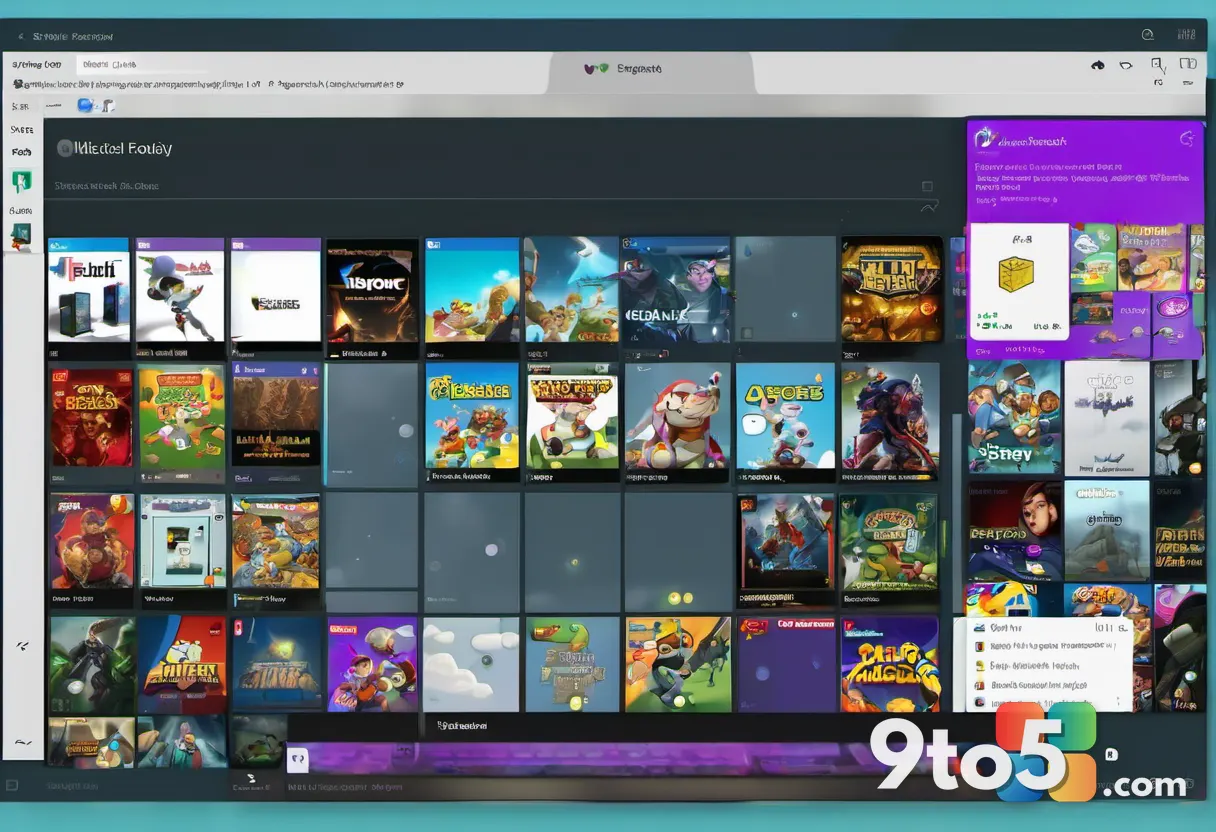
You can download the SteamGridDB widget directly from the Microsoft Store. Search for SteamGridDB in the Store app, verify the publisher details, and click Install. The widget is free and does not require a subscription or account creation to use the core artwork browsing features.
After installation, open Game Bar with Win + G, navigate to the Widgets menu, and launch SteamGridDB. From there, follow the search and select workflow described above. If the widget does not appear in your Game Bar menu after installation, restart the Xbox App or log out and back into Windows to refresh the widget registry.
For users who want to manage artwork in bulk or export their custom grid collections, the full SteamGridDB desktop application remains available for advanced workflows. However, for most Xbox App users who just want their library to look consistent, the Game Bar widget is the fastest path to a cleaner setup.
The Xbox App continues to evolve as Microsoft’s central gaming interface on Windows 11, and small quality-of-life integrations like this widget help close the gap between a unified launcher and a polished user experience. If you are already using the Xbox App to launch titles from other stores, applying custom artwork is a quick win that takes less than a minute per game.
Source: Latest from Windows Central
Over to you: Are you keeping the Xbox App as your main launcher, or have you switched to a dedicated library manager?
You may also like
 Windows 11 Movable Taskbar Finally Arrives in Insider Preview Build
 Microsoft Engineer Gives Popular Unofficial Windows 11 App a Fresh Coat of Paint
 Microsoft’s WinUI 3 Modernization Reaches Print Management in New Windows 11 Build
 Microsoft Changes How Windows 11 Displays File Sizes in Upcoming Patch Tuesday Update