Your Windows PC is almost certainly running more third-party services than you realize. Those quiet background processes keep your printer, antivirus, and gaming clients working — but they can also slow things down, hog system resources, or quietly cause problems. Knowing which services are running and which apps they belong to is the first step toward a faster, more stable machine.
Services are different from regular programs. Instead of waiting for you to launch them, they run silently in the background, often starting automatically when you boot up. Some are part of Windows itself; others come from software you installed. This guide walks through several ways to see the third-party ones and identify their parent apps.
What third-party services actually are
Before you start hunting, it helps to understand what you’re looking for. A Windows service is a background program that operates independently of any logged-in user. Services are managed by the Windows Service Control Manager and can be set to start automatically, on demand, or be disabled entirely.
First-party services belong to Windows — think of things like the Windows Update service or the Print Spooler. Third-party services come from software you’ve installed, such as an antivirus suite, a printer driver, a cloud sync tool, or a game launcher. The challenge is that many services don’t display their parent program’s name by default, so a service might show up with an obscure name that tells you nothing about which app it belongs to.
Method 1: Use Task Manager
Task Manager is the quickest way to get a high-level look at what’s running, and modern versions of Windows 11 let you spot third-party services without much effort.
- Press Ctrl + Shift + Esc to open Task Manager directly.
- If you see the compact view, click More details at the bottom to expand it.
- Select the Services tab from the left-hand menu.
- Look for the Company column. Services with a blank or Unknown company are typically Windows components, while those listing a vendor name — like Adobe or HP — are third-party.
This view shows you which services are running and which are stopped, plus a rough sense of who made them. It’s fast, but it won’t give you every detail you might need for deeper troubleshooting.
Method 2: Open the Services app
For a complete, sortable list, the dedicated Services app is the most reliable option.
- Press Win + R to open the Run dialog, type services.msc, and press Enter.
- Alternatively, search for Services in the Start menu.
- The window that opens lists every service installed on your PC, alphabetically.
Each entry shows its status (Running or Stopped), startup type, and description. To identify the parent program, double-click a service and check the Log On As tab along with the description field. Third-party services often include the vendor or product name in their description, which helps you connect the service to the software that installed it.
If the Company column isn’t visible, right-click the column header and ensure it’s checked so you can sort by vendor.
Method 3: Use PowerShell for a filtered list
If you’re comfortable with the command line, PowerShell can pull up just the third-party services you care about, saving you from scrolling through hundreds of entries.
The general approach is to query services and filter out the ones associated with Microsoft, then display the relevant details. This is especially useful on systems with a large number of installed services, since you can quickly narrow the results to the ones worth investigating.
Because exact command syntax can vary depending on your build, it’s worth checking the latest documented examples rather than relying on memory — a small typo can return nothing or throw an error.
Method 4: Check startup programs with msconfig
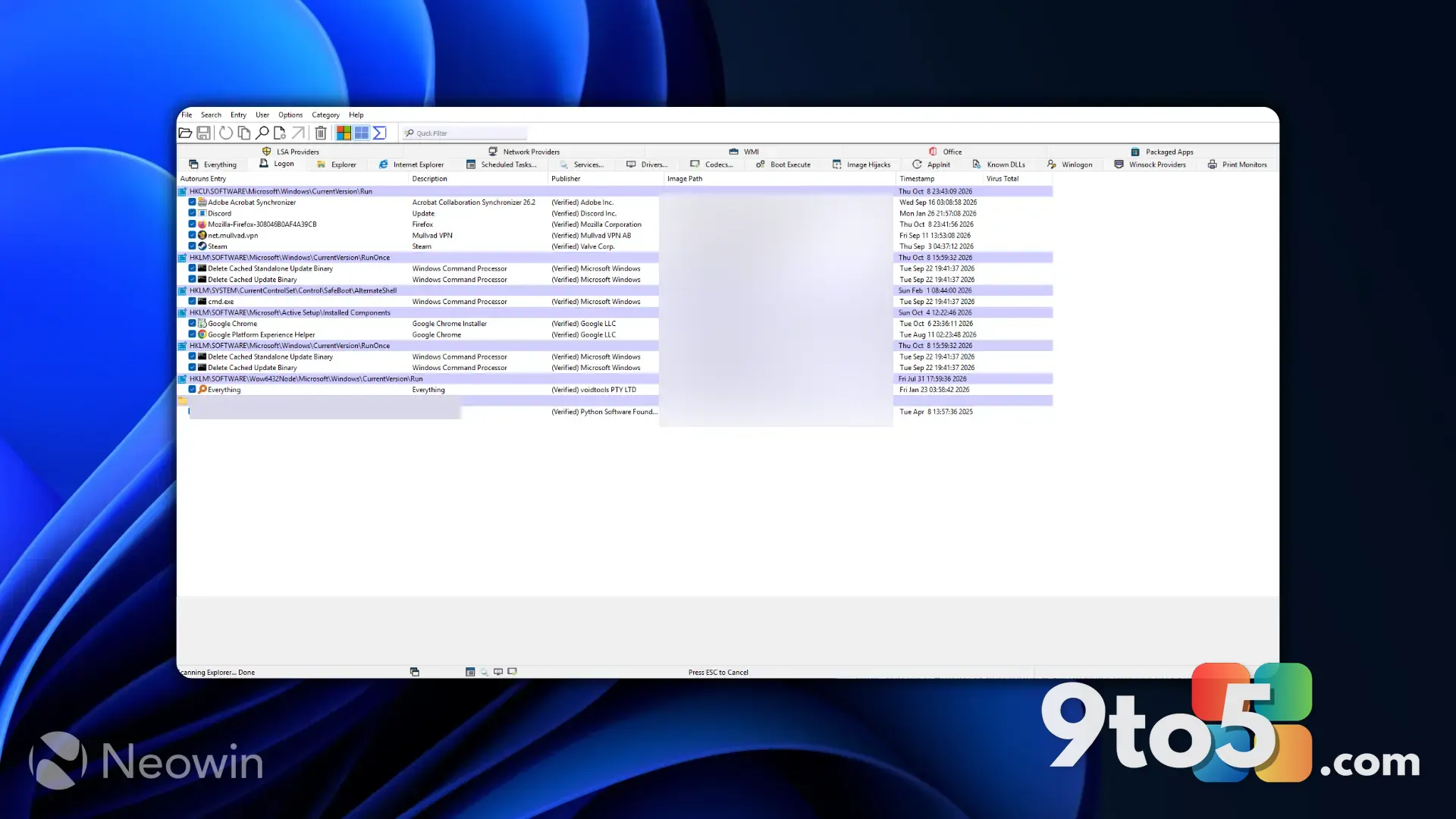
Some third-party services and helper programs launch automatically at boot, which is a common cause of slow startup times. The classic msconfig tool and the Startup tab in Task Manager both let you see what’s loading when you turn on your PC.
- Type msconfig in the Run dialog to open System Configuration.
- The Startup tab (in Windows 11, which redirects you to Task Manager) lists programs enabled at boot, along with their publisher.
- Disabling an unfamiliar entry here can speed up boot times, but do so carefully — see below.
What to do once you find them
Finding third-party services is only half the job. Once you know what’s running, you may want to act on it — but proceed with caution.
- Don’t disable services blindly. Turning off a service you don’t recognize can break the app that depends on it. Note the name and description before changing anything.
- Uninstall what you no longer need. If a service belongs to software you’ve stopped using, removing the program through Settings > Apps is cleaner than disabling the service alone.
- Watch for unknown vendors. A service with an Unknown company and a suspicious file path could warrant a closer look, especially if your PC is behaving oddly.
What this means for you
For most users, third-party services are simply the price of having useful software installed, and there’s nothing wrong with them running. But if your PC feels sluggish, your startup is slow, or you’re troubleshooting a specific problem, knowing how to identify these background processes gives you real control over your system.
The methods above range from a quick Task Manager glance to a deeper PowerShell review, so you can pick the level of detail that fits your situation. Take a look around your own PC sometime — you may be surprised how many background services are working (or idling) on your behalf.
Source: Neowin
Over to you: Which method do you reach for first — Task Manager, the Services app, or PowerShell — and did you find any services you didn’t know were running?