New Windows 11 Insider Preview builds for September 8
Microsoft pushed fresh Windows 11 Insider Preview builds to Windows Insiders today, landing on the Beta and Experimental channels with a focus on cross-device continuity and accessibility polish. Here are the exact builds available right now, preserved as shipped.
- Beta channel: Build 26620.9343
- Experimental channel: Build 26340.9354
- Beta (26H1): Build 28020.2904
- Experimental (26H1): Build 28120.2912
- Experimental (Future Platforms): Build 29661.1000
All three notable features in this week’s release ship on the Experimental channel, so testing them today requires you to be enrolled there. Below is what each one actually does and why it matters.

#1 Cross-device resume improvements
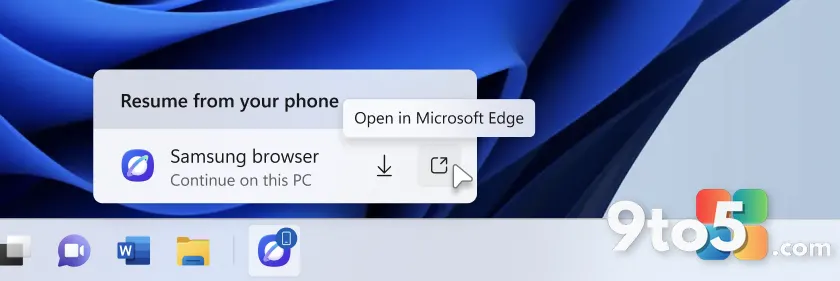
When you start a task on your phone and want to pick it up on your PC, Windows’ cross-device continuity is supposed to make that handoff seamless. The catch with this week’s update is a specific gap: resuming a webpage from your phone only worked cleanly if the same browser was already installed on your PC. If it wasn’t, you were effectively stuck.
The fix lives in the Resume hovercard. Now, when you resume a webpage from a phone whose browser isn’t installed on your PC, the hovercard offers two paths. You can open the page immediately in your PC’s default browser, or you can install the phone’s browser for a native experience. Either way, you continue where you left off without being forced to install an app first.
This is a small but meaningful change to how the phone-to-PC handoff behaves. It removes the friction of a mandatory app install just to view a page you were already reading on your phone, which is exactly the kind of continuity Microsoft has been pushing across its ecosystem.

#2 Narrator math reading and navigation
On the accessibility front, Microsoft is adding math reading and navigation support to Narrator, the screen reader for people who are blind or have low vision. The stated goal is to give users a clearer, more natural way to engage with math content.
Math sits at the center of STEM education and much of professional work, and until now, reading equations, formulas, and scientific notation through a screen reader has been far from ideal. This update is designed to let students and professionals independently read, understand, and explore that content with more confidence.
Because the feature is on the Experimental channel, Microsoft points readers to the detailed release notes for the full breakdown of how the math navigation actually works. In practice, that means early testers will be the ones to surface bugs before this reaches a wider audience.
#3 Magnifier now understands each display
The Magnifier tool has long carried a frustrating limitation for multi-setup users: zooming stretched a single magnified view across every monitor. Move the magnified window around and one screen’s zoom would follow you everywhere, with screen edges blurring together as the view spilled over.
That’s changing. With this update, each monitor keeps its own view at its own zoom level. You can have a writing screen at 300% magnification while a reference screen stays at 150%, and the magnified view no longer bleeds from one display into the next.
The reasoning is practical. Different tasks and different screen resolutions often call for different levels of magnification to stay comfortable to read, and forcing a single zoom across all displays made that impossible. The release also shows new per-display controls, including independent zoom and view-locking options, giving multi-monitor users finer control over how each screen behaves.
What This Means for You
For most Windows users, these updates are a reminder of where Microsoft is focusing the Insider program right now: smoother cross-device continuity and deeper accessibility. The cross-device resume change is the one that touches the widest audience, since it affects anyone who works across a phone and a PC.
The Narrator math support and per-monitor Magnifier improvements matter most to specific groups—blind or low-vision users, and anyone running a multi-monitor desk—but they reflect the kind of layering polish the Insider program adds ahead of broader availability. None of this is a security patch or a critical fix; it’s the steady accumulation of quality-of-life improvements.
How to Get the New Builds
Since these features are on the Experimental channel, you’ll need to be enrolled there to test them today. From there, head to Settings > Windows Update > Windows Insider Program and check for updates to pull the latest preview build.
If you’re not ready for the rawness of the Experimental channel, the Beta and Experimental channel builds are the ones most users should target if they want recent features without waiting for a stable release. And if you’re on a specific build like 26H1, note that separate 26H1 builds are also shipping today, so check your channel’s release notes before updating.
Source: Windows Blog
Over to you: Which of this week’s features—cross-device resume, Narrator math reading, or per-monitor Magnifier—will you be testing first?