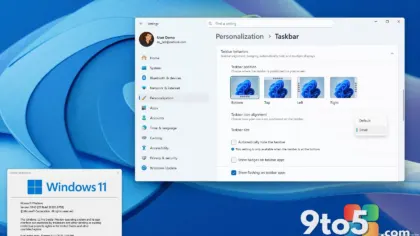
Microsoft is making a core Windows 11 default feature better by trying to make it more useful, as enthusiasts often find it rather annoying. The feature in question is the Windows 11 recommended section in the Start Menu, a default component that surfaces suggested apps and files based on your usage patterns. While intended to help users find things quickly, many power users and privacy-conscious individuals have long considered it unnecessary clutter that is surprisingly difficult to remove entirely.
According to recent reports, Microsoft is actively working on improvements to this section, aiming to make it more relevant and less intrusive. The goal is to balance the utility of personalized suggestions with the desire for a cleaner, more customizable desktop environment. This move comes after years of feedback from the Windows community, where the recommended section has been a frequent topic of discussion in forums, feedback hubs, and third-party tool development.
Why the Recommended Section Draws Criticism
The Start Menu in Windows 11 was redesigned to be more centered and visually distinct from its Windows 10 predecessor. Part of this redesign included the addition of a ‘Recommended’ section at the bottom, which displays recently opened files and frequently used apps. For many users, this section serves a purpose, but for others, it feels like an unwanted intrusion into their workspace.
The primary complaints revolve around three areas: relevance, privacy, and control. Users often find that the suggested apps and files are not always the ones they use most, leading to confusion. From a privacy standpoint, some individuals are uncomfortable with the system tracking and displaying their activity. Finally, the inability to easily disable or remove this section has frustrated users who prefer a minimalist Start Menu layout.
While it is possible to hide the recommended section through Group Policy or Registry edits, these methods are not user-friendly and can be overwritten by future updates. This has led to a reliance on third-party tools like Start10 or StartAll Back, which allow for deeper customization of the Start Menu.
What Microsoft Is Changing
Microsoft’s current efforts to improve the recommended section appear to focus on enhancing its utility and giving users more control. Reports suggest that the company is exploring ways to make the suggestions more accurate by refining the algorithms that determine which apps and files to display. This could mean fewer irrelevant items and a more personalized experience for those who choose to keep the section enabled.
Additionally, there are indications that Microsoft is considering adding more granular settings to allow users to customize or disable specific parts of the recommended section. This could include options to hide recently opened files, frequently used apps, or both. Such changes would address many of the privacy and control concerns raised by users.
It is worth noting that Microsoft has historically been cautious about removing core features entirely, even when there is significant demand. Instead, the company tends to focus on making features more configurable and useful. This approach aligns with their broader strategy of balancing innovation with user preference, especially in an operating system as widely used as Windows 11.
How to Disable the Recommended Section Today
Until Microsoft rolls out these improvements, users who wish to remove the recommended section can still do so through system settings, though the process requires a few steps. Here is how you can currently disable it:
- Using Settings: Open Settings and navigate to Personalization > Start. Toggle off the options for ‘Show recently opened items in Start, jump lists, and File Explorer’ and ‘Show most used apps.’ This will hide the recommended section, though some elements may still appear.
- Using Group Policy Editor: For Windows 11 Pro, Enterprise, or Education editions, you can use the Group Policy Editor. Open gpedit.msc, navigate to User Configuration > Administrative Templates > Start Menu and Taskbar, and enable the policy Remove recommended section from Start Menu.
- Using Registry Editor: Open regedit and navigate to HKEY_CURRENT_USER\Software\Microsoft\Windows\CurrentVersion\Explorer\Advanced. Create a new DWORD (32-bit) Value named Start_Layout and set its value to 2. Restart your computer for the changes to take effect.
Keep in mind that these methods may not be permanent, as Windows updates can sometimes revert customizations. Additionally, using the Registry Editor carries a risk of system instability if not done correctly, so it is advisable to create a system restore point before making changes.
What This Means for You
If you are one of the users who finds the recommended section in the Start Menu annoying, these upcoming improvements could make your life easier. Microsoft’s focus on enhancing relevance and providing more control options suggests that they are listening to user feedback and attempting to strike a better balance between personalization and simplicity.
For now, you can continue to use the methods mentioned above to hide the recommended section. However, if you prefer a more streamlined approach, you might consider waiting for the next Windows 11 update, which could include these enhancements. Alternatively, third-party tools remain a viable option for those who want immediate and comprehensive customization.
How to Get the Update
As with most Windows 11 improvements, the changes to the recommended section will likely be rolled out through regular Windows Update. To ensure you receive the latest updates, go to Settings > Windows Update and click Check for updates. If a new update is available, follow the prompts to download and install it.
For those on the Windows Insider Program, these changes may already be available in certain preview builds. If you are interested in testing these improvements early, you can join the Insider program and opt into the appropriate preview channel. However, be aware that insider builds can be unstable and may contain bugs.
Microsoft has not provided a specific timeline for when these improvements will be fully released to all users. Given the company’s update cadence, it is reasonable to expect these changes to arrive in a future cumulative update or a feature update, potentially later this year or early next year.
As Microsoft continues to refine the Windows 11 experience, features like the recommended section will likely undergo further changes. The company’s willingness to address user concerns is a positive sign, but it remains to be seen how far they will go in terms of customization and control. For now, users can look forward to a cleaner, more personalized Start Menu that better aligns with their preferences.
Source: Neowin
Over to you: Are you keeping the ‘Recommended’ section in your Start Menu, or have you found a way to disable it?