Windows Hello replaces your password with a biometric sign-in method that recognizes your face or fingerprint. It saves time, reduces password fatigue, and adds a stronger layer of security to your Windows 11 PC. Setting it up takes only a few minutes, and the process runs entirely through your system settings. This guide walks you through every step to get biometric authentication working on your device.
Before You Start: Make sure your PC supports biometric sensors. Most modern laptops and desktops include an infrared camera for face recognition or a capacitive fingerprint reader. You will also need a working Microsoft account or local account password, since Windows Hello requires a PIN backup for recovery. This feature is available on Windows 11 Home, Pro, Enterprise, and Education editions.
-
Step 1: Verify Your Hardware Supports Biometric Sign-In
Open the Start menu, type
Device Manager, and press Enter. Expand theBiometric devicescategory in the window that appears. If you see entries likeIR Camera,Fingerprint Sensor, orBiometric Device, your hardware is ready. If the category is missing, your PC likely lacks the necessary sensors, and you will need to use a password or PIN instead. You can also check your manufacturer’s specifications sheet to confirm sensor inclusion. -
Step 2: Open Windows Settings
Click the Start button and select the gear icon, or press
Win + Ion your keyboard. The Settings window will open to the System page by default. You will navigate away from this page in the next step, so keep the window open. If you previously customized your sidebar layout, you may need to clickShow moreto reveal the full menu. -
Step 3: Navigate to the Sign-In Options Panel
In the left sidebar, click
Accounts. Then selectSign-in optionsfrom the right-side panel. You will see a list of available authentication methods, including Password, PIN, Windows Hello Face, and Windows Hello Fingerprint. Some options may appear grayed out if your hardware is not detected or if your organization manages the device through Microsoft Intune.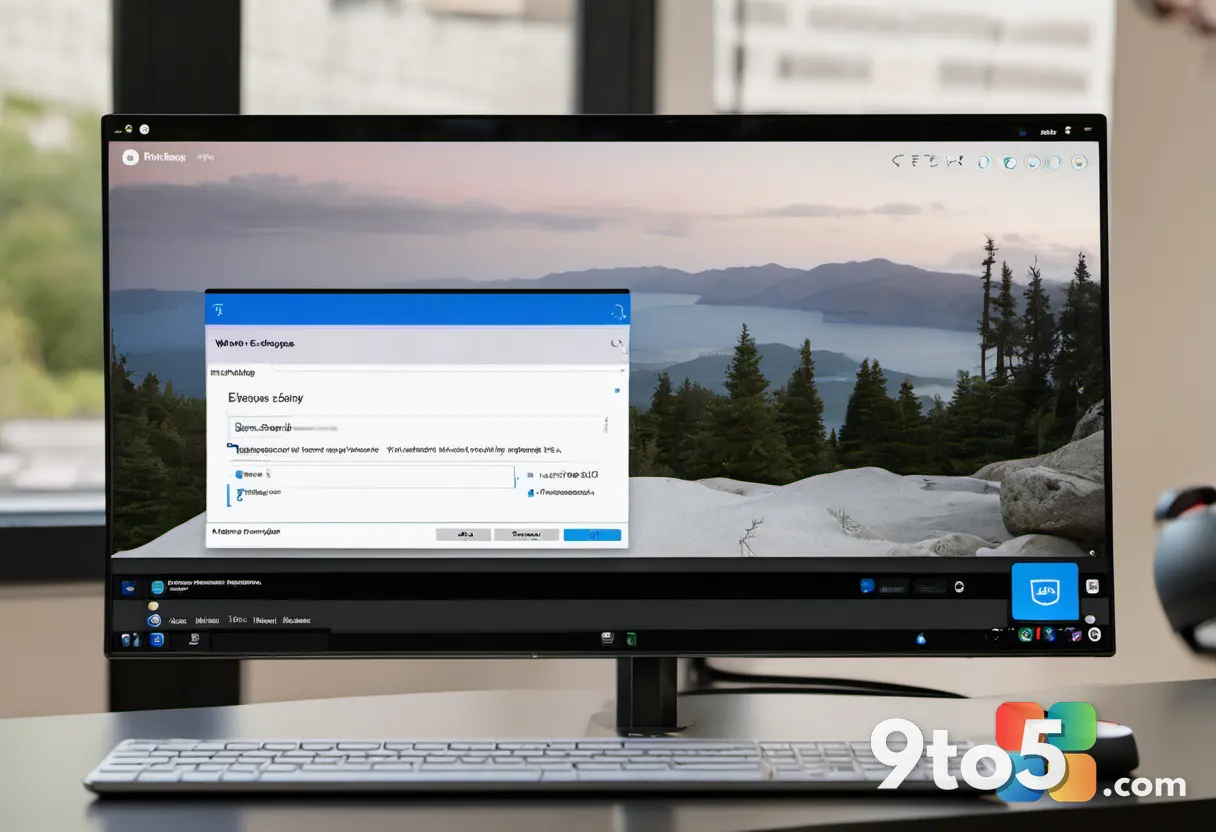
The Sign-in options panel is where you activate biometric authentication. -
Step 4: Configure Windows Hello Face Recognition
Click the
Windows Hello Facetile to expand its settings. Press theSet upbutton under the Windows Hello section. Your camera will activate and display a framing guide on the screen. Position your face within the oval, then follow the on-screen prompts to tilt your head slowly in each direction. Windows will capture multiple angles to build a secure facial map stored in a hardware-protected enclave. If the camera fails to detect your face, check for obstructions like screen protectors or dust on the lens, then try again. You can also adjust theRequire face to unlock your devicetoggle if you want the system to fall back to your PIN when lighting is poor. -
Step 5: Configure Windows Hello Fingerprint Login
Click the
Windows Hello Fingerprinttile to expand its settings. Press theSet upbutton. Place your finger on the built-in reader or an approved external USB fingerprint scanner. Lift and reposition your finger according to the on-screen instructions to register different angles and edges. Windows will store the scanned pattern in a secure enclave on your motherboard. If the reader shows a red X or fails to register, clean the sensor with a microfiber cloth and ensure your fingers are dry. Enterprise deployments can also push biometric policies through Group Policy if you manage multiple machines. -
Step 6: Create a Required PIN Backup
Windows requires a PIN even if you plan to use biometrics exclusively. Click the
PINtile under Sign-in options, then selectAddorChange. Enter your current account password to verify your identity. Type a new four-digit or longer PIN, confirm it, and clickOK. This backup method unlocks your device if the biometric sensors malfunction or fail to recognize you. The PIN is stored separately from your password and never leaves your device, which keeps it secure. -
Step 7: Test Your Biometric Login
Sign out of Windows by clicking Start > your account name > Sign out. Wait for the lock screen to appear, then attempt to unlock your PC using your face or fingerprint. Windows will authenticate you and return to your desktop. If the system falls back to the password prompt, wait a few seconds and try again, as the biometric cache sometimes needs a moment to load.
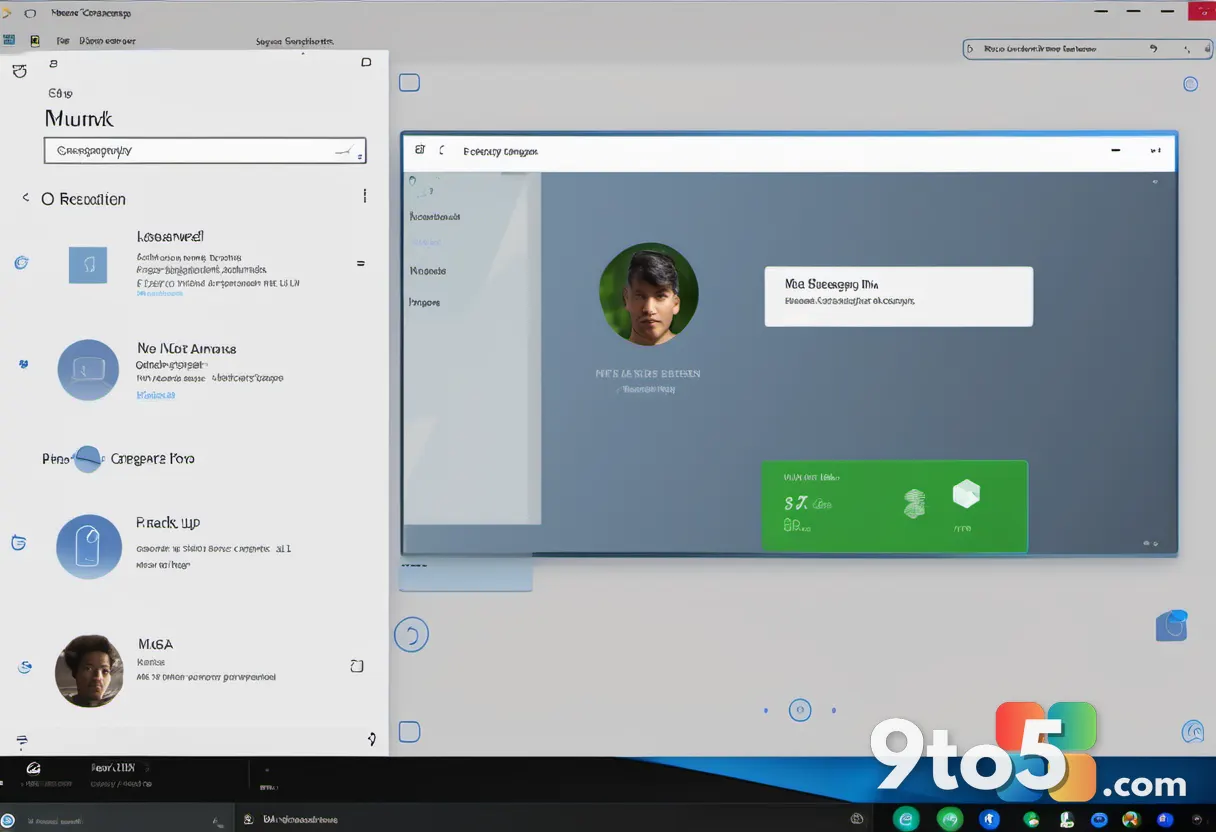
Windows Hello captures multiple facial angles to build a secure biometric map. You can also press
Ctrl + Alt + Deleteand selectSign into verify the biometric option appears at the bottom of the credential screen.
Pro Tip: Enable the Require sign-in setting under Accounts > Sign-in options to control when Windows asks for your PIN or biometric data after sleep or lock. Setting it to When your PC wakes up saves you from re-entering credentials every time you pick up your laptop.
Troubleshooting Common Setup Issues
If Windows Hello fails to recognize you consistently, start by cleaning the infrared camera or fingerprint sensor. Dust, oils, and screen protectors interfere with biometric scanning. Next, verify that Windows is up to date by going to Settings > Windows Update and clicking Check for updates. Microsoft frequently releases driver and security patches that improve biometric performance. If the sensors still do not work, open Device Manager, right-click your biometric device, and select Update driver. Choose Search automatically for drivers and restart your PC. If the device shows a yellow warning icon, click Uninstall device, then restart to force Windows to reinstall the driver cleanly. For persistent failures, run the Windows Hello Troubleshooter by navigating to Settings > System > Troubleshoot > Other troubleshooters and selecting Windows Hello under Run.
Biometric sign-in removes the friction of password fatigue while keeping your account protected. Once configured, you will notice faster lock screen transitions and fewer authentication prompts throughout the day. Keep your backup PIN secure, and update Windows regularly to maintain biometric performance.
Have you switched entirely to Windows Hello, or do you still rely on your password for certain situations?
Over to you: Have you switched entirely to Windows Hello, or do you still rely on your password for certain situations?