Windows Update for Business gives your organization control over when your device receives feature updates, quality patches, and driver rollouts. Sometimes you need to delay an update because a critical presentation, a software compatibility window, or a heavy workload is in progress. While company policies usually lock down automatic updates, you can still configure deferral windows using built-in settings, Group Policy, or Microsoft Intune. This guide covers every method you can use to push updates back by days or weeks without breaking your workflow.
Before You Start: Your IT administrator may restrict access to update settings. If you see grayed-out toggles or locked menus, your organization manages the schedule centrally. You will need a Windows 10 or 11 Pro, Enterprise, or Education edition device, along with local admin rights or Intune admin access depending on the method you choose.
Step 1: Check Your Current Update Policy Status
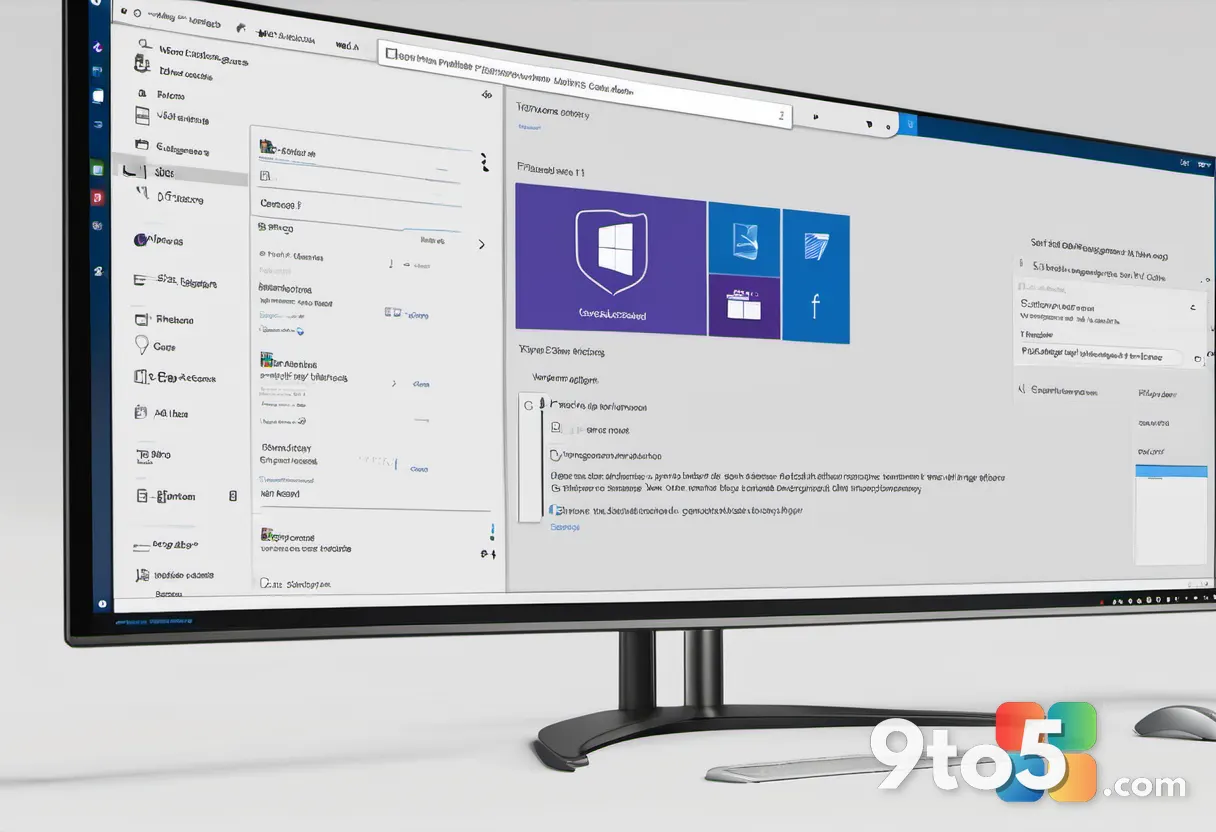
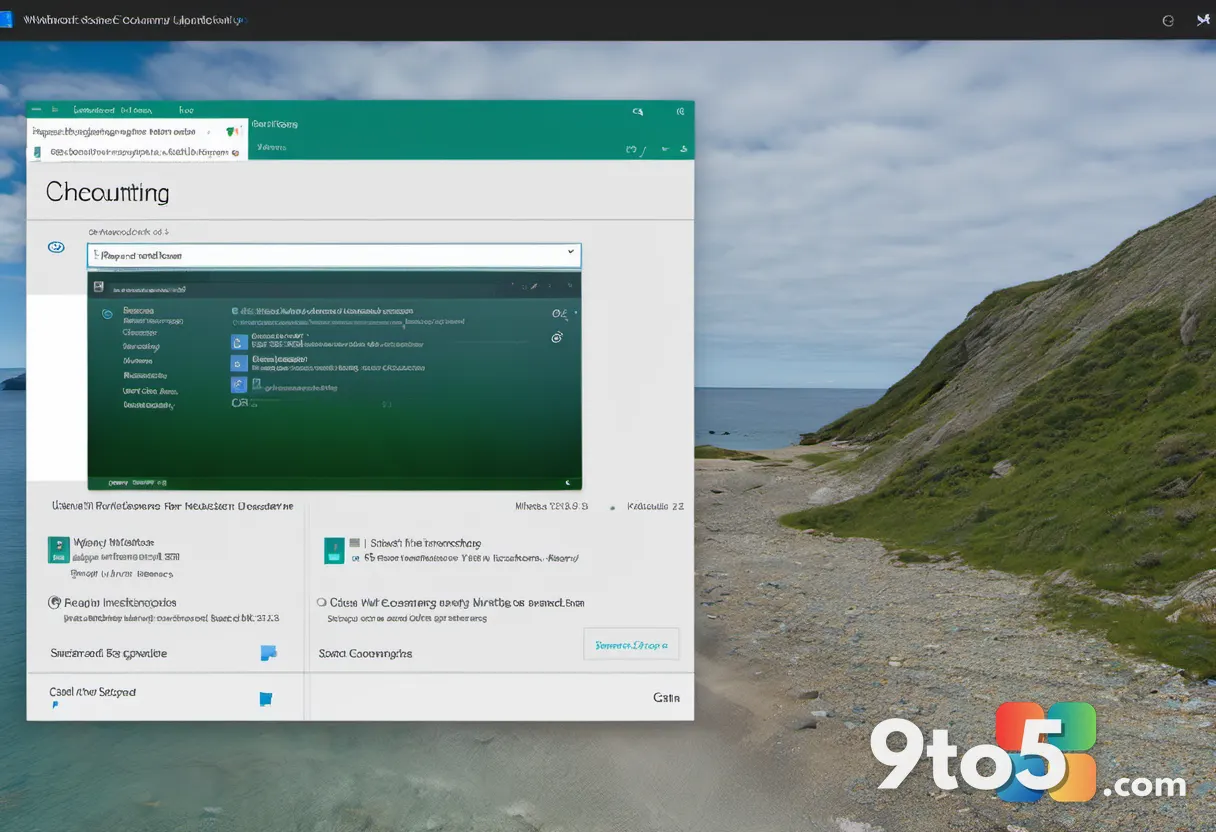
Open Settings and navigate to Windows Update. Click Advanced options and look for the Pause updates or Defer updates section. If you see a countdown showing when updates will resume, your device already follows a managed deferral schedule. This step confirms whether you have local control or if your organization enforces a strict update cadence. You will also see which update ring your device is currently assigned to, which determines how aggressively your PC receives patches.
Step 2: Use the Built-In Windows Update Deferral Settings
Click Advanced options and locate the Quality or Feature update deferral toggle. Set the number of days you want to delay the update, then confirm the change. Windows will now hold back the selected update type until the deferral period expires. Quality updates contain security fixes and bug patches, while feature updates introduce major version changes. Deferring quality updates by a few days gives you time to verify that critical applications remain stable before the patch installs automatically.
Step 3: Configure Deferral Through Local Group Policy Editor
Press Win + R, type gpedit.msc, and press Enter. Navigate to Computer Configuration > Administrative Templates > Windows Components > Windows Update > Windows Update for Business. Double-click Defer quality updates or Select the target Feature Update version and set it to Enabled. Enter your desired deferral days in the options panel, then click OK. This method overrides standard Windows Update behavior and applies the schedule system-wide. You must restart your device for the policy to take full effect.
Step 4: Manage Deferral Via Microsoft Intune
Sign in to the Microsoft Endpoint Manager admin center at intune.microsoft.com. Go to Devices > Windows > Update rings and create or edit a ring. Assign your deferral days to the Feature update deferral and Quality update deferral fields, then link the ring to your device group. Changes typically sync to your PC within an hour. This approach is the standard for enterprise environments because it centralizes control and ensures compliance with your organization’s patch management standards.
Step 5: Verify Your Deferral Schedule Is Active
Return to Settings > Windows Update > Advanced options and confirm the deferral date. You can also open Command Prompt and run gpresult /h %userprofile%\Desktop\gp-report.html to generate a Group Policy report. Review the report to ensure your deferral policy applied correctly. The report will list every active policy and show whether your deferral setting appears under the Windows Update for Business category. If the policy shows as Not Configured, your device may be pulling settings from Intune instead of local Group Policy.
Troubleshooting Common Deferral Issues
Your update settings are grayed out or locked. This usually means your IT department manages the schedule through Intune or a domain controller. You cannot override enterprise policies from the local settings panel. Contact your help desk and request a temporary deferral window or ask them to assign you to a different update ring.
The deferral policy is not applying after a restart. Open Command Prompt as an administrator and run gpupdate /force to refresh your Group Policy settings. If you are using Intune, run msiexec /package "%ProgramFiles(x86)%\Microsoft Intune Management Extension\IntuneManagementExtension.msi" /upgrade to force a client sync. Wait ten minutes and check the Windows Update status again.
Updates install despite an active deferral. Windows may still download updates in the background, but installation should remain paused. If patches install immediately, verify that your device is not connected to a secondary network that bypasses your corporate proxy. You can also check services.msc and ensure the Windows Update service is set to Automatic rather than Disabled, which can cause unexpected behavior.
Pro Tip: Always test deferral windows during low-impact periods. Set a calendar reminder for the day after your deferral expires so you can manually trigger the update when your workload allows. This prevents surprise restarts during critical project deadlines.
Final Tips for Managing Update Deferrals
Keep your deferral windows short enough to maintain security compliance. Quality updates typically require installation within fourteen days, while feature updates may allow up to thirty-two days depending on your organization’s baseline. Document your deferral schedule in your team’s shared notes so colleagues know when your device will restart. Regularly review your update history in Settings to confirm that deferred patches eventually apply as expected.
Closing Question: What is the longest deferral window you have ever needed on a work PC, and did it cause any compatibility headaches later?
Over to you: What is the longest deferral window you have ever needed on a work PC, and did it cause any compatibility headaches later?