Microsoft is making it significantly easier to access Copilot in Outlook Classic. The company confirmed via the admin portal that a new Copilot entry point is coming to the ribbon menu, and the AI assistant will also be integrated directly into the email compose box. These changes mark a major shift in how Microsoft handles AI features in its legacy email client, effectively closing the feature gap between the classic and new versions of Outlook.
For years, Microsoft has kept Copilot largely exclusive to New Outlook, leaving Outlook Classic users with a more traditional experience. However, the company is now changing course. The updates will roll out in stages, with the ribbon button appearing in late August and the full experience reaching most users by October 2026. Here is everything you need to know about these changes.
#1 Copilot Button Moving to the Ribbon Menu
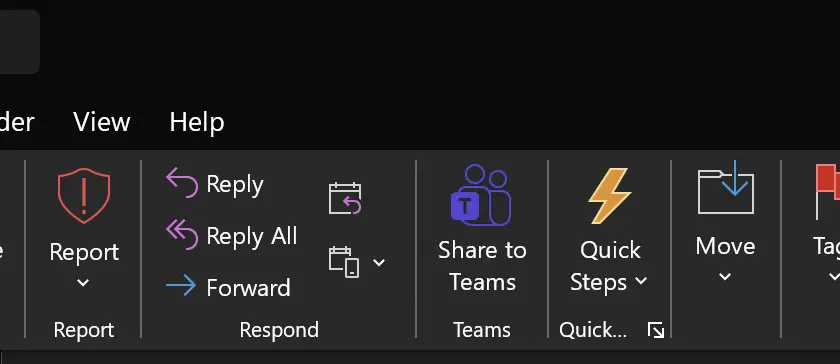
The most visible change is the addition of a dedicated Copilot button to the Outlook Classic ribbon. Until now, the ribbon menu did not feature a direct entry point for the AI assistant, requiring users to rely on the side pane or keyboard shortcuts. Microsoft is changing that by adding a persistent button that will be always visible, regardless of which tab you are currently viewing.
This move aligns Outlook Classic with other Office apps, where Copilot is already available in the ribbon menu. The company states that this change is designed to make Copilot easier to access and more intuitive for users who prefer the classic interface. With a single click, users can act on suggestions to quickly summarize content, draft responses, organize information, and accomplish tasks more efficiently.
Microsoft also confirmed that Outlook Classic Copilot has contextual awareness. This means it can read and understand your emails, including entire threads, and provide relevant suggestions. For example, if you are in a conversation about a refund for canceled tickets, Copilot could help you draft an email based on its understanding that you previously requested a refund. This capability goes far beyond simply docking Copilot in the right-side pane, offering a more dynamic and responsive experience.
While the ribbon button is a significant step, Microsoft has not yet announced plans for a floating Copilot button at the bottom of Outlook Classic. However, the company has made it clear that it wants the Copilot experience to feel consistent across its apps, so such a feature could appear in the future. The always-visible button will help you read emails, compose messages based on the context, and even manage your calendar.
#2 Copilot Integration in the Compose Box
In addition to the ribbon button, Microsoft is integrating Copilot directly into the email compose box. This means the AI assistant will show up automatically when you start drafting an email, providing real-time assistance without requiring you to switch contexts.
This update allows users to create, refine, and edit email content in real time with Copilot assistance, helping improve productivity while maintaining full control over final content. Previously, it was believed that only New Outlook’s compose box would have AI integration, but Microsoft has now confirmed that Outlook Classic will also benefit from this feature. The integration is designed to be seamless and unobtrusive, appearing only when you are actively writing.
Users can choose to use Copilot’s suggestions or ignore them, depending on their preferences. The AI assistant will help improve the quality and clarity of your emails, making it easier to communicate effectively. Microsoft also noted that Copilot will be turned on by default in Outlook Classic. Users do not need to take any action to enable the feature, as long as they have the required Microsoft 365 Copilot license.
#3 Copilot Search Cancellation
While Microsoft is expanding Copilot’s presence in Outlook Classic, it is also stepping back from one feature. The company has decided against implementing Copilot in Outlook search after user outrage. The feature was supposed to show Copilot’s contextual answers on search pages above the actual search results, but the idea has been canceled for now.
This decision comes after feedback from users who expressed concerns about the privacy and relevance of AI-generated search results. Microsoft’s reversal on Copilot search highlights the company’s willingness to listen to user feedback and adjust its AI strategy accordingly. While the feature is not currently planned, the company has not ruled out the possibility of reintroducing it in the future with improvements.
What This Means for You
For Outlook Classic users, these changes mean a more integrated and powerful Copilot experience. The ribbon button and compose box integration will make it easier to access AI assistance and improve your productivity. If you are currently using New Outlook, these changes may encourage you to switch back to the classic version, as the gap between the two is narrowing.
Make sure you have the required Microsoft 365 Copilot license to take advantage of these features. The updates will roll out in stages, so you may not see them immediately. Keep an eye on the admin portal for the latest information on the rollout timeline.
How to Get It
The ribbon button will begin appearing in late August, but most users won’t have it until October 2026. To ensure you receive the update as soon as it rolls out, keep your Outlook Classic installation up to date. Microsoft will push the changes automatically to eligible tenants, but you can also manually check for updates through File > Office Account > Update Options. If you manage a fleet of devices, admins can monitor the rollout progress in the Microsoft 365 admin center under the Messages section.
Are you happy to see Copilot making its way to Outlook Classic, or do you prefer the traditional experience without AI integration?
Source: Windows Latest
Over to you: Are you happy to see Copilot making its way to Outlook Classic, or do you prefer the traditional experience without AI integration?
You may also like
 Microsoft Is Finally Fixing One of Outlook Calendar’s Most Frustrating Quirks
 Still Waiting for Updated Windows Secure Boot Certificates? Here’s What You Need to Know
 Windows 11’s Optional July 2026 Preview Update Brings Start Menu Speed Boost and File Explorer Tweaks
 Windows 11 July 2026 Optional Updates Are Now Available