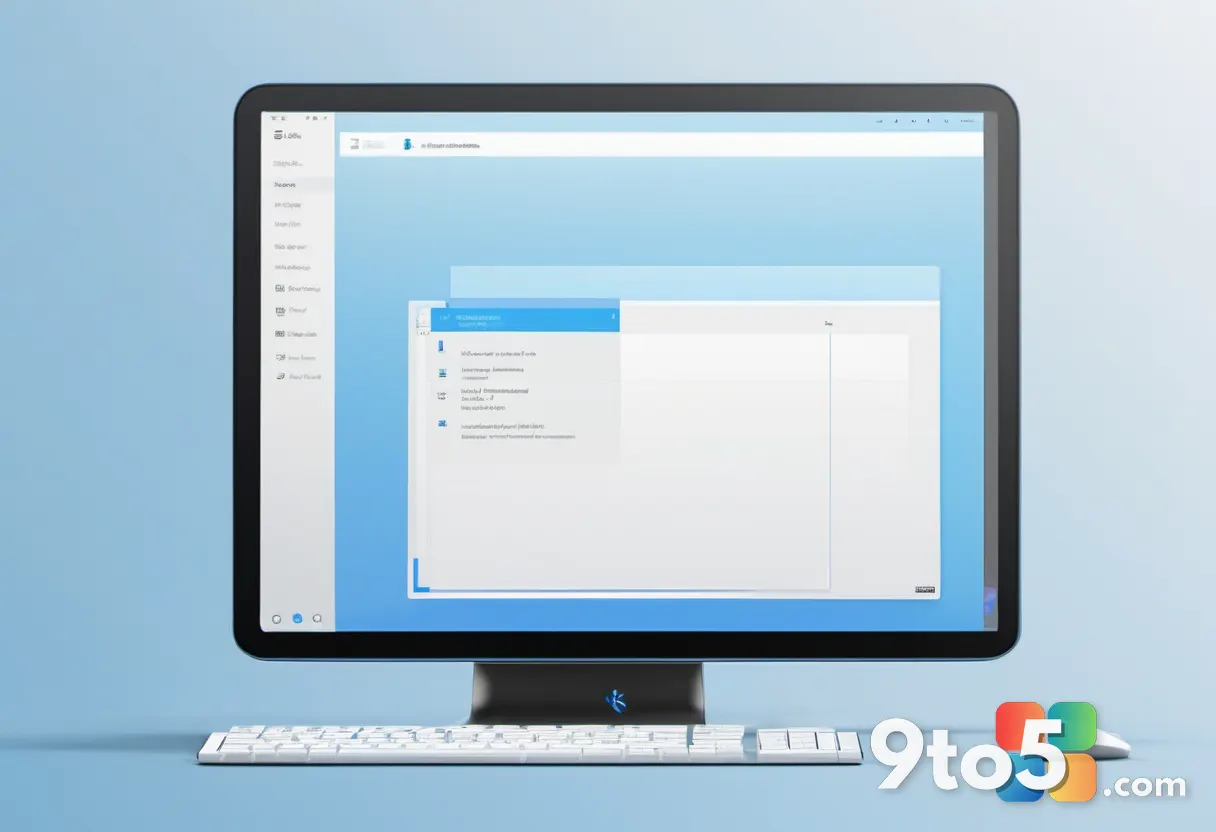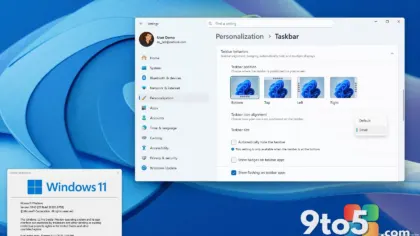
Microsoft has officially unlocked the ability to resize the taskbar in Windows 11, bringing a level of customization that many users have requested since the OS launched. The feature is currently available for testers enrolled in the Windows Insider Program.
How to resize your taskbar
To take advantage of this change, you need to be running one of the latest Insider builds where the toggle has been enabled. Once active, the process is straightforward and mirrors the behavior seen in previous versions of Windows.
- Right-click on an empty area of your desktop and select Personalization.
- Navigate to the Taskbar settings menu.
- Look for the option labeled Resizable taskbar or similar wording depending on your specific build channel.
- Toggle it on, then drag the edge of the taskbar up or down with your mouse to adjust its height.
What changes visually?
The most immediate difference is vertical space. By default, the Windows 11 taskbar remains compact to maximize screen real estate for apps and content. However, increasing the height allows icons to scale up proportionally.
This can be particularly useful if you find the standard icon size too small to read quickly or if you prefer a more prominent visual anchor at the bottom of your display. The Start button, system tray icons, and pinned applications all expand together, maintaining their relative spacing.
What this means for you
For everyday users who have felt restricted by the fixed taskbar dimensions in Windows 11, this update offers a welcome degree of personalization. It bridges the gap between the modern aesthetic Microsoft introduced and the functional flexibility many power users rely on.
If you are not currently an Insider, expect this feature to roll out more broadly as it stabilizes through the preview channels. Until then, third-party tools remain the only way to achieve similar results on stable releases, though native support is always safer and cleaner.
Source: Neowin
Over to you: Do you prefer the compact default look of Windows 11, or will you be resizing your taskbar for larger icons?