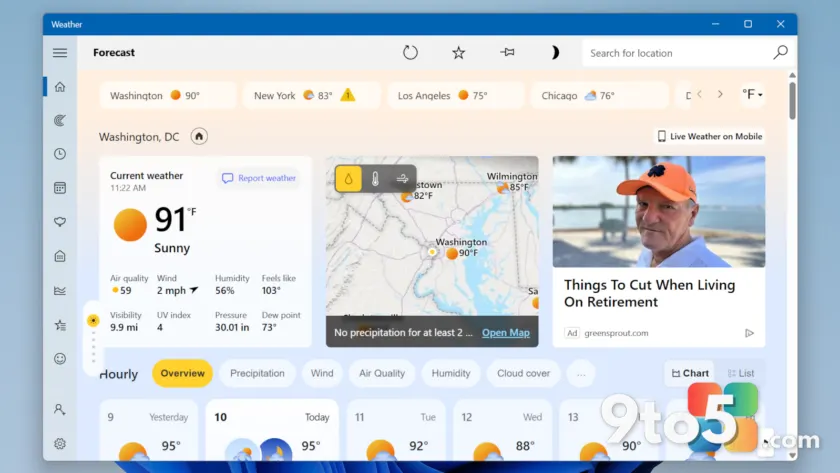
Memory efficiency has long been a point of discussion among Windows users, and a recent analysis brings this issue into sharp focus. According to an investigation by Windows Latest, the built-in Weather app on Windows 11 consumes roughly five times more RAM than its counterpart on macOS. This comparison highlights a substantial gap in resource management between the two operating systems.
After launching the Windows 11 Weather app and leaving it idle, the application immediately claimed over 1.2GB of system memory. In contrast, the macOS Weather app, which operates without advertisements, utilized just 123MB of RAM on the same hardware. Even accounting for the ad-supported model on Windows, the disparity suggests deeper architectural choices at play.
The Numbers Don’t Lie
The data provides a clear picture of the resource overhead involved. Windows Latest reported that the macOS app used 246MB in their testing, which still leaves Windows 11 well over five times heavier. This comparison was conducted using Activity Monitor on macOS and Task Manager on Windows, offering a direct look at how each system reports memory consumption.
What makes the Windows 11 figure particularly striking is that it includes the base overhead of the application itself. The Windows 11 Weather app relies on multiple individual processes to function. When you open Task Manager, you will see numerous entries associated with the app, indicating a complex internal structure rather than a lightweight utility.
The macOS app, however, runs as a single process. This streamlined approach allows Apple to deliver weather data with minimal resource expenditure. The difference in process count is a significant factor in why one app feels lighter than the other, regardless of the data being displayed.
Why Is Windows 11’s Weather App So Heavy?
Part of the explanation lies in the technology stack used to build the app. Technical analysis suggests that the Windows 11 Weather app runs on a Chromium-based framework. The multiple processes visible in Task Manager are likely Chromium processes, which are common in modern Windows apps that utilize WebView2 or similar embedded browser technologies.
While this approach allows for consistent rendering and cross-platform compatibility, it comes with a memory tax. Chromium frameworks are known to be resource-intensive, as they load browser engines to display web content within the app interface. This is a trade-off for visual consistency and development speed, but it impacts the end-user experience on systems with limited RAM.
Advertisements and sponsored content also contribute to the memory footprint. The Windows 11 Weather app displays ads, which require additional network requests and processing power. However, even ad-supported apps on other platforms do not typically consume over 1GB of RAM for a simple weather display, suggesting that the underlying framework is the primary driver of the high usage.
What This Means for You
For users with ample RAM, this difference may go unnoticed. However, for those running Windows 11 on systems with 8GB or less, every megabyte counts. Background apps that consume significant memory can slow down your system, especially when you are multitasking or running memory-intensive applications like games or video editors.
If you notice your system feeling sluggish, it may be worth checking which apps are using the most memory. You can do this by opening Task Manager and sorting by the Memory column. Identifying resource-heavy apps can help you make informed decisions about which ones to keep running in the background.
Microsoft has been working to improve the efficiency of its apps, but this comparison serves as a reminder of the ongoing challenges in balancing feature richness with performance. Users who prioritize system efficiency may find themselves looking for alternative solutions or adjusting their usage habits to mitigate the impact of high-memory applications.
How to Check Your Own Usage
You can verify the memory usage of the Weather app on your own system by following these steps:
- Open the Weather app on your Windows 11 device.
- Press Ctrl + Shift + Esc to open Task Manager.
- Click on the Details tab to see all running processes.
- Sort by the Memory column to identify the app’s resource consumption.
By keeping an eye on your system’s resource usage, you can ensure that your Windows 11 device runs smoothly and efficiently, regardless of the apps you choose to use.
Source: PCWorld
Over to you: Does the memory usage of the Weather app affect your decision to keep it installed, or do you prefer the built-in convenience?