
Microsoft has confirmed that Windows 11 version 26H2 is the next major feature update, scheduled for release in the second half of 2026. Unlike previous years where updates required massive downloads and full reinstalls, this release will follow the streamlined servicing model introduced with version 25H2. It will arrive as a small enablement package that simply switches your version number from 25H2 to 26H2.
While some users dismiss enablement packages as “not real updates,” this delivery method doesn’t reflect the content inside. Throughout the lifecycle of version 25H2, Microsoft has been rolling out new features via monthly cumulative updates. When version 26H2 launches, all those accumulated improvements become part of the officially supported release, extending support for another two years.
If you are already on version 25H2, you may have seen many of these changes trickle in over time. However, if you are upgrading from an older build, these features will arrive together, making the transition feel substantial despite the small download size. Here are seven standout improvements currently being tested in the Windows Insider Program’s Experimental channel.
#1 Ask Copilot integration
Microsoft is refining its AI strategy with Ask Copilot, a new search box that integrates Copilot directly into the system search experience. This feature allows you to interact with AI for chat-style answers while simultaneously using it as a traditional tool to find files, open apps, or locate system settings.
Crucially, this feature is optional. You are not forced to replace Windows Search; instead, you can choose when to engage Copilot assistance. Early testing suggests it surfaces results quickly, and the toggle to enable or disable it lives in Settings > Personalization > Taskbar. It is expected to work on both Copilot+ PCs and standard hardware.
#2 Highly customizable Taskbar
The Taskbar receives long-requested flexibility options in version 26H2. Users will finally be able to position the Taskbar anywhere on the desktop—not just at the bottom—and adjust its size to make it smaller if desired.
These controls are accessible via Settings > Personalization > Taskbar, specifically within the “Taskbar behaviors” section. This move returns control to users who have been accustomed to Windows 10’s default positioning, allowing for a more personalized workspace layout without relying on third-party tools.
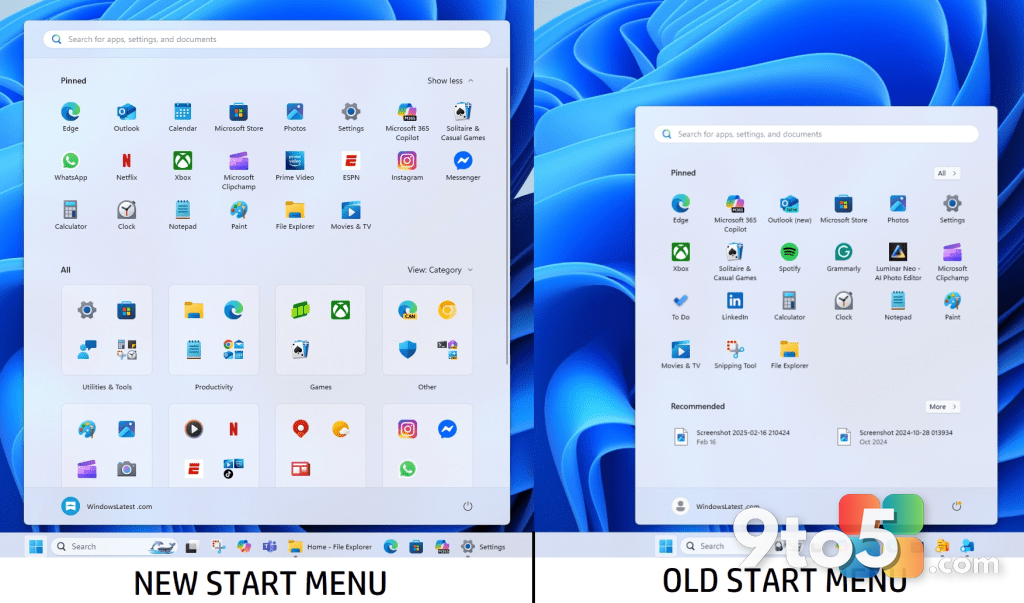
#3 Redesigned Start menu
The Start menu gets a significant overhaul focused on space efficiency and user choice. Microsoft is introducing settings that let you manually choose between smaller and larger menu sizes, rather than having the system dictate dimensions based on screen resolution.
The layout also improves organization by allowing you to independently show or hide the Pinned, Recent (formerly “Recommended”), and All apps sections. Disabling recent files no longer affects File Explorer’s history, addressing a common privacy concern. Additionally, a new option lets you hide your name and profile picture for cleaner presentations. These settings are found under Settings > Personalization > Start.
#4 Windows Search without web results
A small but impactful addition is the ability to disable web results in Windows Search. Previously, typing a query often returned Bing search results alongside local files and apps, which many users found distracting.
Version 26H2 introduces a toggle in Settings > Privacy & security > Search under “Show suggested search results.” Turning this off removes web clutter and Microsoft Store app suggestions, making the search experience faster and focused strictly on local content. This feature is currently visible in preview builds of the Experimental channel.
#5 Enhanced Windows Update controls
Microsoft is expanding user control over update timing with a calendar-based pause feature. You can now schedule pauses for up to 35 days, and you can do this as many times as needed without compromising security updates indefinitely.
To reduce disruption, the update schedule for drivers, firmware, and product updates will align with quality updates, limiting monthly reboots to just one. The Windows Update page also groups downloads under a single “Available updates” section with clearer driver labels. Furthermore, the Start menu’s power options now include independent commands to restart or shut down without installing pending updates.
#6 Administrator Protection
Security gets a boost with Administrator Protection, a feature designed to limit the exposure of admin privileges. Instead of granting persistent elevated access, the system creates a temporary account to execute privileged tasks and deletes it immediately after completion.
This reduces the risk of malicious software gaining unrestricted access to your system. The feature replaces traditional User Account Control (UAC) prompts for these actions and uses Windows Hello for authentication. You can manage this setting in the Windows Security app under the “Account protection” page.
#7 Modern Run dialog
The classic Run dialog box finally gets a visual refresh to match the Windows 11 design language. The new interface features rounded corners, improved spacing, and a larger input field for commands.
It also includes a “recent commands” section above the text box for quick access to frequently used entries and surfaces matching apps with icons as you type. Like other major changes, this is optional; you can switch between the classic and modern versions via Settings > System > Advanced under the “Run dialog” option.
What this means for you: Even if you don’t plan to upgrade immediately, these features highlight Microsoft’s shift toward continuous improvement rather than annual overhauls. The focus on customization and control suggests a more user-centric approach to Windows 11 in 2026.
Source: Windows Central
Over to you: Which of these 26H2 features are you most eager to try: the customizable Taskbar or the new Administrator Protection?
You may also like
 Microsoft calls Copilot key ‘main character energy’ right before admitting it hurts productivity
 Microsoft unlocks new Windows 11 Start menu with fresh Group Policy controls
 Secure Boot certificates expiring in 2026: What Windows users need to know
 Windows 11 Start menu gets another redesign with resize options and performance fixes