
Microsoft is rolling out its monthly security and quality update for Windows 11 on Tuesday, July 14, 2026. This release targets both the 24H2 and 25H2 versions of the operating system with a mix of major new features, accessibility improvements, and under-the-hood fixes.
The headline addition is a new recovery tool called Point-in-time Restore, designed to help users quickly revert their system after a bad update or driver conflict. Alongside that, Microsoft is introducing Screen Tint for visual comfort, giving users more control over Windows Update pauses, and refining the Widgets experience to be less intrusive.
As with most monthly updates, these features will roll out gradually via Controlled Feature Rollout (CFR), so you may not see them all immediately. Here are the key changes included in the July 2026 update.
#1 Point-in-time Restore
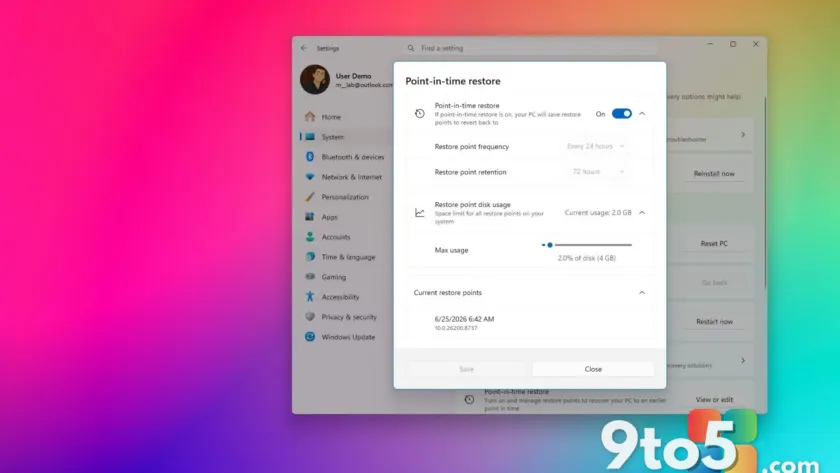
Microsoft is introducing a new recovery mechanism called Point-in-time Restore. This feature automatically creates restore points using the Volume Shadow Copy Service (VSS), capturing your settings, files, and apps. If your system becomes unstable, you can use this tool to roll back to a previous working state without needing external media.
The feature is enabled by default on Home and Pro editions, provided your device has at least 200GB of storage. You can manage it via Settings > System > Recovery, where you can adjust how often restore points are created, how long they are kept, and how much disk space they consume. If issues persist, you can also access Point-in-time Restore directly from the Windows Recovery Environment (WinRE).
#2 Screen Tint Accessibility Feature
For users who find bright screens straining, this update adds a Screen tint option. Unlike Night Light, which shifts colors toward warmer tones to reduce blue light, Screen Tint applies a customizable color overlay to the entire display. You can choose from six presets or create a custom color.
Access it in Settings > Accessibility > Screen tint. A slider lets you control the intensity of the overlay. Note that enabling Screen Tint will automatically disable Color Filters, and vice versa, but it works alongside Night Light if you need both adjustments.
#3 Indefinite Windows Update Pausing
Windows Update controls are getting a significant tweak. While Microsoft does not allow users to permanently disable updates, the new Pause updates feature now includes a calendar view that lets you pause installations for up to 35 days at a time.
The key change is that you can re-pause updates indefinitely by manually extending the pause period before it expires. This offers a practical compromise for users who need to delay large feature updates or security patches due to compatibility concerns, without resorting to third-party tools or disabling services entirely.
#4 Quieter Widgets Defaults
Microsoft is adjusting the default behavior of the Widgets board to make it less distracting. On first use, Widgets will open directly to the dashboard rather than prompting for setup immediately. Hover activation is disabled by default, and notifications and taskbar badges are minimized.
Users can still customize these settings in Settings > Personalization > Taskbar. The update also improves reliability and visual quality, with dashboard icons now showing alert counts that clear automatically when you leave the board. Microsoft notes that some settings will adapt based on usage patterns to further reduce interruptions.
#5 Magnifier Granular Controls
The Windows Magnifier tool is receiving usability improvements for accessibility. Previously, users had to click zoom buttons repeatedly to adjust the view. Now, you can enter exact percentage values directly into the settings flyout.
This allows for more precise control over magnification levels, with increments adjustable up to 400 percent. This change benefits users who require specific zoom levels for readability without navigating through multiple UI steps.
#6 Windows Ready Print Default
Starting with this update, Windows 11 will default to installing printers using the Internet Printing Protocol (IPP) via Windows Ready Print, provided the device supports it. This aims to streamline printer setup and improve compatibility with modern networked printers.
If you prefer the legacy installation method, you can disable this default in Settings > Bluetooth & devices > Printers & scanners by turning off the “Default install printer using Windows Ready Print” option.
#7 Location Settings Clarity
Microsoft has clarified the Location settings page in Privacy & Security. Previously, options like “Default location” and “Allow location override” remained visible even when location services were turned off, which could confuse users about whether apps were still accessing data.
Now, these options are greyed out when location services are disabled, making it clear that no apps or services can access your location until you re-enable the feature. This reduces ambiguity and helps users better understand their privacy settings.
#8 File Explorer Speed and UI Tweaks
File Explorer is getting a performance boost, with faster launch times reported after installing this update. On the Home page, users logged in with work or school accounts will see new hover options for files, including “Open file location” and “Ask Copilot.”
The address bar also improves its handling of complex paths, now supporting double backslashes and quotation marks when pasting or typing folder locations. Additionally, the address bar closes more reliably after selection, and file renaming operations have been smoothed out for better stability.
#9 Bluetooth Reliability Improvements
This update addresses several long-standing Bluetooth issues. Microphone mute status is now synchronized between system audio controls and Bluetooth headphones with dedicated mute buttons, ensuring consistent behavior during calls.
Compatibility improvements include faster pairing for AirPods and more reliable microphone performance for Beats Studio Pro headphones. Voice calls on Hands-Free Profile (HFP) devices are more stable, and LE Audio accessories connect faster when the microphone is active. The update also fixes a bug where Windows incorrectly displayed a “Remove failed” message if the Bluetooth radio was unavailable.
#10 Phone Link Call Handling
Phone Link is refining how calls are managed between your PC and smartphone. When you place a call from your paired phone, audio will remain on the phone while it rings. It only switches to your computer after you answer the call on Windows 11.
This prevents audio from jumping unexpectedly between devices before the connection is established. Additionally, when Do Not Disturb is enabled on your PC, incoming calls from your connected phone will no longer ring through the computer, reducing interruptions during focused work.
#11 Voice Typing and Access Enhancements
Voice Typing and Voice Access are getting real-time text refinement capabilities, allowing the system to correct speech-to-text errors as you speak. These tools also improve their ability to filter out background noise.
Note that these advanced features are currently available only on Copilot+ PCs. Additionally, Voice Access and Voice Typing now support German, Spanish, and French, expanding accessibility for non-English speakers.
#12 Networking and Virtualization Fixes
For enterprise and virtualized environments, this update improves networking reliability. Confidential Virtual Machines (CVMs) now use SR-IOV hardware acceleration by default for better performance. A configuration issue affecting nested Hyper-V setups has been fixed to ensure VMs provision correctly.
The update also reduces Wi-Fi-related blue screen errors, improves cellular (WWAN) connectivity, and adds better support for IPv6-based VPN connections. Network adapter settings and bindings are now preserved during OS upgrades, preventing configuration resets after updates.
#13 Touchpad Customization
Users with compatible touchpads can now customize the size of the right-click area. In Settings > Bluetooth & devices > Touchpad, you can choose between “Default,” “Small,” “Medium,” or “Large” for the bottom-right corner that triggers a one-finger right-click.
This feature is available only on devices with pressable touchpad surfaces. If your manufacturer provides its own customization software, Windows will display a “Custom” option to reflect those settings instead.
What this means for you: The July 2026 update focuses heavily on stability and user control. Point-in-time Restore offers a safety net for system crashes, while the ability to pause updates indefinitely gives you more breathing room before installing major changes. Accessibility improvements like Screen Tint and Magnifier controls make daily use more comfortable for a wider range of users.
Source: Windows Central
Over to you: Will you use the new Point-in-time Restore feature to protect your system, or do you prefer manual backups?