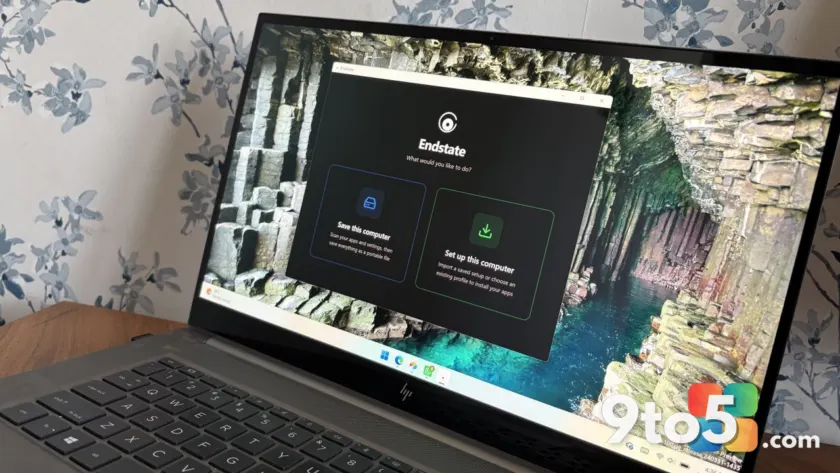
Setting up a fresh Windows PC or recovering from a system reinstall has always required a tedious manual process. You reinstall your operating system, download each application individually, and then spend hours reconfiguring preferences, shortcuts, and custom layouts. A new free utility called the Endstate app is designed to eliminate that friction by capturing your exact software configurations and restoring them automatically alongside the applications themselves.
According to Windows Central, which recently spoke with the developer behind the project, the tool addresses one of the most persistent pain points for power users, PC builders, and system administrators. Instead of relying on Windows’ built-in backup features, which primarily focus on files and system images, Endstate operates at the application level. It bridges a notable gap between desktop computing and the seamless environment management found on modern mobile platforms.
The Problem Endstate Solves
Windows has long offered a massive application ecosystem, far surpassing iOS and Android in sheer volume and legacy compatibility. However, that breadth comes with a tradeoff. Mobile operating systems have standardized app data synchronization and backup restoration for years. When you set up a new iPhone or Android device, your app preferences, login states, and custom configurations typically follow you automatically. On Windows, every installed program reverts to factory defaults after a clean install, regardless of how carefully you customized it.
Endstate tackles this directly by treating application settings as first-class data. Rather than forcing users to manually export registry keys, copy configuration files, or rely on third-party sync services, the tool bundles your exact preferences into a portable archive. When you reinstall your software, Endstate applies those saved configurations back into the applications, preserving your workflow exactly as you left it.
This approach matters significantly for professionals who rely on specific tool configurations. Developers, photographers, streamers, and IT administrators all maintain highly customized environments. Losing those settings means losing hours of productivity, and in some cases, proprietary workflows that cannot be easily recreated.
How the Endstate App Actually Works
The restoration process is deliberately straightforward. When you run Endstate, it scans your installed programs and identifies which ones it can back up. For each supported application, it captures the relevant configuration files, registry entries, or user data folders into a single compressed zip archive. You can review, select, or exclude specific applications before saving the backup.
When you need to restore your system, the workflow reverses. You install your applications using the integrated package managers, and then Endstate reads the saved archive to apply your previous settings. The restoration is handled on a per-app basis, meaning you can choose to restore configurations for some programs while leaving others at their default state. This granular control is useful when migrating between slightly different software versions or when you want to test a clean configuration for a specific tool.
Importantly, the tool does not require an internet connection to function after the initial setup, nor does it demand user registration. All configuration data remains stored locally on your machine. This offline-first design ensures that sensitive workflow preferences and local file paths stay on your hardware rather than being uploaded to a third-party cloud service.
Supported Applications and Package Managers
Endstate relies on WinGet and Chocolatey to handle the actual software installation side of the process. These two package managers provide access to a vast repository of open-source and commercial applications, allowing the tool to automate the download and installation phase without manual installer execution. If an application is available through either manager but does not support settings restoration, Endstate will still install it automatically.
Currently, the tool supports settings restoration for 357 applications. The confirmed list includes widely used developer and creative tools such as Visual Studio Code, Windows Terminal, PowerToys, Git, Obsidian, Notepad++, ShareX, OBS Studio, MSI Afterburner, and Adobe Lightroom Classic. The developer has indicated that Linux and macOS support are on the roadmap, though no release timeline has been confirmed yet.
From a technical standpoint, the 357-app support represents a solid foundation rather than a finished product. Application developers would need to integrate with Endstate’s configuration schema to enable full backup and restore functionality. Until that broader ecosystem adoption happens, the tool remains highly effective for the specific programs it already supports.
What This Means for You
If you frequently rebuild your Windows environment, this utility removes the most time-consuming part of the process. Instead of spending an afternoon reconfiguring your editor themes, terminal aliases, and streaming layouts, you can restore your exact state in minutes. The offline operation and local-only storage also mean you retain full control over your configuration data without relying on subscription services or cloud accounts.
For system administrators managing multiple machines, the ability to package settings alongside installations could streamline deployment workflows. You can prepare a standardized configuration archive for a specific role, deploy the applications via WinGet or Chocolatey, and apply the settings archive to ensure consistent behavior across the fleet.
How to Get It
Endstate is available as a free download directly from the developer’s GitHub repository. You can access the latest release through the official GitHub releases page, where you will find the compiled executable along with installation instructions. Since the tool operates offline and requires no account, you can begin backing up your current applications immediately after extraction.
Source: Latest from Windows Central
Over to you: Which three applications do you always need to reconfigure after a fresh Windows install?
You may also like
 Filen Review: The Best Free Encrypted Cloud Storage for Privacy-Conscious Users
 The Ultimate DEX Buyer’s Guide: Choosing the Right Digital Employee Experience Platform
 Why Windows Users Are Ditching Sticky Notes New for a Lightweight Alternative
 Ventoy Update Simplifies Windows 11 Installation by Addressing Strict Hardware Checks