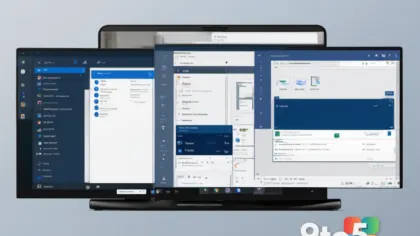
Windows 11 has spent the last few years integrating AI into the operating system, but the most advanced experiences are no longer software-only. Microsoft has drawn a clear line between standard Windows 11 devices and a new hardware tier designed to run these workloads locally. If you want to access the full suite of Copilot+ PC features, you will need a device built with the necessary processing power to handle on-device AI tasks.
Two of the most prominent additions to this ecosystem are Click to Do and Recall. Both rely on the Neural Processing Unit (NPU) found in modern AI-ready processors to function without sending your data to the cloud. While the underlying technology is complex, the user experience is designed to feel seamless and intuitive.
#1 Click to Do
Click to Do shifts the Copilot interface from a static sidebar to a context-aware tool. Instead of opening a chat window and typing a prompt from scratch, the system analyzes what you are currently viewing on your screen. When you select text, an image, or a specific UI element, a quick action menu appears directly alongside your selection.
This menu offers a set of relevant actions based on the content. For example, if you highlight a paragraph of text, you might see options to summarize it, translate it, or rewrite it in a different tone. If you select an image, the system could offer to remove the background or generate a description for accessibility purposes. The goal is to reduce the number of steps between having an idea and executing it.
From a technical standpoint, this feature depends heavily on local inference. By processing the selection data on the NPU rather than routing it to a remote server, Microsoft aims to reduce latency and improve privacy. The responses you receive are generated by large language models running directly on your hardware, which means the experience remains consistent even if your internet connection drops.
#2 Recall
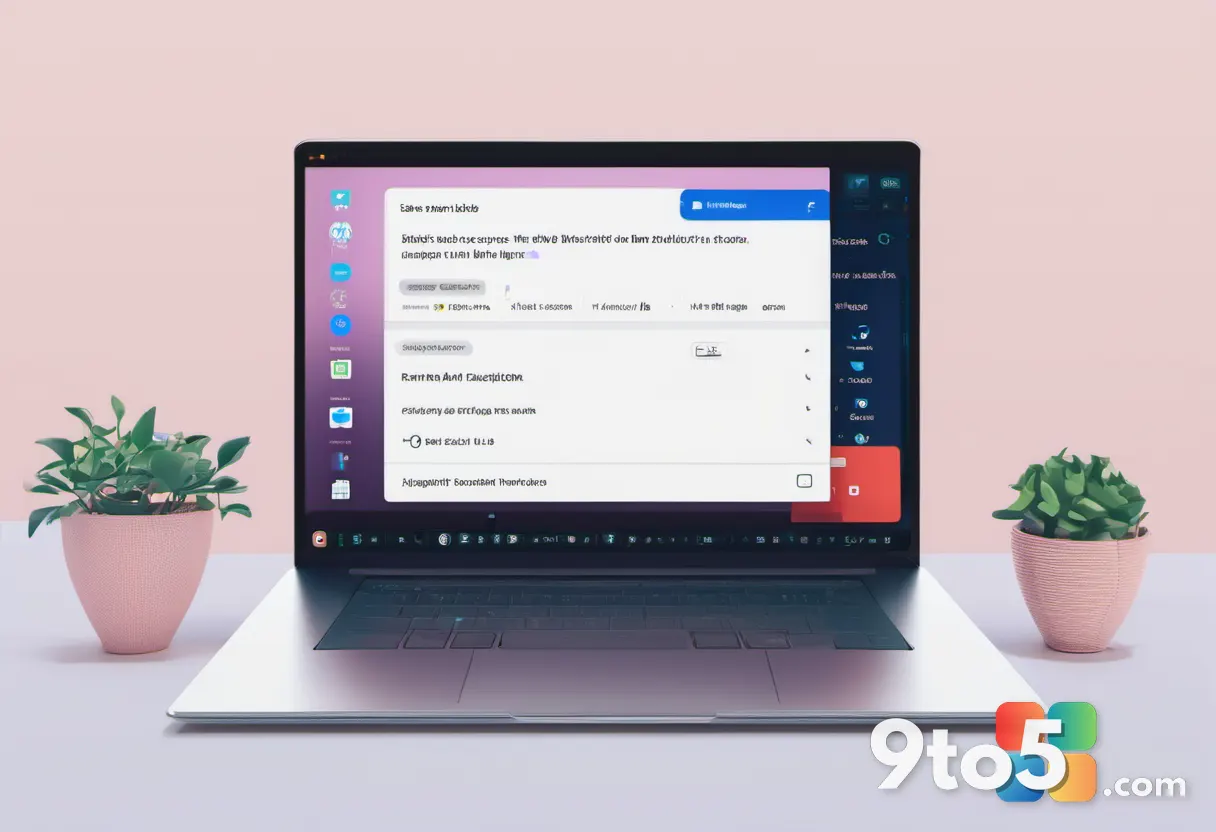
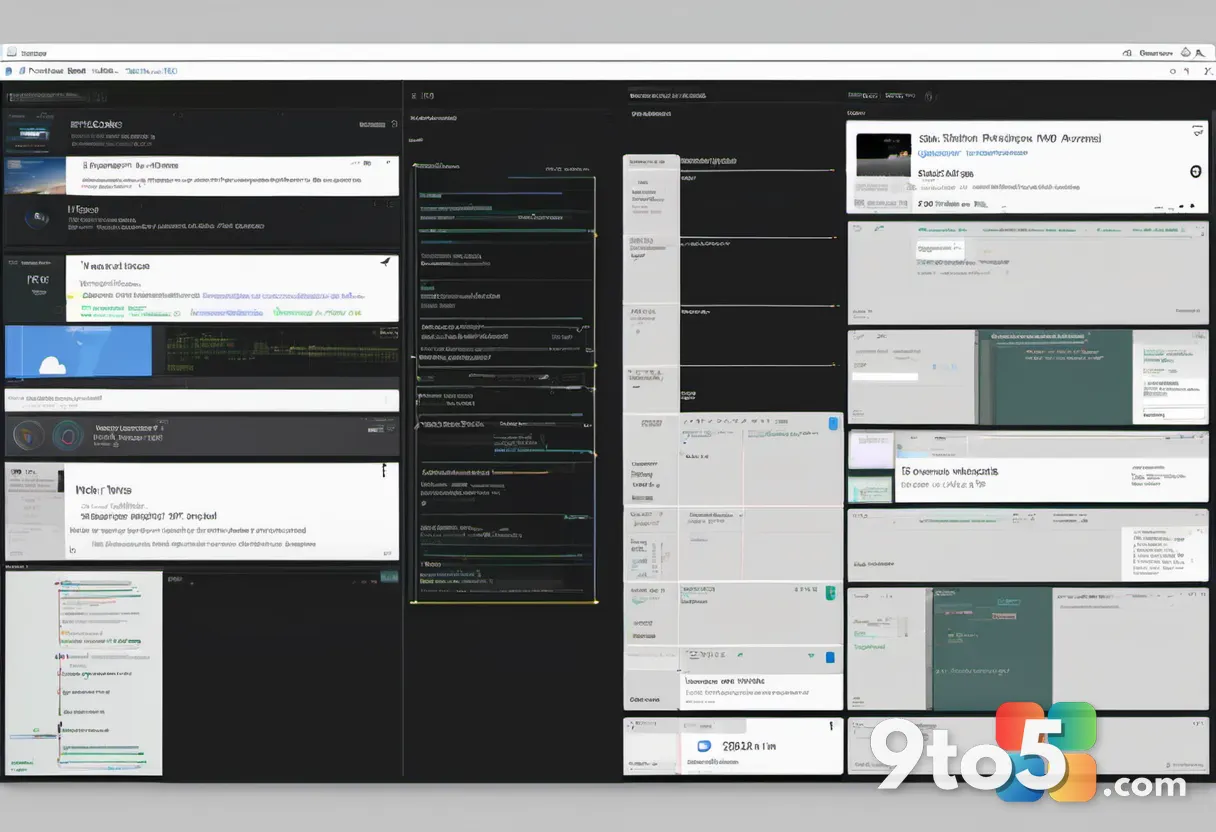
2. Recall addresses a common frustration with modern computing: the difficulty of finding something you saw days or weeks ago. Rather than relying on file names or folder structures, Recall creates a searchable, visual history of your activity. The system periodically captures snapshots of your active windows and stores them in a local, encrypted database.
When you need to find something, you can ask Recall questions in natural language. You might type “that article about the new GPU benchmarks” or “the email I sent to the marketing team last Tuesday.” The system scans the local snapshots to surface the exact moment you were looking at that content, allowing you to jump straight back to it.
Privacy has been a central design constraint for this feature. Microsoft has stated that the snapshots are stored exclusively on your device and are not uploaded to Microsoft servers. The data is encrypted using your Windows sign-in credentials, meaning only you can access your own history. Additionally, you have full control over what gets recorded. You can pause Recall, exclude specific folders or applications, and delete individual snapshots or entire time ranges.
What This Means for You
The shift toward hardware-dependent AI features signals a change in how Windows 11 will evolve. While basic Copilot access remains available on older machines, the most responsive and private experiences are now gated behind specific hardware requirements. This means that to get the full value of these tools, you will need a device equipped with a capable NPU, typically found in current-generation processors from Qualcomm, Intel, and AMD.
For users who prioritize privacy and offline functionality, these features offer a compelling alternative to cloud-based AI assistants. Processing data locally reduces the risk of sensitive information leaving your device. However, it also means the performance of these features will scale with your hardware. Older devices or those without an NPU will not be able to run these workloads efficiently, if at all.
How to Get It
Accessing these features requires two things: a compatible Copilot+ PC and the latest Windows 11 updates. Microsoft has been rolling out the necessary system software through standard Windows Update channels. If you already own a device that meets the hardware specifications, you should check for updates to ensure your system is configured to use the NPU for these tasks.
If you are in the market for a new machine, look for devices explicitly marketed as Copilot+ PCs. These units will come with the required processing hardware pre-installed and will be ready to utilize these AI capabilities out of the box. Keep in mind that as Microsoft continues to expand the feature set, future updates may introduce new requirements or enhancements that further leverage this local processing power.
Source: Thurrott.com
Over to you: Are you waiting for a Copilot+ PC to try Recall, or does local-only storage still feel too risky for your workflow?