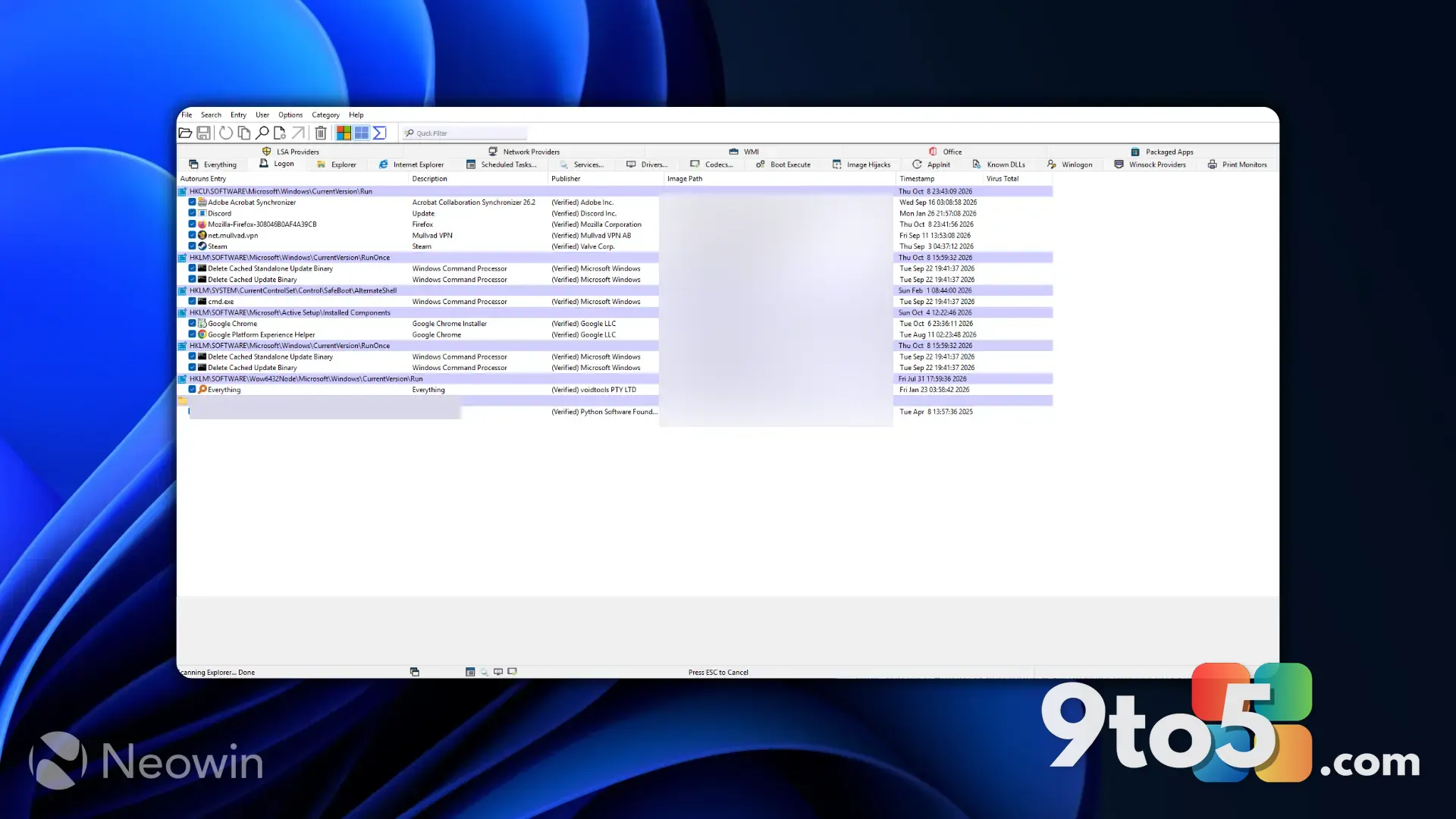
If you’ve ever opened the Start menu and wondered why a program you know is installed doesn’t show up, you’re not imagining things. The Start menu deliberately filters its contents, so a number of hidden Windows apps can sit on your PC without a tile or entry you can easily spot. Here’s how to find them.
Why the Start menu hides some apps
The Start menu is a curated view, not a complete inventory. It pulls entries from a small set of shortcut locations and applies its own filtering rules, which means apps can be installed and running while never appearing in your search results or app list.
This is especially true for a few common cases. Some apps ship without a Start menu shortcut on purpose, relying instead on their own installer or a desktop icon. Others install into system folders that the Start menu doesn’t scan. That’s why these apps commonly slip past:
- Programs that install without a shortcut, using a desktop icon or their own launcher instead
- Apps placed in system folders the Start menu never scans
- Store apps installed for a single user account rather than the whole machine
- Utilities and background tools launched from Task Scheduler or dropped in by other software
The upside is that nothing is actually missing from your PC. The software is there; you just need to look in the places Windows keeps its full record. Below are the most reliable ways to surface those apps.
Method 1: Find hidden Windows apps in the Apps folder
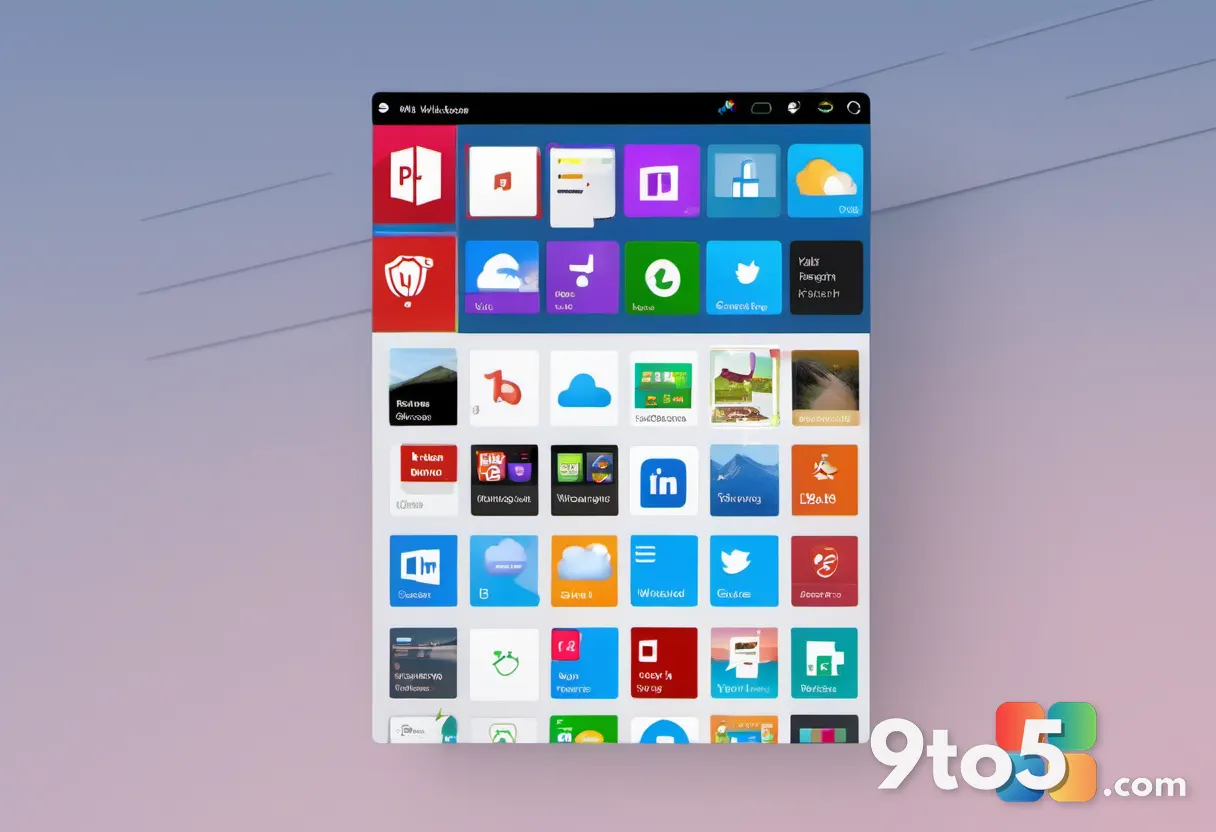
The quickest way to see nearly everything installed is a special virtual folder called shell:AppsFolder. Unlike a regular folder, it lists all your apps, including Microsoft Store and modern apps that don’t have visible shortcuts.
To open it, press Win + R, type shell:AppsFolder, and press Enter. You can also paste that path into the address bar of any File Explorer window. You’ll get a complete grid of installed apps, which you can sort, search, and right-click to open, run as administrator, or uninstall directly.
This view is handy because it shows apps that search often misses, and the right-click menu gives you the same management options you’d expect from the Start menu itself.
Method 2: Browse the Program Files folders
Traditional desktop programs install into the Program Files folders, and looking there shows you exactly what’s on disk. Open File Explorer and check both C:\Program Files and C:\Program Files (x86). The first holds 64-bit applications; the second holds 32-bit ones on a 64-bit system.
For app data, shortcuts, and installer leftovers that aren’t tied to a visible entry, also look in %ProgramData%. Press Win + R, type %ProgramData%, and press Enter to jump straight there. The Start menu shortcuts themselves live under %ProgramData%\Microsoft\Windows\Start Menu, so anything absent from that folder is a strong clue as to why it never shows up.
Method 3: Check Settings > Apps
If you’d rather use the built-in UI rather than dig through folders, Settings has a full list. Go to Apps > Installed apps (on Windows 11) or Apps > Apps and features (on Windows 10). This page enumerates virtually every program Windows knows about, from large games to small utilities.
Unlike the Start menu, this list is sortable and filterable, and it links straight to uninstall controls. It’s the most practical place to confirm an app is installed and to remove it if you no longer need it.
Method 4: Query installed apps with PowerShell
For power users, PowerShell can list apps that no menu or folder exposes at a glance. The command Get-AppxPackage returns the Store apps available to your current account, while Get-AppxAllPackages covers every account on the PC.
Both commands accept a Select-Object filter so you can pull just the package names and install locations you care about. This is useful for auditing a machine, spotting stray or orphaned packages, and confirming exactly where an app lives on disk.
What This Means for You
The practical takeaway is simple: a missing entry in the Start menu is not proof that an app is gone. If a program you installed seems to have vanished, check one of the methods above before assuming something went wrong. In most cases the software is perfectly healthy; it just never registered a shortcut the Start menu displays.
These same techniques also help when you’re troubleshooting. If an app won’t launch from search, you can still find its executable and open it directly. If you’re trying to free up space, the Settings list and Program Files folders together give you a clearer picture than the Start menu ever will.
How to Get Started
For most users, opening shell:AppsFolder with the Run dialog is the fastest path to everything installed on your PC. If you specifically need to manage or uninstall something, the Apps > Installed apps settings page is the friendliest option. Reserve PowerShell for when you need a complete, scriptable inventory across all accounts.
Try the Apps folder next time an app seems missing, and you’ll likely find it waiting right there, unhidden.
Source: Neowin
Over to you: Which method do you reach for first when an app seems to vanish from the Start menu — the Apps folder, Settings, or PowerShell?