Microsoft has officially shipped WSL containers as a generally available feature, extending the Windows Subsystem for Linux (WSL) beyond a development convenience into a full platform for building, running, and managing Linux containers directly on Windows. According to the Windows Blog, the announcement closes out the public preview that began earlier this year and opens the feature to all Windows users running supported WSL builds.
For developers who have been waiting to run cloud-native workloads without juggling a separate toolchain, this is the moment the feature stopped being an Insider-only experiment and became something you can install today.
#1 WSL containers CLI
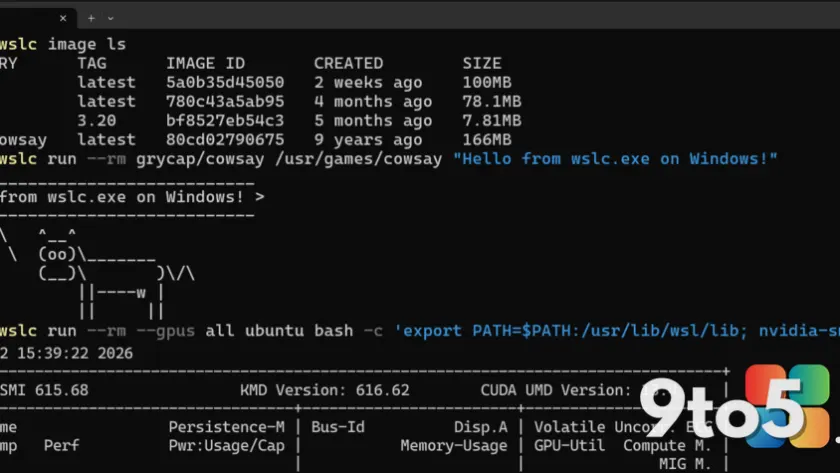
The centerpiece of the release is a new command-line interface, wslc.exe, which lets you build, run, and deploy Linux containers without leaving Windows. If you already know the familiar container command syntax, you can lean on its built-in alias container.exe to run the same commands under the hood.
This means your existing workflows and muscle memory carry over, while the tooling now runs natively on the Windows host rather than inside a Linux VM. The CLI gives developers a single entry point for the full container lifecycle: pull images, spin up containers, manage networking, and inspect state, all from PowerShell or Command Prompt.
#2 WSL containers API
Beyond the command line, the release also exposes a WSL containers API that lets native Windows applications run Linux containers programmatically. This is the piece that unlocks more advanced scenarios, such as embedding container execution directly into a Windows desktop app.
For example, a developer could build a local AI tool that spins up a containerized model on demand, or a desktop client that runs a cloud-based application locally by packaging it as a container. The API gives Windows software the ability to orchestrate Linux containers without shelling out to a separate process, opening the door to tighter integration between Windows apps and Linux workloads.

#3 New commands and capabilities
Since the public preview, Microsoft has been expanding the command set around container lifecycle, networking, and observability. The GA release adds a batch of new commands that target the day-to-day tasks developers run most often.
For lifecycle management, you now have wslc container restart to restart a running container, and wslc container cp to copy files in and out using a tar archive. wslc system info gives you a snapshot of your container environment at a glance, while container health checks are now supported so orchestrators can tell whether a container is actually healthy.
Networking gets more flexibility too. wslc network connect and wslc network disconnect let you attach and detach containers from networks, and wslc network create now supports arbitrary network driver options. For observability, wslc events streams real-time container activity, which is useful for debugging and monitoring.
There are also several flags and options worth noting. --stop-timeout on wslc create and wslc run lets you control how long the system waits before force-stopping a container, including -1 for an infinite timeout. --mount support during wslc create and wslc run gives you more control over storage, and you can now configure a storage path for the default wslc session so your container data lives on whichever drive you prefer.
#4 Enterprise manageability
Microsoft has spent effort making sure organizations can adopt WSL containers in production, and this release extends two of its enterprise platforms to cover container workflows.
Microsoft Defender for Endpoint (MDE) has an existing plugin for WSL, and it has been augmented to also surface container activity. MDE can now report process, file, and network activity from WSL containers and connect that activity back to the Windows host, which helps security teams investigate suspicious behavior without standing up a separate security workflow.
Microsoft Intune has added its own controls, including the ability to enable or disable WSL containers entirely and to restrict image pulls to approved registries. On the Intune dashboard you’ll find two new settings specific to this feature: an Allow WSL containers access toggle to control access to the whole feature, and a WSL containers registry allow list that lets administrators define which registries developers are permitted to pull images from.
#5 Partner and community integrations
The ecosystem around WSL containers is already expanding, with partners and community contributors adding support to tools developers already use.
Notable integrations include VS Code dev container support, which lets you use wslc as your default driver for creating and interacting with dev containers, and the VS Code container extension (v1.1.0), which now supports wslc. Aspire can now treat WSL Containers as a first-class container runtime, and there are community projects like Lazywslc, a TUI dashboard for managing containers, and WSL Container Desktop, a WinUI 3 desktop app for managing containers, Kubernetes (k3s), and registries.
There’s also WSLc remote, a short wrapper script to run wslc from within WSL distros, which matters for anyone who prefers to work from inside the Linux side while still talking to the native container runtime.
#6 What’s next for WSL
Microsoft says it sees Linux on Windows evolving beyond a development environment into a strategic execution platform for AI and cloud-native workloads, sitting inside the same enterprise security and governance frameworks as Windows. Two items on the roadmap are worth flagging.
The top feature request, by Microsoft’s own account, is compose support. The goal is for wsl compose up to work with existing compose.yaml files unchanged, and Microsoft says it has already started work on this, hoping to share more soon.
Microsoft is also investigating core platform improvements around networking and cross-OS file performance. Some of this is already visible today: wslc supports up to 2x faster performance when accessing Windows files from Linux environments, addressing one of the most common cross-OS bottlenecks. It also introduces a new consomme network mode, enabled for container workflows, which improves networking compatibility across developer and enterprise scenarios.
What This Means for You
For everyday developers, the practical upshot is simple: if you’ve been running Linux containers through a VM or a third-party tool, you now have a first-party, Windows-native option that speaks the same command syntax you likely already know. The container.exe alias means a lot of your existing container knowledge transfers directly, so the learning curve is shallow.
For teams, the enterprise controls in Intune and MDE are the reason to pay attention. Being able to restrict image pulls to approved registries and surface container activity in your existing security tooling removes much of the friction that usually blocks adoption of dev tools on corporate machines, which is often the real reason such tools never leave the preview stage.
How to Get It
To start using WSL containers, run wsl --update in your terminal, or download the latest release from the WSL GitHub releases page. Once updated, wslc.exe and its container.exe alias will be available.
For the technical details on how the platform is built and how it integrates with WSL, Microsoft points to its WSL containers architecture blog, and the full change logs are posted on the releases page. If you run into issues or have feature requests, the microsoft/wsl GitHub repo is the place to file them.
Source: Windows Blog
Over to you: Will you switch to the wslc command, or stick with the container.exe alias you already know?