When Microsoft added the Copilot key to Windows 11 keyboards, it didn’t come free of charge. To fit the dedicated AI button, some laptop manufacturers quietly removed other keys that used to sit right beside it. Now, according to Neowin, Microsoft is giving users a way to reclaim those lost keys.
The Copilot key came with a hidden cost
The Copilot key arrived as part of Microsoft’s push to make its AI assistant a single-tap experience on new PCs. Press it once and Copilot pops up, unbothered by keyboard shortcuts or search bars, which was the whole point of giving it a dedicated physical button.
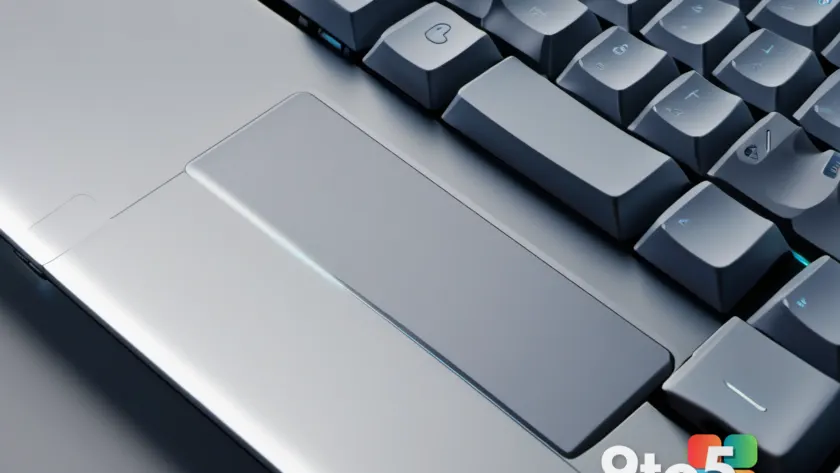
But keyboards have a fixed number of keys, and space is at a premium on the slim chassis many laptop makers prefer. Rather than widen the keyboard or thicken the device, some OEMs chose to absorb an existing key into the Copilot button to keep designs thin.
The casualty was usually the Menu key, also called the Application key. It’s the small button that opens a right-click context menu without you having to touch a mouse, and it has been a staple of PC keyboards for decades.
Which keys were actually lost?
For most users, the Menu key was the victim. On many Windows 11 laptops, the physical key that once sent the “Menu” signal now launches Copilot instead, leaving right-clickers and keyboard-only users without their familiar shortcut.
Depending on the maker and the model, other keys have been affected too. Some designs trim keys along the bottom row or near the arrow cluster, so the exact loss varies from one laptop to the next and can be easy to miss until you actually need the key.
The complaint has been circulating for a while: enthusiasts and productivity users alike noted that surrendering a functional key to an AI shortcut felt like a step backward for machines aimed at power users who rarely reach for Copilot.
Microsoft is now letting users reclaim them
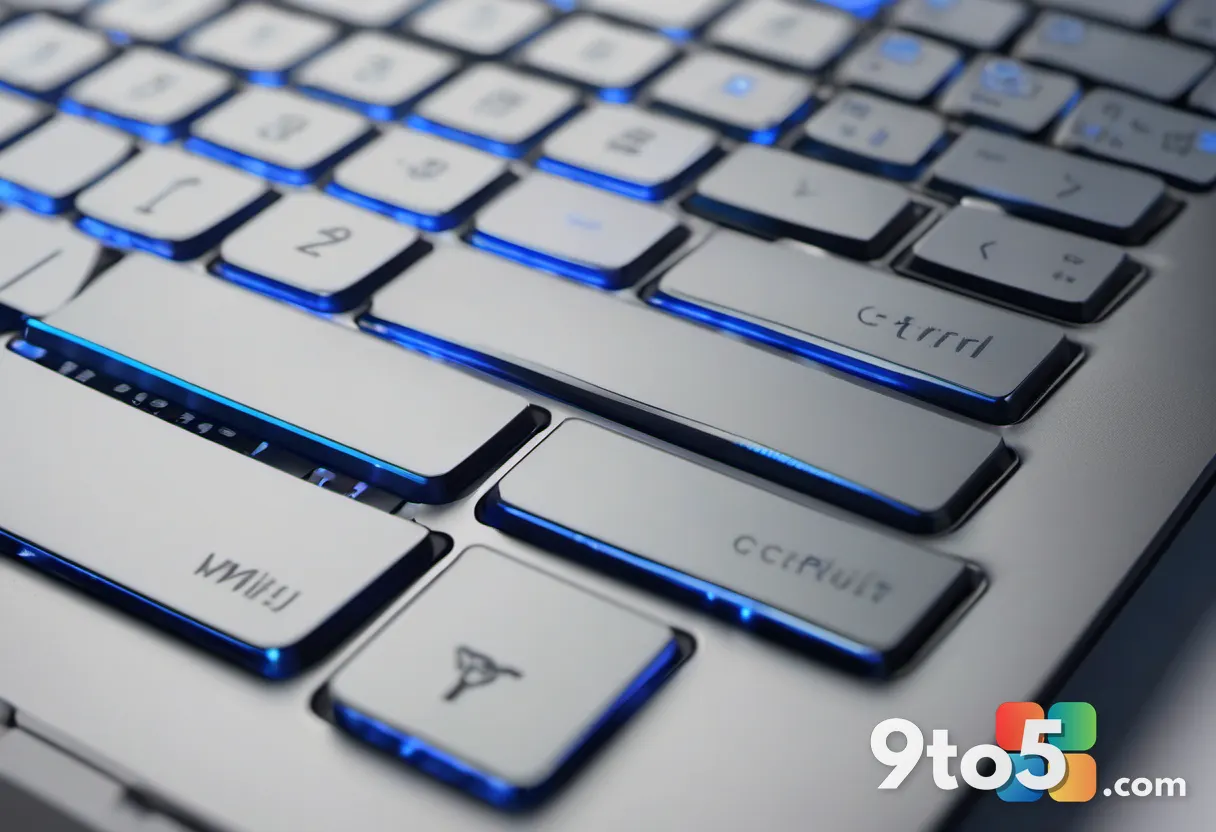
According to Neowin, Microsoft has recognized the trade-off and is working on a solution that would let Windows 11 users remap or restore the keys that got taken over by the Copilot key.
The idea is straightforward: give owners a supported, built-in way to reassign the Copilot key’s function back to the key it replaced, or otherwise bring the lost key back into service without any third-party tools.
As things stand, Microsoft hasn’t released specifics. There’s no confirmed build number, no KB article, and no release date attached to the fix yet, so treat the details as early-stage and watch for an official announcement.
What this means for you
If you picked up a Windows 11 laptop with a Copilot key that swallowed your Menu key, you’re not stuck waiting idly. The upcoming fix should restore the functionality once it ships, but there are workarounds you can use today to keep your workflow intact.
For now, the practical move is to remap the Copilot key yourself so it behaves like the key you lost—until Microsoft’s official solution arrives and lets you switch back cleanly.
How to reclaim the keys in the meantime
Before the official fix lands, you have a few solid options to get your Menu key (or whichever key was lost) back on your own machine.
- Microsoft PowerToys: The free Keyboard Manager utility lets you remap one key to act as another. You can point the Copilot key to output the Menu signal, restoring right-click menus and keyboard shortcuts without touching the registry.
- Manufacturer software: Some laptop vendors ship their own key-remapping tools or firmware options that can reassign the Copilot key’s behavior, so check the support site for your specific model.
- Registry tweaks: Advanced users can adjust scan-code mappings in the Windows registry, though this is riskier and best left to those comfortable with system-level changes.
Keep in mind the trade-off: remapping the Copilot key means you lose one-tap access to Copilot until you flip it back. If you rarely use the AI assistant, that’s a fair swap to keep a working Menu key.
What to do next
Watch for Microsoft’s official update to reclaim the Copilot key’s lost functions, and check the Windows Update channel and your laptop maker’s support page for the earliest availability.
Until then, PowerToys Keyboard Manager is the safest, most reliable way to restore the Menu key yourself. It’s a Microsoft tool, it’s free, and it can be reversed the moment the built-in fix ships.
Source: Neowin
Over to you: If you already lost a key to the Copilot button, will you remap it yourself with PowerToys or wait for Microsoft’s official fix?
You may also like
 New Simple Trick Bypasses Windows 11’s Internet Requirement for Offline Installs
 Media Creation Tool Now Offers One of the Last Windows 11 25H2 ISOs Before 26H2
 Unofficial App Brings Nvidia DLSS 5 to Your Entire Windows 11 Desktop
 Windows 11’s End Task Button Kills Frozen Apps in Two Clicks (Here’s How to Turn It On)