After a quiet first half of the month where no preview builds dropped across the Experimental, Beta, or Release Preview channels, Microsoft finally broke the silence on August 17. The company pushed out five new previews simultaneously, signaling a deliberate shift toward public testing of features that have been simmering in internal development for months. If you have been tracking the Windows 11 Insider August 2026 wave, you will notice a clear editorial direction: Microsoft is prioritizing user control, modernizing aging subsystems, and finally pruning deprecated code that has lingered in the OS for years.
Below, we break down the eight most significant changes rolling out across builds 29648, 28120.2738, 26340.9212, 28020.2731, and 26220.9202. Each update targets a specific pain point or legacy dependency, and together they map out where Microsoft wants Windows 11 to sit before the next major version ships.
#1 Redesigned and fully customizable context menu
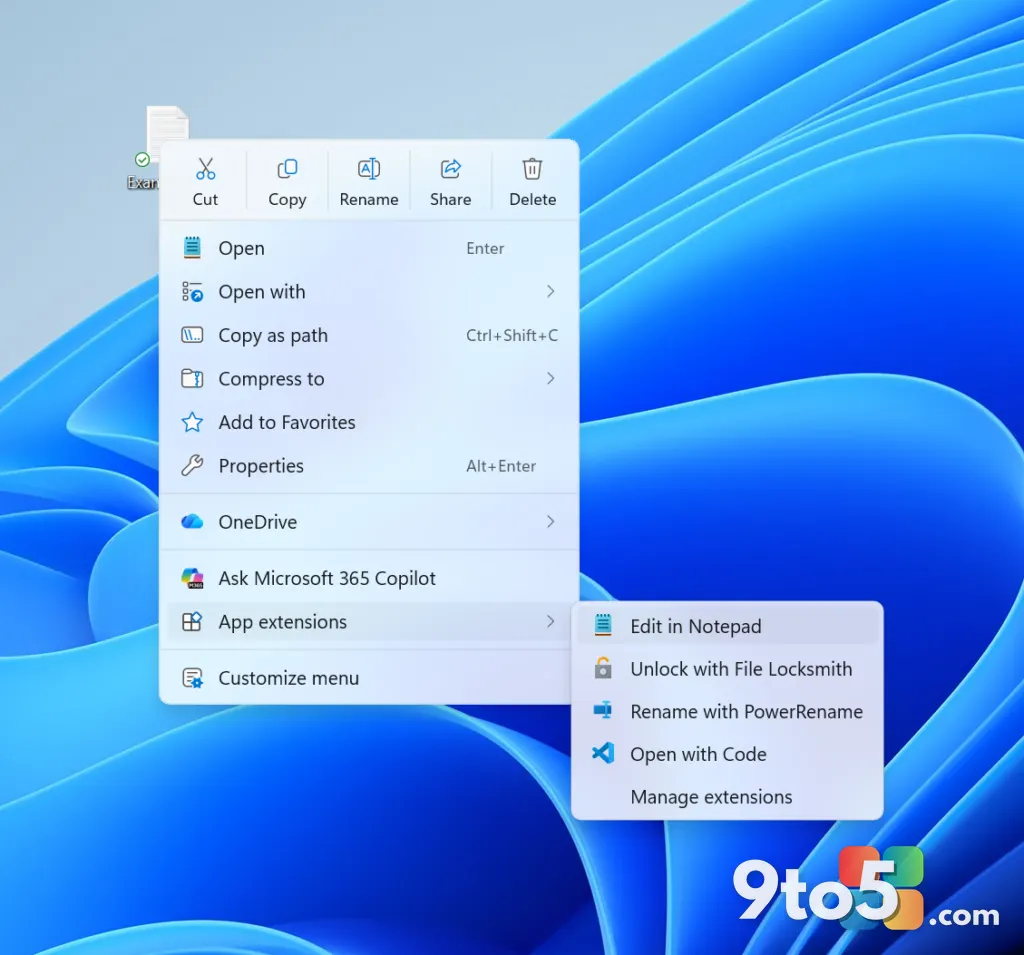
The headline change for this month is the complete overhaul of the right-click context menu. Microsoft has stripped away the horizontal layout that frustrated power users since Windows 11 launched and replaced it with a vertically stacked, fully customizable interface. When you right-click a file or folder now, the menu loads faster, reduces visual clutter, and introduces a new “App extensions” submenu that groups third-party integrations cleanly.
What actually matters here is the new “Customize menu” entry point, which routes you directly to Settings > Personalization > Context menu. From there, you can toggle exactly which items appear in the primary list. Options like Send to, Print, Create shortcut, Copy as path, and Rotate image are now explicitly selectable under the File actions section. Notably, Send to and Print are returning to the modern menu design after being absent since the initial Windows 11 release.
Microsoft also acknowledges the muscle memory problem that has plagued the OS. You can now arrange primary actions like Cut and Paste vertically instead of horizontally, pin Properties to the bottom of the list, or restore the classic “Show more options” entry. If you prefer the legacy interface entirely, Shift + Right-click still invokes it. This configuration lands on build 26340.9212 for version 26H2 in the Experimental channel.
#2 Desktop background and personalization refinements
Alongside the context menu overhaul, build 26340.9212 brings a quiet but highly requested set of fixes to the desktop background engine. The Settings > Personalization > Background page now renders previews at higher resolution, which translates to noticeably sharper thumbnails on ultrawide and portrait monitors. Slideshow transitions have been hardened to prevent the random fallback to a solid color, a bug that frequently disrupted newly created user accounts.
Under the hood, Microsoft is now supporting Device-Independent Bitmap (DIB) image files as desktop wallpapers, expanding the format options beyond the traditional JPEG and PNG pipeline. Additionally, the system now correctly preserves slideshow wallpaper assignments across multiple virtual desktops instead of resetting them to the default Picture mode when you switch workspaces. These changes remove years of friction for users who rely on dynamic backgrounds for productivity or aesthetic consistency.
#3 Camera Roll backup integration
Microsoft is tightening the bridge between mobile photography and desktop storage by adding direct entry points for Camera Roll backup. Located under Settings > Home and Settings > Accounts, these new toggles let you configure automatic synchronization of photos and videos from your paired mobile device to OneDrive without navigating through third-party apps or legacy sync utilities. The feature is designed to work seamlessly with the existing Windows 11 mobile integration framework, ensuring that your desktop file explorer always reflects the latest shots without manual intervention.
#4 Magnifier interface refresh
The Magnifier accessibility tool is receiving a visual overhaul that aligns it with the current Fluent Design language. Microsoft has refreshed the toolbar icons to match the operating system’s updated visual vocabulary and adjusted the spacing and padding around interactive elements. While the core magnification engine and keyboard shortcuts remain unchanged, the tighter layout reduces accidental clicks and makes the control bar easier to navigate for users with motor impairments or those relying on high-contrast themes. This update is currently live on version 26H2, starting with build 26340.9212.
#5 Windows Recovery Environment Wi-Fi upgrades
One of the most practical changes in this wave targets the Windows Recovery Environment (WinRE). Historically, WinRE could only auto-connect to unauthenticated wired Ethernet or preconfigured Wi-Fi networks. If you relied on WPA2/WPA3 secured networks, you were forced to manually enter credentials every time you needed to troubleshoot a boot failure or run a cloud rebuild. Microsoft has now enabled WinRE to automatically reuse eligible Wi-Fi profiles saved in the operating system, including certificate-based enterprise networks.
This means recovery workflows like Quick Machine Recovery or Intune-driven cloud reinstalls can now reach the internet without interrupting the user for network setup. The behavior is enabled by default, but IT administrators managing fleet deployments can disable it via registry or Group Policy if their security posture requires manual network validation during recovery. For home users and small business owners, this removes one of the most tedious barriers to self-repairing a corrupted Windows installation.

#6 Removal of WMIC and Drag Tray features
In a move that affects both power users and enterprise environments, Microsoft is permanently removing the Windows Management Instrumentation Command-line (WMIC) and the Drag Tray feature from this build wave. WMIC, the legacy wmic.exe utility, has been deprecated for years as administrators migrate to PowerShell and Microsoft Graph-based management. WMI itself remains fully functional through modern APIs, but the standalone command-line tool is finally gone. Users who relied on quick hardware queries or legacy automation scripts will need to convert those commands to PowerShell equivalents.
The Drag Tray feature, which allowed users to drop files into the taskbar to open them in associated applications, is also being pulled. Microsoft cites user feedback as the primary driver for the removal, noting that the feature saw low adoption and created inconsistent behavior across different window states. The company states it will continue exploring taskbar interaction improvements and plans to announce a future replacement in a later update. For now, the taskbar reverts to its standard pin-and-launch behavior.
#7 File Explorer performance tweaks
Build 26220.9202 for version 25H2 (Beta) brings targeted performance improvements to File Explorer. The Home page now launches faster and feels more responsive when navigating between recent files and quick access folders. Microsoft has also enabled touch scrolling for the Recommended section, allowing users to swipe through the file carousel smoothly on touchscreen devices. Additionally, a long-standing rendering bug that caused previews to display an unexpectedly thick horizontal band across the middle has been patched, cleaning up the visual presentation for image and document thumbnails.
#8 Windows Security app visual updates
The Windows Security app is receiving subtle visual adjustments on build 29648 to better align with the rest of the Windows 11 interface. While the core functionality remains identical, the layout tweaks reduce visual noise and improve consistency with the Settings app’s design language. On managed devices with Microsoft Defender for Endpoint enabled, the app now surfaces protection status information at the top of the Virus & threat protection page, giving IT administrators and users a clearer view of enterprise-grade security posture without navigating into submenus.
What This Means for You
The August preview wave is clearly about maturation rather than radical reinvention. Microsoft is addressing the most persistent complaints about Windows 11 head-on: the rigid context menu, the unreliable desktop background engine, and the painful recovery process for secured networks. The removal of WMIC and Drag Tray signals that Microsoft is no longer willing to maintain legacy compatibility layers that slow down development. If you are running an Insider build, you will notice a faster, more configurable interface that rewards customization. For enterprise admins, the WinRE Wi-Fi upgrade and Defender for Endpoint integration will streamline deployment and recovery workflows significantly.
How to Get It
To test these changes, you will need to join the Windows Insider Program and opt into the appropriate channel. The Experimental track is currently receiving builds 29648, 28120.2738, and 26340.9212, while the Beta channel is getting 28020.2731 and 26220.9202. You can switch channels or download previews directly from Settings > Windows Update > Windows Insider Program. Keep in mind that Experimental builds are intended for testing and may contain instability, so ensure you have backed up critical data before installing.
Source: Latest from Windows Central
Build details:
- build 26220.9202
Over to you: Which of these August updates are you most excited to test, or will you stick to the stable release for now?
You may also like
 Ubuntu on WSL Is Outpacing Its Native Desktop for the First Time
 Windows 11 Insider Preview: New Builds, Renewed Certificates, and a Redesigned Context Menu
 New Windows 11 Builds Remove Drag Tray and WMIC for Insiders
 Windows 11 Experimental Channel Update: Build 26340.9212 Brings Redesigned Context Menu