Malware infections do not always announce themselves with obvious symptoms. Sometimes a suspicious pop-up, an unexplained slowdown, or an unfamiliar process running in the background is the only warning you get. Running a manual malware scan with Windows Defender gives you direct control over when and how your system checks for threats. This guide walks you through the exact steps to trigger a Quick Scan, Full Scan, or Offline Scan in Windows 11, so you can catch and remove threats before they cause lasting damage.
Before You Start: Make sure your Windows 11 PC is connected to the internet and signed in with a Microsoft account or local administrator account. Windows Defender requires administrative privileges to perform deep system scans and quarantine files. If you are using a work or school device managed by an IT department, your administrator may have restricted scan options. In that case, you will need to contact your help desk before proceeding.
Step 1: Open Windows Security
Click the Start button and type Windows Security, then press Enter. This launches the dedicated security hub that centralizes all of Microsoft’s built-in protection tools. You will see a grid of icons representing different security categories. If you prefer a keyboard shortcut, you can press Win + I to open Settings, then navigate to System > Windows Security from the left sidebar. The app requires administrator access, so Windows will prompt you for permission if your account lacks the necessary rights.
Step 2: Navigate to Virus & Threat Protection
Click the Virus & threat protection tile in the top row of the Windows Security dashboard. This section houses the core scanning engine and threat history logs. You will immediately see a status indicator showing whether real-time protection is active, along with a link labeled Scan options located just below the current protection status. This link is your gateway to the manual scanning interface. Windows Defender updates its malware definitions automatically, so you can also click Check for updates here if you suspect your definitions are outdated.
Step 3: Select Your Preferred Scan Type
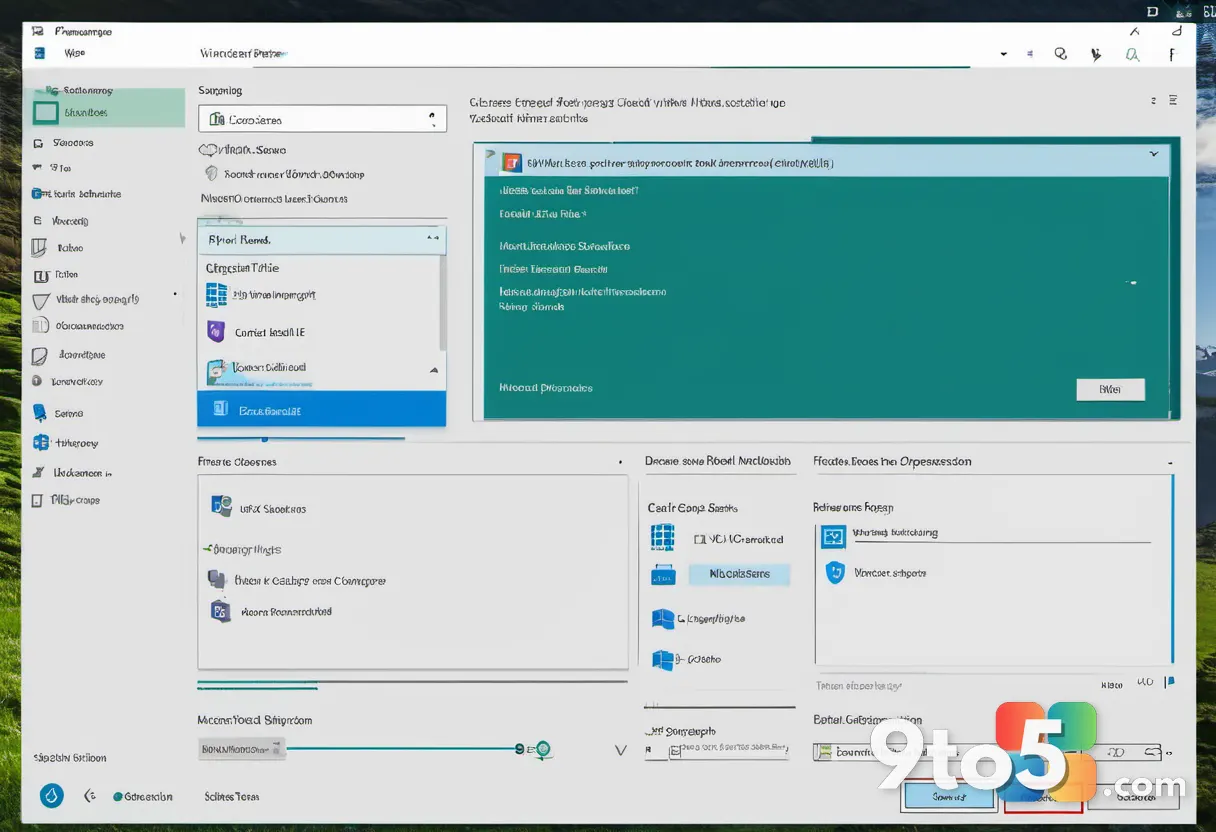
Click the Scan options link to reveal the four available scanning modes. Windows Defender offers Quick Scan, Full Scan, Custom Scan, and Windows Defender Offline Scan. Quick Scan checks the most vulnerable areas where malware typically hides, including memory, startup programs, and system folders. Full Scan examines every file and running process on your drives, which takes significantly longer but provides the most thorough cleanup. Custom Scan lets you pick specific folders or drives to investigate. The Offline Scan restarts your PC and runs a deep scan before Windows loads, which is highly effective against rootkits and persistent threats that defend against detection while the operating system is active. Choose Quick Scan for routine checks, Full Scan when you suspect a serious infection, and Offline Scan if standard tools fail to remove stubborn malware.
Step 4: Start the Scan and Monitor Progress
Click the Scan now button next to your chosen option and wait for the progress bar to move. Windows Defender will begin analyzing your system and display a percentage counter along with an estimated time remaining. During a Quick Scan, you can keep working on your PC, though you may notice slight performance drops. Full and Offline scans require you to step away, as they heavily utilize your processor and disk drive. If the scan appears frozen or the progress bar stops moving for more than ten minutes, do not force a restart. Instead, open Task Manager with Ctrl + Shift + Esc, locate Windows Defender Antivirus Service, and verify it is actively running. You can also check the Protection history tab to see if the scan is still processing in the background.
Step 5: Review Results and Take Action
Once the scan finishes, click the Scan results link to view the detailed report. Windows Defender will list any detected threats along with their severity level and current status. For each item, you can choose to Quarantine, which isolates the file so it cannot execute, or Remove, which permanently deletes it from your system. If you accidentally block a legitimate program, you can restore it later from the Protection history tab at the bottom of the Virus & threat protection page. After handling the results, click Close to return to the main dashboard. Review the threat names to understand whether the detected items were known malware, potentially unwanted applications, or false positives.
Troubleshooting Common Scan Issues
If Windows Defender refuses to start a manual scan, the most frequent culprit is conflicting third-party antivirus software. When you install programs like Norton, McAfee, or Bitdefender, Windows automatically disables its built-in scanner to prevent performance conflicts. You will need to temporarily uninstall or pause the third-party suite before running a Defender scan. Another common issue occurs when scan settings have been modified by group policy or registry edits. If you see a message stating that certain actions are disabled, check Computer Configuration > Administrative Templates > Windows Components > Microsoft Defender Antivirus in the Local Group Policy Editor. Finally, if the scan repeatedly fails with error code 0x80070005, your user account likely lacks write permissions to the C:\Windows\System32\ directory. Run the scan from an elevated command prompt by right-clicking the Start menu and selecting Terminal (Admin) or Command Prompt (Admin), then launch the scanner from there.
Pro Tip: Schedule regular manual scans alongside real-time protection. Open Windows Security > Virus & threat protection > Manage settings and toggle Scan my PC automatically with Microsoft Defender to On. This ensures your system checks for threats daily without requiring you to remember the steps above.
Running a manual malware scan takes only a few minutes for a Quick Scan and a couple of hours for a Full Scan, but it gives you complete visibility into your system’s health. Keep your malware definitions updated, avoid downloading files from untrusted sources, and rely on Windows Defender as your first line of defense. If you continue to experience suspicious behavior after a clean scan, consider running a second opinion tool from a reputable security vendor.
Have you ever caught a hidden threat by running a manual Windows Defender scan? Share your experience in the comments below.
Over to you: Have you ever caught a hidden threat by running a manual Windows Defender scan? Share your experience in the comments below.