Windows 11 ships with a comprehensive suite of built-in applications designed to handle everyday tasks. However, many users find these native tools limiting, bloated, or slow to adopt modern features. Fortunately, the third-party ecosystem offers robust alternatives that can significantly enhance your workflow. According to recent coverage from Windows Central, there are six specific applications that stand out as superior replacements for Microsoft’s core utilities.
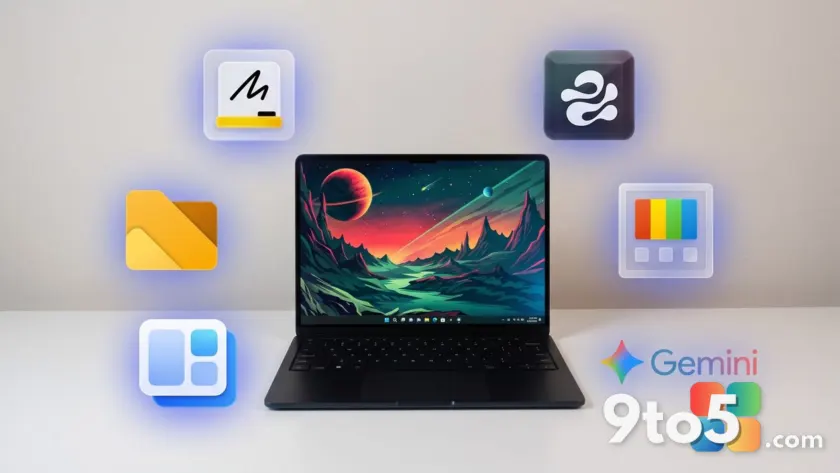
#1 Google Gemini for Text Editing
Microsoft Editor is adequate for catching basic grammar mistakes, but it often falls short when handling complex writing tasks. Google Gemini steps in as a powerful alternative, excelling at identifying subtle phrasing errors and offering suggestions to restructure paragraphs. It provides refined flow and tone adjustments that go well beyond simple proofreading, making it an ideal upgrade for writers who need more depth than the default editor provides.
#2 Markerpad for Whiteboarding
Microsoft Whiteboard has become increasingly web-dependent and is being phased out for non-business users, leaving a gap for quick visual collaboration. Markerpad serves as a lightweight, native replacement that loads instantly on Windows 11. By running directly on your device rather than in a browser, it eliminates the bloat and latency associated with the official app, offering a smoother experience for brainstorming and note-taking.
#3 Edge Drop for Clipboard Management
The built-in Windows clipboard history is functional but lacks visual flair and ease of use. Edge Drop addresses this by positioning a clipboard manager along the side of your screen. It supports intuitive drag-and-drop functionality, allowing you to manage copied items without ever pressing the Windows key plus V. While you can still use the native clipboard alongside it, Edge Drop provides a more efficient and visually accessible way to handle copy-paste workflows.
#4 Files App for File Exploration
Windows 11’s File Explorer remains reliable but is often slower to implement innovative features compared to third-party developers. The Files App blazes a trail by experimenting with modern layouts and new tools before Microsoft does. It appeals to users who desire more control and customization over their file management, offering a fresh interface that pushes the boundaries of what a file manager can be on the platform.
#5 Microsoft PowerToys for System Utilities
Microsoft PowerToys continues to be an essential toolkit for power users, often outshining native Windows features. Utilities like FancyZones deliver more powerful window snapping capabilities than the default manager. Additionally, tools like PowerToys Run can replace the Start menu entirely for faster application launching. This suite demonstrates how community-driven development can enhance core system functionality in ways that official updates may not immediately address.
#6 WidBar for Taskbar Widgets
The default widgets panel in Windows 11 can feel intrusive and disconnected from the rest of the interface. WidBar offers a cleaner solution by placing widgets directly into the empty spaces of the taskbar. Even in its beta phase, it provides a more integrated and less cluttered widget experience than the built-in option. This approach keeps your most important information accessible without sacrificing screen real estate or visual cohesion.
What This Means for You
These recommendations highlight a broader trend where third-party developers are innovating faster than Microsoft in certain categories. By swapping these defaults, you can streamline your computing experience and enjoy a more polished, efficient interface. It is a practical approach to customizing Windows 11 that allows you to tailor the system to your specific needs without waiting for official feature updates.
How to Replace Windows 11 Defaults with These Apps
Most of these applications are available directly through the Microsoft Store, ensuring a safe and straightforward installation process. Google Gemini can be accessed via its web interface, while apps like Markerpad and WidBar offer direct downloads. Installing these tools is a quick way to upgrade your daily workflow, and you can easily revert to the native apps if you prefer the original experience.
Source: Latest from Windows Central
Over to you: Which of these six apps would you install first to overhaul your Windows 11 workflow?
You may also like
 Google Voice for Business: The Complete Guide to Cloud Phone Management
 The Best VPNs for Android in 2025: Top 5 Picks for Phones and Tablets
 Best VPNs for Torrenting in 2025: Top Picks for Speed, Privacy, and Security
 Endstate App: The Free Windows Utility That Finally Restores Settings After a Fresh Install