Microsoft has quietly continued its steady push toward more inclusive computing, and the latest Windows Insider Preview build makes that commitment highly visible. Windows 11 accessibility receives a substantial upgrade in Insider Preview Build 29634.1000, introducing practical tools that address real-world friction for users who rely on speech and braille input.
For years, accessibility features in Windows have operated as specialized utilities tucked away in settings menus. This update changes that dynamic by focusing on seamless integration into everyday workflows. Whether you are navigating a noisy open office or setting up a fresh machine independently, these changes reduce barriers that have existed since the feature’s initial rollout.
#1 Voice Access Gets Voice Isolation
The most immediately noticeable change lands in Voice Access, the built-in tool that lets you control your PC entirely through spoken commands. Previously, the feature relied on a single microphone input, which meant background conversations, keyboard clatter, or even a barking dog could derail your commands. Build 29634.1000 introduces Voice Isolation, a new processing layer that actively filters out competing audio sources.
Under Voice Access settings, you will now find an Improve speech recognition menu offering three distinct modes. The first is Voice Isolation, which requires a quick, one-time guided setup where you read a short paragraph aloud. During this process, the system learns your vocal profile, allowing it to distinguish your voice from ambient noise. The second mode, Remove background noise only, strips out non-speech sounds like typing or door slams without requiring additional calibration. The third option, No filtering, reverts to the standard microphone input for users who prefer minimal processing.
What makes this update particularly significant is where the processing happens. Microsoft confirms that all audio analysis runs locally on your device. No voice data is uploaded to the cloud, which addresses a major privacy concern for enterprise environments and users who handle sensitive information. In practice, this means you can run Voice Access in a shared coworking space or a family room without worrying about your commands being intercepted or misinterpreted by nearby speakers.
The dock interface, which floats along the top of your screen to display recognized commands in real time, remains unchanged but now benefits from much higher accuracy. If you have ever tried to dictate a file path or click a specific UI element while someone else was talking nearby, you will understand how much of a friction point this previously created. That friction is now largely eliminated.
#2 Narrator Supports HID Braille Displays
The second major accessibility addition targets users who rely on refreshable braille displays. Build 29634.1000 adds native support for displays that follow the HID (Human Interface Device) standard, an open industry specification backed by Microsoft, Apple, and other major hardware manufacturers. This standardization shift transforms braille display connectivity from a driver-heavy ordeal into a true plug-and-play experience.
For users with USB-connected HID braille displays, the setup process is now identical to pairing any other peripheral. You simply connect the device, and Narrator recognizes it immediately. Bluetooth connectivity is also supported, allowing you to pair your display through Settings > Bluetooth & devices just like a standard wireless accessory. This removes the need for proprietary software or complex configuration steps that previously delayed adoption.
Microsoft has tested compatibility with several widely used models, including the Orbit Reader 20, Orbit Slate 340, Freedom Scientific Focus 40, and APH Mantis Q40. Users with other HID-compliant displays should find them working out of the box, though Microsoft recommends checking the official compatibility list for confirmation.
A particularly impactful addition is the support for HID braille displays during the Out-of-Box Experience (OOBE). Historically, deaf-blind users had to rely on a sighted assistant or a screen reader already configured on another device to complete initial Windows setup. With this update, you can now configure your PC independently from the very first screen. Braille input and output options remain fully customizable in Settings > Accessibility > Narrator > Braille after setup is complete.
Microsoft’s Commitment to Inclusive Design
These updates do not exist in a vacuum. They are part of a broader, multi-year strategy to embed accessibility into the core of Windows rather than treating it as an afterthought. Past milestones include the introduction of eye tracking in Windows 10, the Xbox Adaptive Controller for gamers with limited mobility, and ongoing refinements to screen tint and high-contrast modes.
The pattern here is clear: Microsoft is prioritizing standards-based hardware support and on-device processing. By aligning with the HID standard for braille displays and keeping Voice Isolation local, the company is reducing dependency on third-party drivers and cloud services. This approach benefits not only users with disabilities but also IT administrators managing fleets of devices, as it simplifies deployment and reduces support tickets related to peripheral compatibility.
What This Means for You
If you rely on Voice Access or a braille display, these changes are ready to use immediately upon installing the update. The voice isolation feature requires only a minute of calibration, and the braille display support eliminates previous setup headaches. Even if you do not use these features daily, you will notice improved speech recognition accuracy across other Windows apps, as the underlying audio processing improvements apply system-wide.
How to Get It
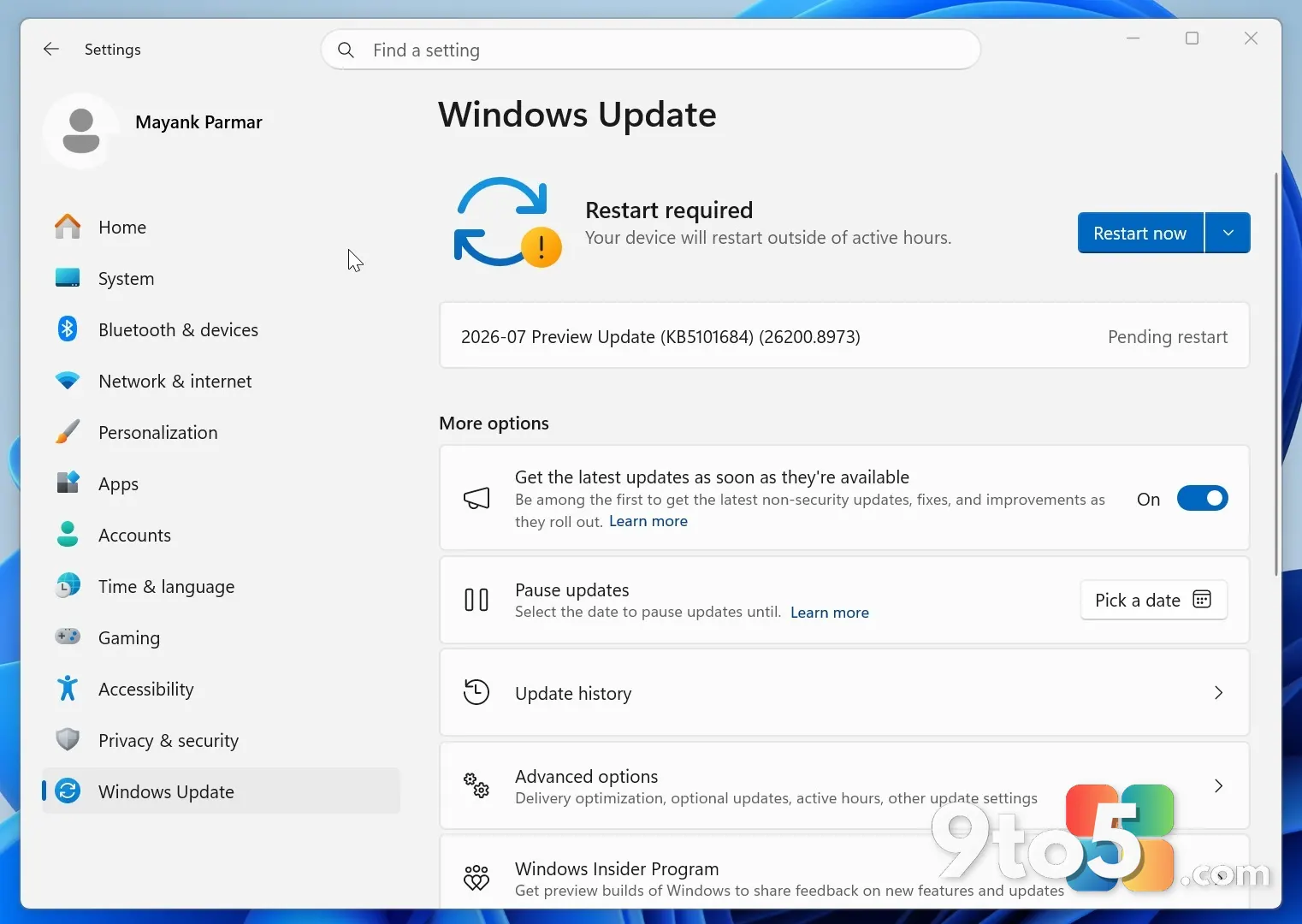
To access these updates, you will need to join the Windows Insider Program and opt into the Canary or Dev channel. Build 29634.1000 is currently available for download through Settings > Windows Update > Insider Preview Builds. Full details, including known issues and additional changelog entries, are published on the Windows Insider Blog.
Source: Latest from Windows Central
Over to you: Which of these accessibility upgrades will you be testing first in your daily workflow?