Microsoft is preparing to ship the next major feature drop for Windows 11, codenamed version 26H2, and the changelog points to a clear shift in strategy. Rather than chasing another visual overhaul or introducing experimental features, the company is focusing on refining the core desktop experiences that users interact with daily. According to reporting from Windows Central, the upcoming release will restore the ability to move the taskbar, expand Start menu customization, and clean up the search interface. It is worth noting that while these changes are targeted for version 26H2, Microsoft typically rolls out high-impact features through monthly cumulative updates first. This means you may see these improvements land on version 25H2 devices before the official 26H2 release arrives this fall.
#1 The Taskbar Finally Moves
When Windows 11 launched, the most immediate feedback from power users and casual readers alike centered on one missing feature: the ability to dock the taskbar to the top, left, or right edges of the screen. Microsoft removed this functionality in favor of a centered, touch-optimized layout, a decision that drew consistent criticism throughout the operating system’s lifecycle. The Windows 11 26H2 update is officially reversing that decision.
In practice, this means you can now position the taskbar on any of the four screen edges. The operating system dynamically adjusts the surrounding interface to match your chosen layout. If you place the taskbar at the top, the Start menu and search results will open downward from the upper edge. System tray icons, the clock, and pinned application buttons will automatically reflow to align with the new orientation, maintaining a consistent visual hierarchy regardless of placement.
There are a few behavioral differences when you switch to a vertical taskbar configuration. The clock will display the year in an abbreviated format rather than the full four-digit version, and the option to show seconds is currently disabled in this layout. However, both left and right alignments fully support app ungrouping and text labels when you select the “Never combine” option from the taskbar behaviors menu. This ensures that your workflow remains predictable even if you prefer a side-mounted dock.
Alongside the positional changes, Microsoft is reintroducing a legacy option that many users missed: the ability to reduce the taskbar height. The original Windows 11 design intentionally widened the bar to accommodate touch targets, but this made it visually dominant on ultrawide and high-resolution displays. The new size toggle allows you to shrink the bar, which will proportionally reduce icon size. Keep in mind that enabling the smaller taskbar will automatically disable the manual icon size slider at the bottom of the settings page, as the two options are mutually exclusive.
You can adjust these preferences by navigating to Settings > Personalization > Taskbar > Taskbar behaviors. Microsoft has included a live preview pane in this menu, allowing you to test different positions and sizes before committing to the change. This eliminates the guesswork that often accompanied previous customization attempts and gives you immediate visual feedback on how the new layout will feel during active use.
#2 Start Menu Gains Customization and Privacy
The Start menu has remained one of the most debated components of Windows 11 since day one. While the initial redesign successfully moved away from the legacy Windows 10 layout, it stripped away several customization options that users relied on to tailor the experience to their workflow. The Windows 11 26H2 update addresses these gaps by introducing granular control over layout, content visibility, and privacy.
First, the operating system will no longer force a layout based solely on your display resolution. Instead, you will be able to select from a set of preset size options that determine how much screen real estate the Start menu occupies. While you still cannot drag the edges to resize it freely or switch to a full-screen layout like the Windows 10 Start menu, having explicit size controls is a significant step forward. It allows you to balance quick access to pinned apps with enough desktop visibility for multitasking.
Content visibility is also being reworked. You can now independently toggle the visibility of the Pinned, Recent, and All apps sections. This means you can hide the Recent section if you prefer a static layout, or remove the All apps list if you rely entirely on search. Additionally, Microsoft is separating file recommendations from system recommendations. Previously, turning off recommendations would also clear your recent files and Jump Lists. Now, you can disable suggested content in the Start menu without affecting your activity history in File Explorer or the taskbar.
A new privacy-focused addition targets users who frequently share their screens during meetings or live streams. The updated Start menu includes a setting that hides your account name and profile picture when screen sharing is detected. This prevents sensitive personal or work-related information from appearing in the corner of your display while you are presenting to colleagues or an audience. These controls are consolidated under Settings > Personalization > Start, keeping the customization experience centralized and easy to navigate.
#3 Search Gets a Cleaner, Smarter Layout
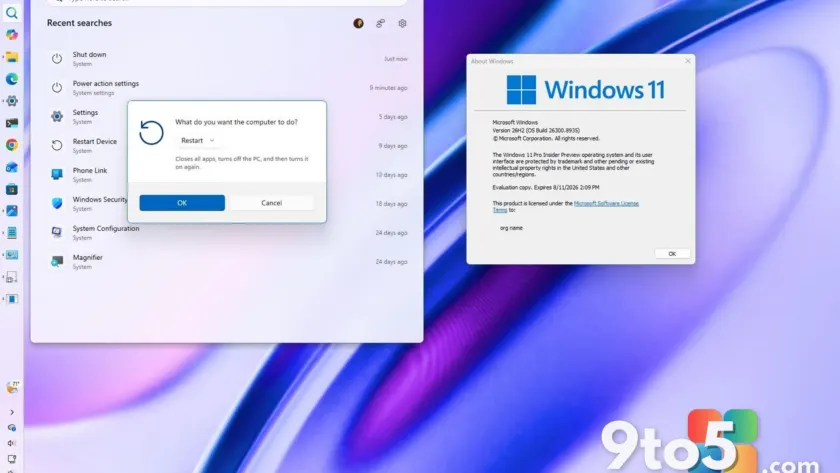
Windows Search has historically struggled to balance local file retrieval with web-based answers, often cluttering results with promotional content and sponsored links. The Windows 11 26H2 update restructures the search experience to prioritize relevance, reduce visual noise, and give users explicit control over what appears in their results.
The redesigned search home page removes trending topics, news widgets, and promotional banners. Instead, it opens directly to your recent search history, allowing you to quickly revisit previous queries without scrolling past unrelated content. When you type a query, the ranking algorithm now favors local results when they are the most relevant match. Applications, system settings, and local files will appear ahead of web results and Microsoft Store suggestions, which reduces the number of clicks needed to open the content you actually want.
For users who prefer a strictly offline experience, Microsoft is adding separate toggles to disable web results and Microsoft Store suggestions. These options are located under Settings > Privacy & security > Search, giving you the ability to tailor the search engine to your workflow without relying on third-party registry edits or group policy configurations. The interface itself has also been updated with improved spacing, clearer source labels, and thumbnail previews, making it easier to scan results at a glance.
Behind the scenes, the search indexing engine has been tuned to handle imperfect queries more effectively. You can now find local files using as few as two characters, and the system does a better job of matching partial words, common typos, and missing letters. Cloud and connected files are also ranked higher when they are the most relevant result, ensuring that OneDrive and SharePoint content does not get buried under local matches. Additionally, the search box itself has been increased in height by four pixels, providing slightly more room for longer queries without expanding the taskbar footprint.
What This Means for You
The cumulative effect of these changes is a desktop environment that feels more responsive to user preference rather than enforcing a single workflow. If you have been waiting to move your taskbar back to the top or side of your screen, or if you want to hide the Start menu sections you never use, the Windows 11 26H2 update delivers those capabilities natively. The search improvements will likely reduce friction for users who rely heavily on the search bar to navigate settings and open files, particularly those who manage complex file structures or work across multiple drives.
From an enterprise perspective, the separation of file and system recommendations simplifies compliance and privacy management. IT administrators can now disable tracking features at the user level without disrupting Jump List functionality or file history. The privacy toggle for screen sharing also addresses a common concern in corporate environments where employees present to external clients or record training materials.
How to Get It
These features are currently in development for Windows 11 version 26H2, with a general availability target set for fall 2026. However, Microsoft has a history of backporting high-priority features to the current stable channel via monthly cumulative updates. If you are running version 25H2, you should monitor the Windows Update settings for optional feature previews or quality updates that may include these changes ahead of the official 26H2 release.
To stay updated on the rollout, you can check the Windows Insider Program for early access to these changes, or simply keep your system on the Stable channel and wait for the monthly update cycle. Microsoft typically announces the final feature list and release timeline through the official Windows Blog and the Windows Insider Blog closer to the launch window.
Source: Latest from Windows Central
Over to you: Will you be moving your taskbar to the top or side, or do you prefer keeping it centered?