Windows 11 ships with dozens of capabilities designed to streamline your computing experience, yet many of the most impactful tools remain hidden in plain sight. While Microsoft often highlights new visual overhauls and AI integrations, the features that truly transform daily productivity are frequently the smaller, workflow-focused utilities that remove friction from repetitive tasks.
A recent discussion on the r/Windows11 subreddit asked users to share the features they consider “life-changing.” The responses revealed a consistent pattern: power users and casual enthusiasts alike prioritize tools that save time, reduce clicks, and eliminate the need for third-party workarounds. These underrated Windows 11 features often go unnoticed because they require specific keyboard shortcuts or settings adjustments to activate.
Below, we have compiled the ten most frequently recommended capabilities from that community discussion. Each entry includes practical guidance on how to enable the feature, why it matters for your workflow, and how it compares to traditional methods.
#1 Clipboard History: A Permanent Copy-Paste Buffer
The most frequently cited feature in the Reddit thread is Clipboard History, accessed via the Win + V keyboard shortcut. Unlike the traditional clipboard, which only retains the most recent item you copied, this built-in utility maintains a persistent log of your recent copies, including text, images, and formatted content.
How it works: When you press Win + V, a panel opens displaying your recent copy history. You can click any item to paste it into your current document or application. Additionally, you can pin specific items to keep them in the history even after a system restart.
Why it matters: Modern workflows often involve moving snippets of text, code, or links between multiple applications. Without history, copying a new item overwrites the previous one, forcing you to switch back to the source to re-copy. Clipboard History eliminates this friction, acting as a temporary workspace for your most recent data.
Pro Tip: To enable this feature, navigate to Settings > System > Clipboard and toggle on Clipboard history. If you need items to persist across reboots, use the Pin option within the history panel.
#2 Snipping Tool: Beyond Simple Screenshots
Many users still view the Snipping Tool as a basic screenshot utility, but its capabilities have expanded significantly in Windows 11. The app now integrates screen recording, optical character recognition (OCR), and basic image editing into a single interface.
How it works: Press Win + Shift + S to activate the overlay. From the toolbar, you can select a region, a window, or full-screen capture. The app also includes a Record button for video capture and a Text Actions icon that extracts text from images using OCR.
Why it matters: The OCR capability is particularly valuable for extracting text from screenshots, scanned documents, or error messages without manual typing. Combined with screen recording, the Snipping Tool serves as a lightweight alternative to third-party utilities for quick documentation and support tasks.
Pro Tip: After capturing an image, click the notification that appears to open the full editor. Here, you can annotate, crop, and save your captures before sharing them.
#3 End Task from the Taskbar
For years, terminating a frozen application required opening Task Manager, locating the process, and manually ending the task. Windows 11 now offers a faster path directly from the taskbar.
How it works: This feature is disabled by default. To enable it, go to Settings > System > Multitasking and toggle on Show “End task” when I right-click a taskbar app. Once enabled, right-clicking any pinned or running app reveals an End task option.
Why it matters: This reduces the number of clicks required to close unresponsive software. It is particularly useful for developers and power users who frequently test applications and encounter crashes. It provides a immediate resolution to workflow interruptions without navigating through multiple windows.
#4 Windows Sandbox: A Disposable Testing Environment
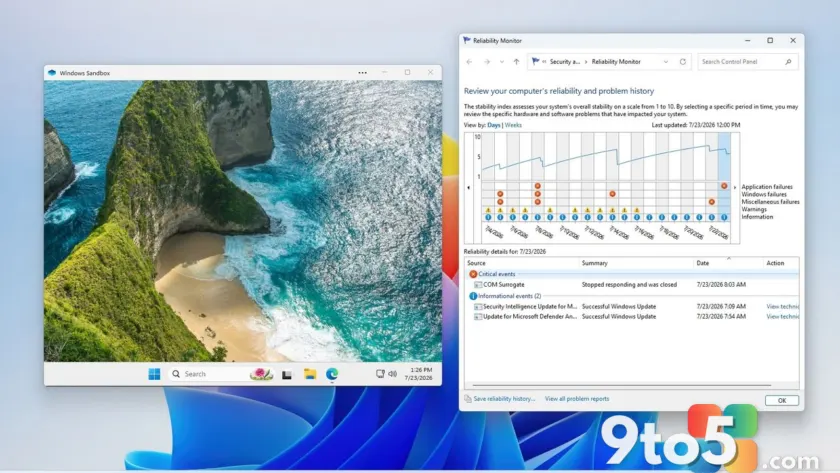
Windows Sandbox provides a lightweight, isolated desktop environment that runs inside your main Windows installation. It is designed for safely testing software or opening files from untrusted sources.
How it works: Open Turn Windows features on or off from the Start menu, locate Windows Sandbox, and check the box. Restart your PC to enable the feature. You can then launch Sandbox from the Start menu.
Why it matters: Unlike a full virtual machine, Sandbox requires no ISO files or complex configuration. It consumes approximately 100MB of storage and disappears completely when closed, leaving no trace on your host system. This makes it ideal for testing suspicious executables or registry tweaks without risking your primary OS.
Limitation: Windows Sandbox is available only on Windows 11 Pro, Enterprise, and Education editions. It is not supported on Windows 11 Home.
#5 Winget: Command-Line Package Management
Winget, or the Windows Package Manager, allows users to install, update, and manage applications directly from the command line. It brings a level of convenience previously associated with Linux distributions to the Windows ecosystem.
How it works: Open Windows Terminal and use commands such as winget install <AppName> to download software or winget upgrade –all to update all installed applications. The tool automatically resolves dependencies and downloads installers from official sources.
Why it matters: Reinstalling Windows often involves hours of manually downloading and installing software. Winget streamlines this process, allowing you to restore your entire application suite with a single command. It also simplifies maintenance by centralizing updates.
Pro Tip: You can export your installed applications list using winget export -o apps.json to back up your software inventory for future restoration.
#6 Snap Layouts: Structured Window Management
Snap Layouts provides a visual grid for arranging windows on your desktop, replacing the manual drag-and-drop process with a structured layout system.
How it works: Hover over the maximize button of any window, or press Win + Z, to reveal available layouts. Click a section of the grid to snap the window into that position. The remaining windows can be arranged using the same interface.
Why it matters: With the prevalence of ultrawide and high-resolution monitors, efficient window management is critical. Snap Layouts ensures consistent spacing and maximizes screen real estate, which is particularly beneficial for multitasking and coding workflows.
#7 Win + Shift + Arrows: Multi-Monitor Navigation
For users with dual or triple monitor setups, moving windows between displays is a frequent task. This keyboard shortcut eliminates the need to drag windows across screens.
How it works: Hold Win + Shift and press the Left or Right arrow key to instantly move the active window to the adjacent monitor. Repeat the action to move it further across your display array.
Why it matters: This shortcut provides precise control over window placement across multiple displays. It is faster than mouse-based dragging and reduces the physical strain of constantly moving between monitors.
#8 Voice Typing: Dictation Anywhere
Windows 11 includes a built-in voice typing feature that converts speech to text in almost any text field, leveraging improved speech recognition models for higher accuracy.
How it works: Press Win + H while in any text input field to activate the microphone. Speak clearly, and Windows will transcribe your words in real-time. The interface includes options for punctuation and language selection.
Why it matters: Voice typing is valuable for drafting emails, writing notes, or improving accessibility. It allows for faster input than traditional typing and reduces eye strain when working with large documents.
Pro Tip: You can customize punctuation commands, such as saying “period” or “new line,” to format your text without stopping to type.
#9 Reliability Monitor: Visual Troubleshooting Timeline
When system instability occurs, identifying the root cause can be challenging. The Reliability Monitor provides a chronological view of system events, making it easier to pinpoint when issues began.
How it works: Open Windows Terminal and enter perfmon /rel to launch the tool. The interface displays a graph of system stability over time, with markers for crashes, failed updates, and application errors.
Why it matters: Unlike Event Viewer, which presents raw logs, Reliability Monitor offers a simplified timeline that highlights critical events. This allows users to quickly identify if a recent update or driver installation triggered instability, saving time during troubleshooting.
#10 Advanced Display Settings: Optimizing Refresh Rate
Many monitors ship with default refresh rate settings that do not utilize their full capabilities. Checking your display settings ensures you are getting the smoothest possible visual experience.
How it works: Navigate to Settings > System > Display > Advanced display. Under Choose a refresh rate, select the highest option supported by your monitor. You can also verify the current refresh rate in the Display adapter properties for detailed information.
Why it matters: Running a 120Hz or 144Hz monitor at 60Hz wastes hardware performance. Increasing the refresh rate reduces motion blur and improves responsiveness, which is particularly noticeable in gaming and fast-moving interfaces.
What This Means for You
The consensus from the Reddit discussion highlights a broader trend in user expectations: people prioritize tools that reduce friction over flashy new features. The most valued Windows 11 capabilities are those that integrate seamlessly into existing workflows, whether through keyboard shortcuts, command-line efficiency, or hidden utilities.
Many of these features have been available in Windows for years but remain underutilized due to limited visibility in marketing materials. By exploring the Settings menu and learning a few key shortcuts, you can significantly enhance your productivity without installing additional software.
How to Get It
All ten features discussed are built into Windows 11. To access them, ensure your system is updated to the latest version via Settings > Windows Update. Some features, such as Windows Sandbox and End Task, require manual activation through Settings. Others, like Clipboard History and Voice Typing, are enabled by default but may need configuration for optimal use.
For detailed guidance on any specific feature, consult the official Microsoft Support documentation or the Windows Insider Blog for the latest updates on capability rollouts.
Source: Latest from Windows Central
Over to you: Which of these underrated Windows 11 features have you found most useful in your daily workflow?