You likely spend more hours at your desk than anywhere else in your home. While upgrading the internal components of your PC can require a significant investment, improving the peripherals and environment around it offers a much higher return on investment for your daily comfort and productivity. A well-considered desk setup upgrade can reduce eye strain, improve audio clarity, and eliminate clutter, all without the premium price tag of high-end hardware.
Based on current market options and user feedback, here are ten practical ways to enhance your workstation for less than $100. Each item addresses a specific pain point, from acoustic isolation to cable management, ensuring your workspace supports your workflow rather than hindering it.
#1 Large Felt Desk Mat
The surface you work on directly impacts both your peripherals and your wrists. A standard mouse pad offers minimal protection, while a full-surface mat creates a unified workspace. The Corsair MM300 Desk Mat, measuring 36 inches wide, extends beneath both your keyboard and mouse, providing a consistent texture for precise tracking and a soft surface for your forearms. At approximately $30, it serves as a foundational upgrade that protects your desk finish from scratches and spills while defining your active zone.
For users with mechanical keyboards, a felt or cloth mat also dampens the acoustic resonance of key switches, reducing the overall noise profile of your typing. This is particularly relevant in shared office spaces or home environments where audio carry is a concern. The material choice here balances durability with acoustic comfort, making it a versatile addition to any build.
#2 Monitor Light Bar
Working in low light with only your monitor emitting illumination creates high contrast that fatigues the eyes over time. A monitor light bar, such as the Quntis model, mounts to the top bezel of your display and projects light downward across your desk surface. Priced around $33, this device illuminates your workspace without creating glare on the screen or shining directly into your line of sight.
The optical design of these bars typically uses a grid or frosted lens to diffuse light evenly, mimicking the effect of ambient daylight. This reduces the need for harsh overhead lighting and minimizes shadows cast by your hands while writing or typing. For those working late hours, this upgrade supports better sleep hygiene by avoiding the blue-light spike associated with standard room lighting.
#3 VESA Monitor Arm
Monitor stands often consume valuable desk real estate and limit your ability to adjust viewing angles. A VESA-compatible arm, like the Huanuo single or dual-mount options, clamps to the rear edge of your desk and suspends the display. These units typically range from $30 to $50 and allow for full articulation, including height, tilt, swivel, and rotation adjustments.
By raising the monitor to eye level, you encourage a neutral spine posture, which reduces neck strain during extended sessions. Furthermore, clearing the desk surface beneath the monitor creates room for other peripherals or simply provides a larger area for manual tasks. If you are running a multi-monitor configuration, a dual-arm setup consolidates the footprint while maintaining independent adjustment for each screen.
#4 Multi-Port USB-C Hub
Modern laptops and compact desktops often lack sufficient connectivity for a full peripheral array. A 7-in-1 USB-C hub, such as the Acer ODK360, expands a single port into multiple interfaces, including 4K HDMI output, dual USB-A ports, SD and microSD card readers, and a dedicated USB-C power delivery port. Priced near $20, this device ensures your primary connection point remains available for charging while you access external displays and storage.
The inclusion of a power delivery pass-through is critical; it allows you to keep your laptop charged while simultaneously driving an external monitor and peripherals. This eliminates the need for a separate power brick and reduces cable clutter. For users managing large files, the SD card slots provide a direct pathway for camera workflows without requiring an intermediate card reader.
#5 Qi Wireless Charging Stand
Keeping your smartphone charged and accessible at your desk eliminates the distraction of searching for cables. A Qi-certified wireless charger, such as the Iniu 15W model, offers a stand-style form factor that allows you to view notifications and media without picking up the device. These units are widely available for under $20 and utilize an open standard compatible with most recent iPhone and Android flagships.
Unlike proprietary chargers from device manufacturers, third-party Qi chargers often provide better value and faster charging speeds for the price. The stand orientation also supports video calls or tutorial viewing, turning your phone into a secondary reference screen. This small upgrade streamlines your charging routine and keeps your desk surface free of tangled wires.
#6 USB Condenser Microphone
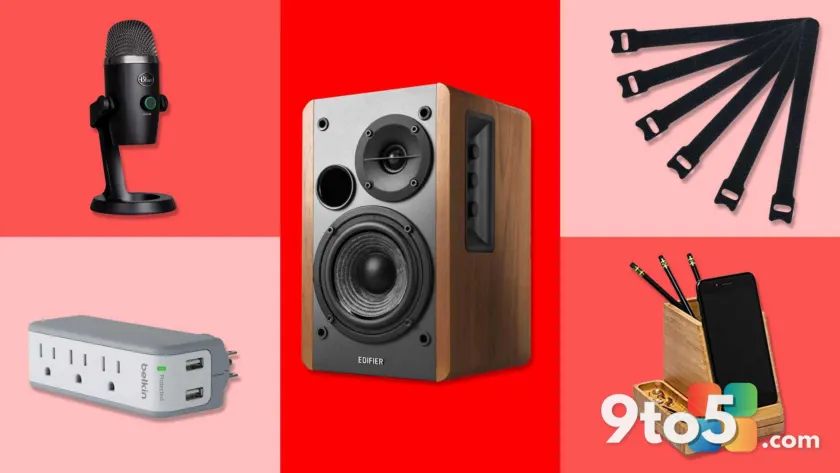
Laptop-built microphones frequently struggle with background noise and voice clarity, which can hinder communication during video conferences. A dedicated USB microphone, such as the Blue Yeti Nano, delivers broadcast-quality audio with a cardioid pickup pattern that focuses on your voice while rejecting off-axis noise. Priced around $80, this unit represents a significant leap in audio fidelity for remote work or content creation.
The Blue Yeti series has established a benchmark for USB microphones due to its plug-and-play compatibility and consistent performance across various applications. The Nano variant retains the core technology of the original in a more compact chassis, making it suitable for smaller desk setups. Clear audio ensures that your message is received without the fatigue caused by poor sound quality.
#7 Bookshelf Computer Speakers
For users in isolated environments where external sound does not disturb others, a pair of active bookshelf speakers offers superior audio immersion compared to built-in laptop speakers. The Edifier R980T is a frequent recommendation for budget audio, delivering rich bass and clear mids for approximately $100. This price point sits at the upper limit of the budget constraint but provides a substantial upgrade in sonic depth.
High-quality speakers enhance the experience of multimedia consumption and provide better spatial awareness for gaming. The Edifier R980T includes dedicated bass and treble controls, allowing you to tune the output to your room’s acoustics. This level of customization is rarely available with compact soundbars or headphone alternatives at this price range.
#8 Cable Management Tray and Ties
Unmanaged cables create visual noise and can become a tripping hazard or a dust trap. A cable management tray, such as those offered by Attmu or Baskiss, mounts beneath your desk to house power strips and excess cord length. Combined with reusable fastener ties, this system routes cables neatly along the desk legs. The total cost for these organizational tools typically remains under $25.
For those with standing desks, a under-desk tray is essential for securing the power brick and surge protector, which might otherwise slide or dangle. By consolidating power sources and routing cables along structural supports, you create a cleaner aesthetic and simplify troubleshooting when a device needs to be disconnected. This is a low-cost intervention with a high impact on workspace tidiness.
#9 Under-Desk Headphone and Controller Holder
Headphones and game controllers often end up on the desk surface, consuming valuable space and collecting dust. A mounting holder, such as the BrainWavz Vulcan, attaches to the underside of your desk, keeping these items within easy reach but out of the way. Priced around $20, this accessory utilizes the often-wasted vertical space between your desk and your head.
This setup ensures your headphones are always accessible for immediate use without the risk of being knocked off the desk. For gamers, keeping the controller mounted prevents cable strain on the connector port. The installation is generally tool-free, relying on adhesive strips or simple clamps that do not damage the desk surface.
#10 Angled Outlet Extender
Standard wall outlets often face backward, making it difficult to plug in devices with large power bricks. An angled outlet extender, such as the Anker model, rotates the sockets to face forward and adds multiple connection points, including USB-C and USB-A ports. Priced near $25, this device effectively doubles or triples your available power sources without requiring a separate power strip.
The wide-spaced design prevents plug collision, a common issue with traditional power strips where adjacent outlets are blocked by bulky adapters. The integrated USB ports provide dedicated charging for peripherals that do not require high-wattage AC power. This upgrade is particularly useful for workstations located against walls where running a power strip to a nearby outlet is impractical.
What This Means for You
Implementing these upgrades does not require a complete teardown of your current setup. You can introduce these changes incrementally, starting with the items that address your most immediate pain points, such as eye strain or cable clutter. The cumulative effect of these small improvements often results in a workspace that feels significantly more professional and comfortable, even if the total investment remains under $100. Prioritize ergonomics and audio clarity first, as these have the most direct impact on long-term health and communication effectiveness.
Whether you are optimizing a home office or a gaming station, these ten additions provide a structured path to a better desk setup upgrade. Each item has been selected for its reliability, value, and ability to solve a specific functional problem, ensuring that your budget is spent on tangible improvements rather than aesthetic novelties.
Source: PCWorld
Over to you: Which of these budget upgrades would make the biggest difference in your daily workflow?
You may also like
 Best PC Deals Right Now: Top Picks From Gaming Towers to Mini PCs
 Today’s Best Laptop Deals: Save on Budget, Gaming, and Premium Windows Machines
 Microsoft Office Pro Plus 2019 Lifetime License Drops to $20 on StackSocial
 Back-to-school savings: Surface Pro with Snapdragon X2 drops $450 across retailers