Microsoft has long offered Copilot on Windows and macOS, but Linux users have had to rely on browser-based access or Progressive Web App workarounds to use the AI assistant. That changes this week with the release of an unofficial native application built by community developer Hayden Barnes. The project brings the full Copilot experience to the Linux desktop without requiring a web browser, addressing a gap that has persisted since the AI tool launched.
What the Unofficial Copilot App for Linux Offers
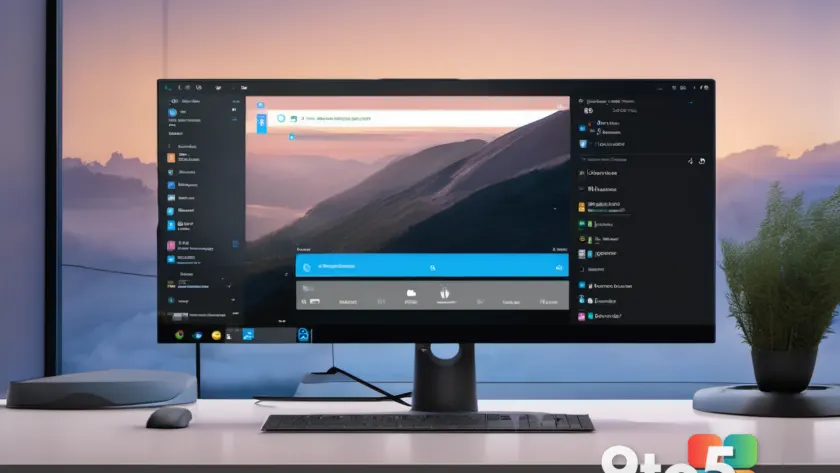
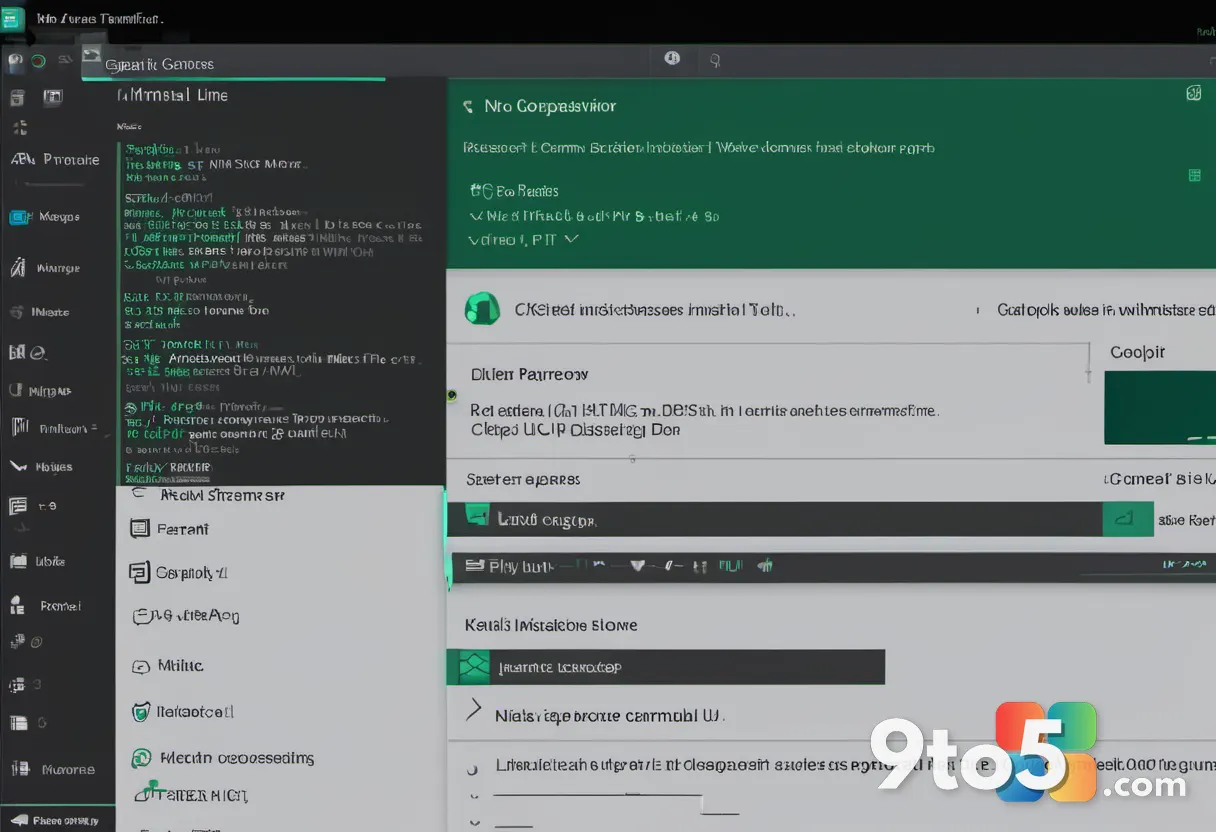
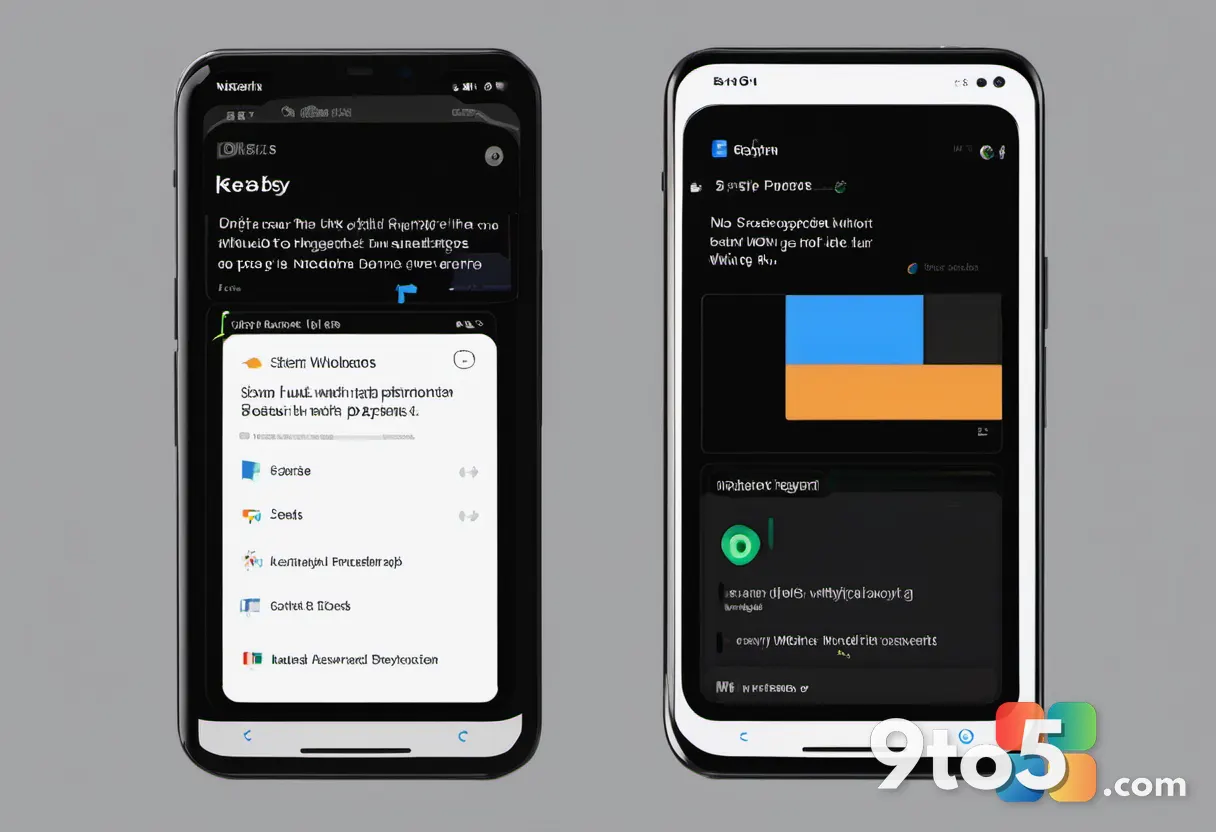
The new application wraps the Copilot web interface in a dedicated GTK window, providing a native feel rather than a standard browser tab. According to the project details shared on X and the accompanying GitHub repository, the app handles authentication by keeping your login session safely stored on disk. This allows users to launch Copilot directly from their desktop environment without re-entering credentials each time.
Beyond the core chat interface, the developer has focused heavily on system integration. The app supports autostart functionality, meaning it can launch when you log in. It also integrates with system downloads, the application launcher, and hardware permissions such as the microphone. These features are essential for a desktop application, ensuring it behaves like a first-party tool rather than a web page running in isolation.
Why a Native GTK Application Matters
While using Copilot through Microsoft Edge for Linux or a standard browser works, it comes with noticeable limitations. Browser-based versions rely on web notifications, which often get buried or delayed depending on the operating system’s notification center. The unofficial Copilot app for Linux bypasses this by triggering native OS notifications, ensuring you see responses and alerts immediately.
The GTK foundation also allows for deeper visual integration. The application supports desktop accent colors and system dark themes, allowing it to blend seamlessly with your chosen desktop environment. Whether you are using GNOME, KDE Plasma, or another interface, the app adapts to your system’s aesthetic rather than imposing a generic browser look.
Performance is another practical consideration. Running Copilot in a dedicated window isolates the AI assistant from your primary web browser. If your main browser becomes bogged down with dozens of open tabs or heavy web applications, Copilot will continue to function smoothly. This separation is particularly useful for power users who rely on both the AI assistant and resource-intensive web tools simultaneously.
What This Means for You
For Linux users who have been waiting for a polished Copilot experience, this release marks a significant step forward. You no longer need to maintain a separate browser profile or rely on the less stable PWA implementation in Edge. The app provides a dedicated, lightweight client that respects your system’s design language and hardware capabilities.
However, it is important to note that this is a third-party project. While the initial release includes robust feature parity with the web version, long-term stability and performance will need to be evaluated over time. Microsoft has not officially endorsed the application, and updates will depend on the community developer rather than the company itself. If you are running a critical workflow, you may want to monitor user feedback in the GitHub repository before relying on it exclusively.
How to Get It
The first publicly available release of the unofficial Copilot app for Linux shipped this week. You can access the source code, installation instructions, and build files directly from the project’s GitHub page at github.com/sirredbeard/copilot-desktop-gtk.
Installation typically involves cloning the repository and building the application from source, or using a package manager if the developer provides compatible binaries for your distribution. As with any third-party software, ensure you verify the source code and follow the official installation guide to avoid conflicts with your existing system packages. Microsoft confirmed via the Windows Insider Blog that official Linux support remains a priority, but until an official client arrives, this community solution fills the void effectively.
Source: Latest from Windows Central
Over to you: Are you switching your daily driver to Linux specifically for this native Copilot experience, or will you stick with the browser version?
You may also like
 Grand Theft Auto VI’s Next Trailer Will Be a GTA VI Netflix Exclusive Trailer Event
 Microsoft’s Windows 11 Quality Report Reveals Subtext on Reliability Push
 Wispr Expands Beyond Dictation With New AI Note-Taking Assistant
 Microsoft’s New Outlook ‘Wrap Up Your Day’ Feature Pushes Copilot Without Asking