Windows users have long complained about the built-in search functionality. The Start menu search and File Explorer search often return incomplete results, take too long to index, or simply fail to find files you know are on your system. If you’ve ever spent more time searching than actually working, you’re not alone.
According to Neowin, there’s a solution that has been gaining traction among power users and IT professionals: a lightweight third-party tool designed specifically to index and search every file and folder on your computer with remarkable speed.
The Problem with Windows Search
Microsoft’s search tools rely on an indexing service that must continuously scan your files to build a searchable database. This process can be resource-intensive, and the index often falls out of sync, especially after system updates or when dealing with large numbers of files.
Users frequently report that files they’ve just saved don’t appear in search results, or that the search bar returns irrelevant results from the web instead of local files. For professionals who need to locate specific documents, code files, or media quickly, these limitations can significantly impact productivity.
How the Alternative Works
The tool referenced in the Neowin guide creates a comprehensive index of your entire file system almost instantly. Unlike Windows search, which may skip certain file types or locations, this alternative scans every drive, folder, and file you have access to.
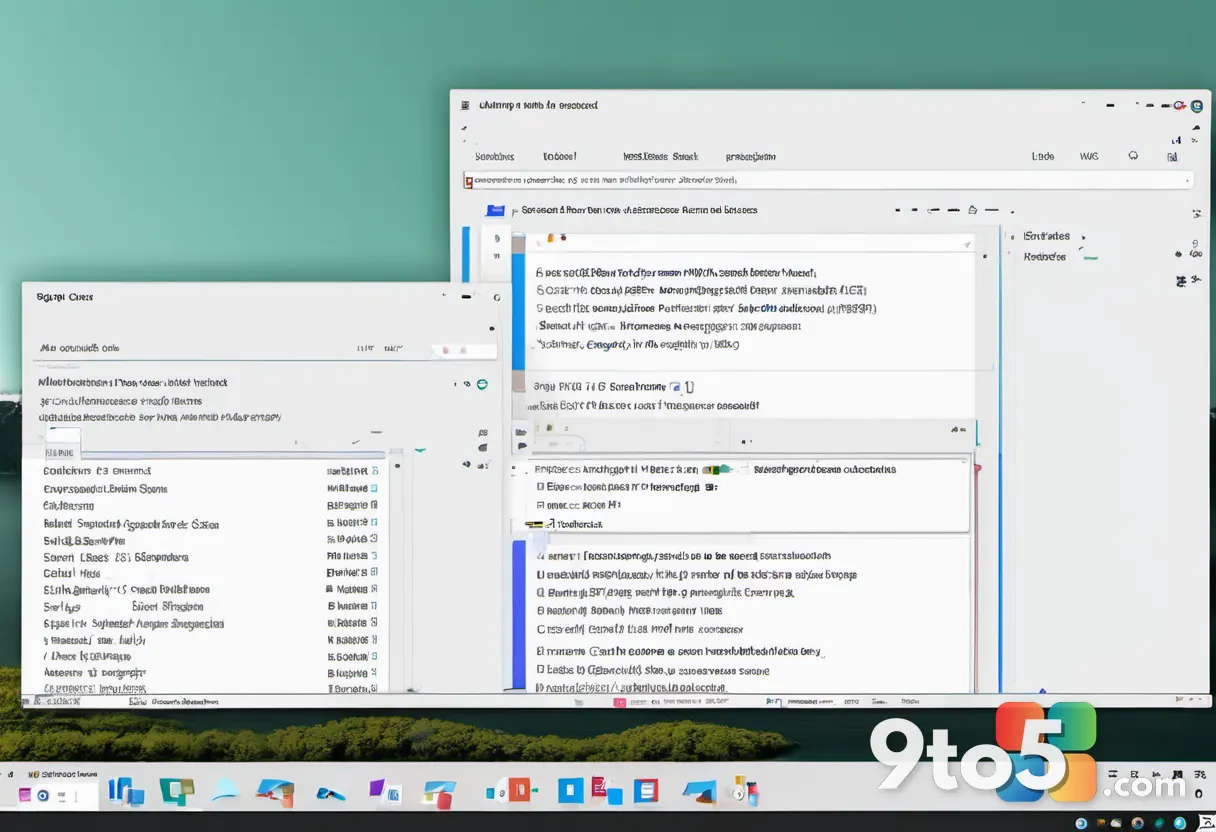
Once indexed, the search becomes nearly instantaneous. You type a query, and results appear in real-time as you type, without the delay of querying a database or waiting for indexing to complete. The interface is typically minimal and focused, showing file names, locations, sizes, and types in a clean list format.
What This Means for You
If you’re someone who regularly searches for files, this tool can dramatically reduce the time you spend looking for documents, images, or other data. The speed advantage is particularly noticeable when searching across multiple drives or when dealing with large file libraries.
For IT professionals managing multiple systems, the consistency and reliability of results can simplify troubleshooting and file recovery tasks. The tool typically runs in the background with minimal resource usage, making it suitable for continuous use without impacting system performance.

System Requirements and Installation
According to the Neowin guide, the tool is designed to be lightweight and compatible with modern Windows versions. It typically requires Windows 10 or Windows 11, though specific version requirements may vary.
Installation is straightforward, usually involving downloading the installer from the official website and running it. The tool often offers both portable and installed versions, allowing users to choose between a permanent installation or a version that runs from a USB drive without modifying system files.
During installation, you’ll typically be asked which drives to index. You can select all available drives or choose specific ones based on your needs. The initial indexing process may take a few minutes depending on the number of files, but subsequent searches are immediate.
Key Features and Benefits
- Instant Results: Search results appear as you type, eliminating the delay associated with Windows search.
- Comprehensive Indexing: Every file and folder on selected drives is indexed, not just those in standard locations.
- Filter Options: Advanced filtering by file type, size, date modified, and other attributes helps narrow results quickly.
- Low Resource Usage: The tool runs efficiently in the background without significantly impacting system performance.
- Regular Expressions: Support for regex patterns allows for complex and precise search queries.
How to Get It
To start using this search alternative, visit the official website as referenced in the Neowin guide. Download the installer for your Windows version, run the installation, and follow the prompts to select which drives to index.
Once indexed, you can launch the tool from your desktop, start menu, or system tray. The interface is designed to be intuitive, with a prominent search bar at the top and results displayed below. You can customize settings such as hotkeys, index frequency, and which file types to include or exclude.
Considerations Before Switching
While the speed and reliability advantages are clear, it’s worth noting that you’re relying on a third-party application rather than a built-in Windows feature. This means you’ll need to manage updates separately and ensure the tool remains compatible with future Windows updates.
Additionally, some users may prefer to stick with Windows search for its integration with other features like Cortana or web search results. However, if your primary need is fast, reliable file search, the trade-off is minimal.
The Neowin guide emphasizes that this tool has been a reliable solution for users who need to search for everything in Windows without the frustrations of the built-in search functionality. For those willing to try a third-party solution, the time savings and improved accuracy can make a significant difference in daily productivity.
Source: Neowin
Over to you: Have you tried a third-party search tool, or do you prefer sticking with Windows search despite the slowdowns?