A new entry has appeared in the crowded Windows 11 optimization space, and it is drawing immediate attention for reasons that go beyond its feature set. The free, lightweight cleaning utility closely mirrors the interface and workflow of a well-known third-party system cleaner that Microsoft has historically pushed back against, reigniting a familiar debate about how much control users should have over built-in Windows maintenance tools.
While the broader tech community has long accepted that Windows 11 includes robust native cleanup options, a dedicated subset of users continues to rely on external utilities for granular control over temporary files, registry entries, and startup processes. This new release taps directly into that demand, offering a streamlined experience that prioritizes speed and minimal system footprint.
The New Utility and Its Familiar Design
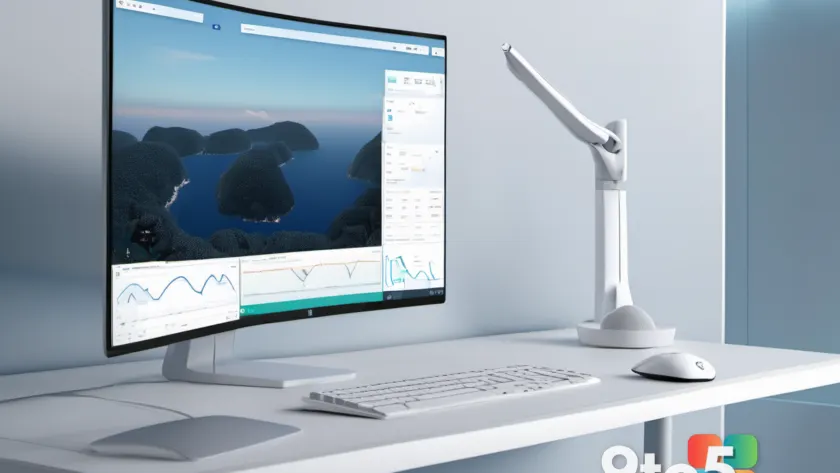
At first glance, the application’s layout will feel immediately recognizable to anyone who has used mainstream PC maintenance software over the past decade. The dashboard organizes cleanup targets into clearly labeled categories, with quick-access toggles for common tasks like clearing browser caches, removing temporary system files, and scanning for duplicate data. The visual hierarchy, iconography, and navigation flow bear a striking resemblance to the predecessor that Microsoft publicly criticized for encouraging aggressive system modifications.
Where this new tool differentiates itself is in its execution philosophy. Rather than relying on heavy background services or intrusive telemetry, the developers have opted for a portable-friendly, on-demand model. The application runs primarily in memory, executes selected tasks, and exits without leaving behind scheduled tasks or startup entries. This approach addresses one of the most common criticisms leveled at older cleaning utilities: that they often create more system overhead than they resolve.
Microsoft’s Historical Stance on Third-Party Cleaners
Microsoft’s relationship with third-party system cleaners has never been straightforward. For years, the Redmond-based company has maintained that Windows 10 and Windows 11 handle routine maintenance autonomously through features like Storage Sense, built-in Disk Cleanup, and automated Windows Update patching. The company has repeatedly warned that aggressive third-party cleaners can inadvertently remove critical system components, corrupt registry keys, or disable built-in recovery mechanisms.
That skepticism was particularly vocal when certain popular utilities began bundling telemetry, promoting premium upgrades, or modifying core Windows behaviors without clear user consent. Microsoft’s official guidance has consistently pointed users toward native tools, arguing that they are optimized for the specific build of Windows they are running and do not carry the same risk of unintended side effects.
Nevertheless, the demand for lightweight, transparent cleaning tools persists. Many power users and IT administrators prefer utilities that offer explicit control over what gets removed, rather than relying on automated processes that may not align with their specific workflow or compliance requirements. This new release arrives squarely in that gap, offering a middle ground between native automation and full manual control.
What This Means for You
If you are currently relying on Windows 11’s built-in cleanup features, this new utility may not be necessary for your daily workflow. Storage Sense already handles temporary file deletion, and the native Storage settings menu provides detailed insights into what is consuming your drive space. For most users, these tools are sufficient and carry zero risk of system instability.
However, if you regularly manage multiple storage volumes, work with sensitive data that requires explicit deletion confirmation, or simply prefer a transparent interface that shows exactly which files are being removed, this lightweight option warrants a closer look. The on-demand execution model means your system will not be burdened with background processes, and the free pricing structure removes the friction of trial periods or subscription prompts.
The familiar design language may also lower the learning curve for users who have previously adopted similar tools, though it is worth reviewing the application’s privacy policy and update channels before granting it access to system directories. Transparency in how a cleaning utility handles user data should always be the primary consideration, regardless of how polished the interface appears.
How to Get It
The application is currently available for direct download from the developer’s official distribution channel. Given its lightweight nature, it does not require a traditional installation process and can be extracted to a preferred folder for immediate use. Users who prefer centralized software management can also check the Microsoft Store, though availability there depends on the developer’s submission timeline and compliance with store policies.
Before running any system cleanup utility, it is always prudent to create a system restore point or back up critical files. While this tool is designed to operate without leaving residual processes, exercising standard caution with any application that modifies system directories is a best practice that applies across the entire Windows ecosystem.
As with any third-party optimization tool, the long-term impact on system performance will depend on your specific usage patterns. Windows 11 continues to mature its native maintenance features, and many of the tasks historically handled by external cleaners are now built directly into the operating system. Monitoring your storage health through native settings and reserving external utilities for specialized needs remains the most balanced approach for everyday users.
Source: Neowin
Over to you: Are you sticking with Windows 11’s native Storage Sense, or do you prefer the granular control of a third-party cleaner?
You may also like
 Windows 11 Updates May Now Require Two Reboots, and Here’s Why
 OneDrive blocks screenshots of sensitive PDFs in Edge, but there is a catch
 Windows 11 26H1 Experimental Build 28120.2546 Adds Braille Display Support and Expanded Language Options
 Firefox on Windows 11 Finally Opens New Tabs in the Background, Matching Chrome and Edge