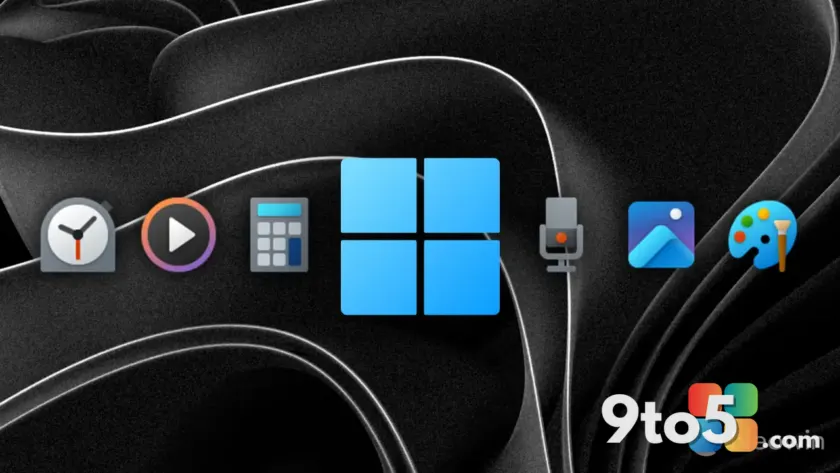
Microsoft continues its steady cadence of refining the core utilities that ship with Windows 11. The company has just pushed new updates for Notepad, Calculator, Media Player, and Clock, delivering a fresh round of performance tweaks, accessibility improvements, and visual polish to the system’s most frequently used tools. These Windows 11 app updates arrive through the standard Microsoft Store distribution channel, meaning they land automatically for most users without requiring a full operating system upgrade. The source report did not include specific version numbers or KB article IDs for this particular rollout, but the distribution method remains consistent with Microsoft’s recent update strategy.
#1 Notepad
Notepad remains one of the most downloaded and utilized text editors on Windows, largely because it is lightweight, universally available, and now fully rebuilt on modern frameworks. This latest update continues to refine the editing experience, focusing on stability improvements and minor interface adjustments. While the core functionality has not shifted dramatically, these background refinements help ensure the app handles larger files and complex character encodings more reliably.
The ongoing development cycle for Notepad reflects Microsoft’s broader commitment to migrating legacy utilities to WinUI 3. This architectural shift allows the app to leverage Fluent Design principles, giving it a more cohesive look and feel alongside the rest of the operating system. Users will notice smoother window resizing, improved dark mode rendering, and faster launch times as a direct result of this modernization effort. The update also includes minor memory optimizations that reduce the app’s footprint when running alongside heavier workloads.
#2 Calculator
The Calculator has undergone one of the most significant transformations in recent Windows history, evolving from a simple arithmetic tool into a multi-mode utility capable of handling scientific, programmer, and 3D graphing calculations. This new update focuses on squashing bugs and optimizing the transition between these different modes. If you rely on the Calculator for engineering or financial tasks, these refinements help ensure that complex formulas render correctly and that clipboard history syncs reliably across sessions.
Microsoft has also been working on improving the accessibility features within the Calculator, ensuring that screen readers and keyboard navigation operate smoothly across all calculation modes. This aligns with the company’s long-term push to make Windows 11 a more inclusive platform for users with varying abilities. The update also includes minor performance boosts that reduce memory footprint, which is particularly noticeable on older hardware or systems running multiple resource-heavy applications simultaneously.
#3 Media Player
Replacing the legacy Windows Media Player, the new Media Player app was designed to be a streamlined, modern hub for video and audio content. This update brings further polish to the playback engine, addressing minor stuttering issues and improving subtitle synchronization accuracy. For users who watch a lot of local media files, these tweaks can make a noticeable difference in the overall viewing experience.
Beyond playback, the update also touches on library management. The app now organizes recently added media more efficiently, and the metadata fetching process has been optimized to pull album art and track information faster. Microsoft continues to position this app as a lightweight alternative to third-party media players, and these incremental improvements reinforce that strategy by keeping the built-in option competitive for everyday use. The update also improves how the app handles high-resolution video files, reducing unnecessary CPU overhead during playback.
#4 Clock
The Clock app, which houses alarms, timers, stopwatches, and world clocks, receives updates that prioritize reliability and background process management. This release focuses on ensuring that alarms trigger accurately even when the system is in sleep mode or when other applications are running in the foreground. For users who depend on the Clock app for daily routines, this is a critical stability improvement.
The world clock feature also sees minor refinements, with improved time zone detection and a cleaner interface for managing multiple cities. Microsoft has been gradually stripping away legacy code from this app to reduce its overall size and improve startup performance. These changes are subtle but contribute to a smoother experience when quickly checking the time across different regions. The update also includes minor battery life optimizations for laptops that keep the Clock app running in the background.
What This Means for You
The most important takeaway from this rollout is that Microsoft is actively maintaining these core utilities without requiring a major Windows 11 version upgrade. You do not need to jump to a new build or wait for a feature drop to get these improvements. The updates are distributed via the Microsoft Store and will install automatically in the background. These refinements also signal that Microsoft is committed to keeping built-in apps competitive with third-party alternatives, reducing the need to download extra software for basic tasks. If you have been hesitant to use the built-in versions of these tools, this ongoing polish should give you more confidence in their reliability.
How to Get It
To receive these updates, ensure that your system is set to download updates automatically. Open the Microsoft Store, click on your profile icon in the bottom left, and select Get updates. If the updates are available for your region, they will begin downloading immediately. In some cases, it may take a few hours for the rollout to reach all devices, as Microsoft stages updates in waves to monitor for unexpected issues. If you do not see the changes right away, simply restart your device and check again later. No restart is strictly required unless the app prompts you to do so after installation.
Source: Neowin
Over to you: Which of these built-in apps do you rely on the most for your daily workflow?
You may also like
 Microsoft’s New KMS Hardware-Secured Rule Targets Enterprise Servers, Not Pirated Home Windows
 How AI Security Patches Are Accelerating Across Major Vendors
 Wintoys Gets Major Overhaul: Windows 11 Utility Gets Significant Improvements
 Microsoft 365 Profile Cards Are Getting a Major Update — Here’s What Admins Need to Know