Microsoft is addressing one of the most persistent user complaints in Windows 11 by introducing a customizable context menu. For years, the right-click menu has been a source of friction, particularly after Microsoft simplified it to reduce clutter, which ironically led to more clicks for power users. Now, the company is flipping the script by giving you the tools to trim the menu down to exactly what you need.
This update targets the core right-click experience across File Explorer and the desktop. According to recent reports, the new feature allows you to selectively hide specific entries from the menu, effectively decluttering your workflow. This is a significant shift from the static menus of the past, offering a level of personalization that Windows power users have long requested.
What is the customizable context menu?
The right-click context menu in Windows 11 has undergone several iterations. Initially, Microsoft removed many items to create a cleaner look, but this forced users to click “Show more options” to access legacy commands. While the goal was simplicity, it often resulted in a more complex experience for those who relied on specific tools.
The new customizable context menu aims to bridge this gap. Instead of a one-size-fits-all approach, you will now have granular control over which items appear. This means you can keep the modern commands you use daily while hiding the ones that just add noise to your screen. The feature is designed to be intuitive, allowing you to toggle items on or off without diving into the registry or using third-party tools.
How to try it out
As with many new Windows features, availability can vary depending on your current build and region. Typically, Microsoft rolls out these changes through Windows Update, but early access often requires enabling specific preview features.
To get started, you will likely need to check your Windows Settings. Navigate to the section dedicated to personalization or context menus. If the option is not immediately visible, you may need to enable a “Preview Features” toggle within the Windows Insider program or wait for the next cumulative update to land on your device. Microsoft has indicated that this feature will be rolled out gradually to ensure stability across different hardware configurations.
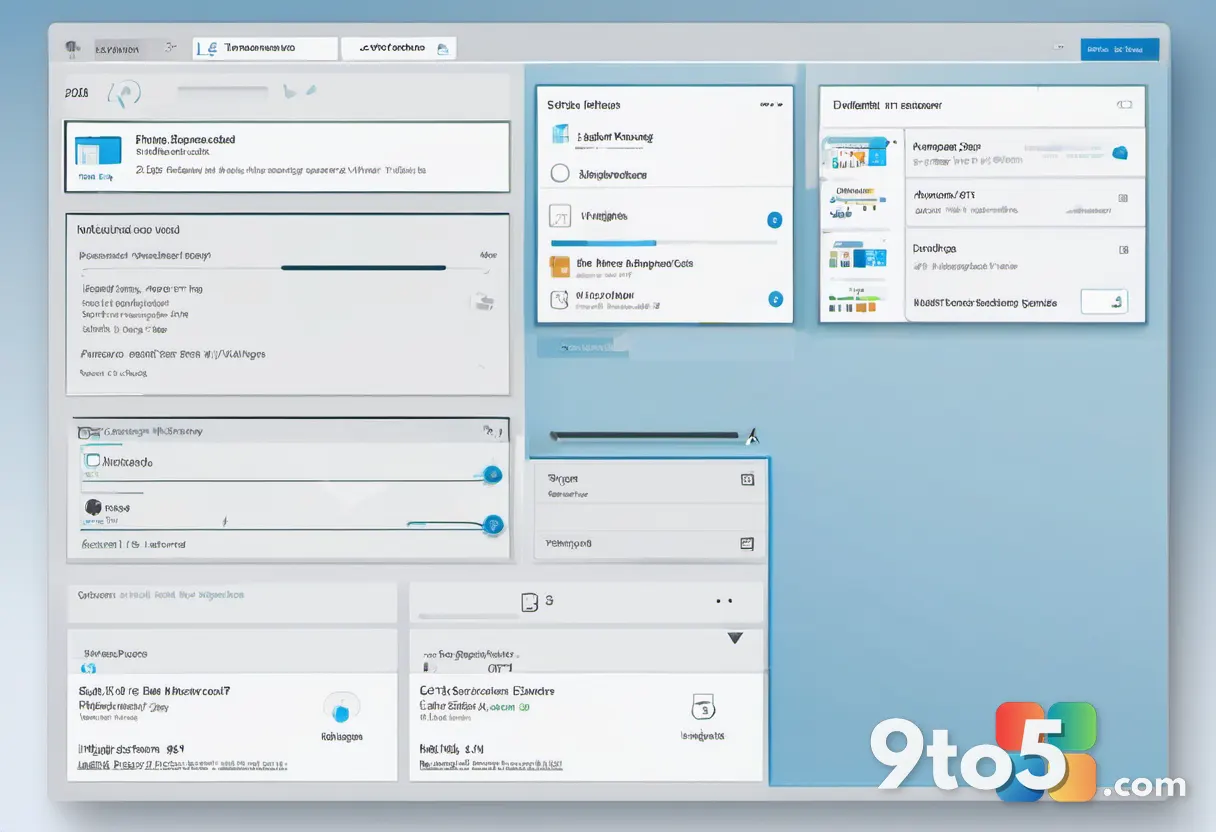
Once enabled, the interface will present a list of current menu items with checkboxes. You can simply uncheck the entries you no longer need. The changes apply in real-time, so you can immediately see the impact on your right-click experience. This immediate feedback loop is crucial for testing what works best for your specific workflow.
What does it do?
The primary function of this update is to reduce visual and cognitive clutter. By allowing you to remove items you never use, the menu becomes faster to scan and navigate. This is particularly beneficial for users who interact with the right-click menu frequently, such as those who manage files constantly or use specific developer tools.
Beyond just hiding items, this customization helps create a more personalized computing environment. Whether you are a casual user who only needs “Copy” and “Paste,” or a professional who relies on specific compression and sharing tools, you can now tailor the menu to match your exact needs. This reduces the number of unnecessary clicks and streamlines your interaction with the operating system.
What this means for you
For everyday Windows users, this change means a cleaner, more efficient desktop experience. You no longer have to tolerate a menu filled with options you never use just to access the few you do. It also means you can reclaim some of the screen real estate that was previously wasted on redundant entries.
From a practical standpoint, this reduces the learning curve for new Windows 11 users. A simplified menu is easier to understand and navigate, making the operating system more approachable. For power users, it restores the control they lost when Microsoft initially streamlined the interface, offering a best-of-both-worlds solution.
How to get it
To access the customizable context menu, ensure your Windows 11 installation is up to date. Open Settings and go to Personalization. Look for the Context Menus option, which may be listed under a sub-menu depending on your current build. If you do not see it, check for the latest Windows Update or consider joining the Windows Insider program for early access to preview features.
Microsoft continues to refine the Windows 11 experience based on user feedback. This customizable context menu is a direct response to years of requests for greater control over the interface. As the feature rolls out more broadly, expect further refinements and additional customization options in future updates.
Source: Latest stories for ZDNET in Microsoft
Over to you: Which items do you plan to remove from your context menu first to make it cleaner?