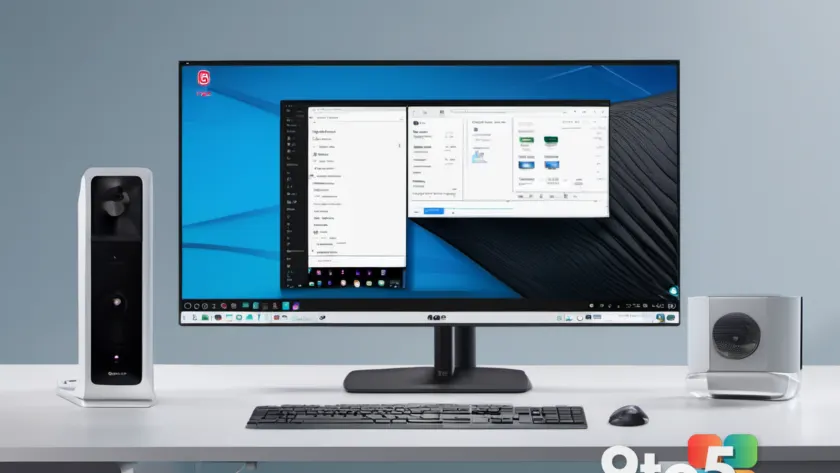
Plugging an LG monitor into a Windows 11 PC should calibrate your display, not hijack your desktop with third-party advertising. Instead, owners across multiple forums and tech channels are reporting that simply connecting the hardware triggers a silent Windows Update that drops a companion app onto their system, immediately followed by a persistent prompt to install a McAfee security trial. The behavior is not a rogue installer or a one-off glitch. It is the direct result of a documented Windows feature that manufacturers can exploit to push software without ever asking for permission.
What Exactly Changed
The issue first gained widespread attention when Gamers Nexus purchased a $1,200 LG UltraGear 34GX900A-B to evaluate its panel performance. The moment the display was connected to a test rig, Windows Update began downloading LG’s driver package. Within sixty seconds, the LG Monitor App Installer appeared in the Start menu under the Recommended section, completely uninvited. Across 32 consecutive boots, the McAfee promotional popup surfaced 31 times. There was no checkbox to decline, no consent dialog, and no option to skip the trial during the initial setup flow.
Community investigators quickly traced the installation back to Windows Update itself. By running perfmon /rel from the Run dialog, users opened the Windows Reliability Monitor and found a successful update entry for the package 9PM9N6F47JB8-LGElectronics.LGMonitorApp. The Event Viewer logged the event explicitly as a successful Windows Update, confirming that Microsoft’s own update pipeline was the delivery mechanism rather than a standalone installer bundled with the monitor box.
What makes this particularly frustrating is that the hardware functions perfectly fine without any companion software. The display handles input, scaling, and refresh rates natively through standard Plug and Play drivers. The third-party app adds nothing to core functionality and instead serves as a distribution channel for promotional content.
How Windows Lets It Happen
The underlying mechanism responsible for this behavior is called device metadata, and it has been part of Windows since Windows 8. According to Microsoft’s developer documentation for automatic installation of UWP device apps, the process follows a strict four-step sequence: the user connects the hardware, Windows requests device metadata from Microsoft’s servers, the OS identifies an associated application, and finally downloads that app to the signed-in account. Drivers travel through Windows Update, while the companion application installs silently in the background.
The only prerequisites on the user side are straightforward: you must be signed into the Microsoft Store, connected to the internet, and you must not have opted out of Recommended Settings during the initial Windows setup. Since the vast majority of consumers leave those defaults untouched, the pipeline remains wide open for peripheral manufacturers to route software through it.
Microsoft’s own documentation acknowledges the friction this causes. The guidance explicitly warns developers that the automatic installation feature does not provide a notification to the user when the app is installed, and that some users may find this experience confusing and frustrating enough to leave negative ratings. Microsoft knew the behavior could damage an app’s reputation and still permits it to run without a consent screen anywhere in the four-step process.
LG’s Changelog Admits It
For a long time, the silent installation was buried under vague release notes. That changed when LG updated the LG Monitor App Installer on the Microsoft Store and added a dedicated changelog entry that openly lists McAfee as an additional app. The release notes read: Additional App – McAfee. Live confidently online with all-in-one protection. Protect your privacy, identity, and devices with automatic scam detection, QR code scans, and real-time threat protection. Start your free 30-day trial. Go to McAfee to install and get started.
The language is unmistakably promotional. It does not describe a calibration utility, a brightness adjustment tool, or a firmware updater. It describes a security product trial with a direct call to action. The app’s Microsoft Store permissions also grant it access to all system resources and the internet connection, a broad permission set for software whose only observed function so far is opening a promotional window.
Since the story broke, the app’s Microsoft Store rating has dropped to roughly one out of five stars. Review titles include Shame on LG and Nonsense malware. One long-time owner noted that the utility was never particularly useful before the advertising push, and that the experience has fundamentally altered their purchasing decision for future LG products.
What This Means for You
If you own an LG display and have noticed unexpected popups, background installations, or unfamiliar apps appearing in your Start menu, the silent device metadata pipeline is almost certainly the culprit. The behavior is not malware in the traditional sense, but it functions as forced distribution. Your operating system is treating a peripheral connection as a software endorsement, which crosses a line most users expect to remain under their control.
This is also not an isolated incident. Razer has historically used the same pipeline to push Synapse setup bootstrappers through Windows Update, and OEM bloatware has been a documented issue since Windows 8. Microsoft has been aware of the behavior for years and has not closed the door on manufacturers using their own update pipeline to push companion apps. Until the company changes the default security model, peripheral vendors will continue to treat Windows Update as a free advertising channel.
How to Stop It
You can block Windows from auto-installing device-linked applications without breaking your monitor’s plug-and-play functionality. The most targeted approach uses the local Group Policy editor.
Press Win + R, type gpedit.msc, and press Enter. Navigate to Computer Configuration, then Administrative Templates, then System, then Device Installation. Double-click the policy labeled Prevent automatic download of applications associated with device metadata, switch it to Enabled, and click Apply. This disables the metadata download step that manufacturers rely on, while leaving standard driver installation completely intact.
If you prefer a broader approach, there is a second policy under Computer Configuration, Administrative Templates, Windows Components, Store, called Turn off the Store application. This blocks the Microsoft Store from installing anything automatically, though it is a heavier hammer than most users need for this specific problem.
If the LG Monitor App Installer is already present on your system, open Settings, navigate to Apps, then Installed apps, search for the utility, and uninstall it directly. Gamers Nexus confirmed that removing the application does not require an active internet connection. For users who want deeper control over leftover registry entries or scheduled tasks, open-source uninstallers like BCUninstaller provide more thorough cleanup options.
Why Apple Doesn’t Allow This
Plugging an LG monitor into a Mac does not trigger any software installation. macOS has no equivalent to Windows’ device metadata pipeline, meaning peripheral manufacturers cannot route companion applications through the operating system’s update mechanism. Any third-party software on a Mac must be deliberately downloaded by the user and then cleared through Gatekeeper, which requires the developer to be registered with Apple and the application to be notarized before the system will run it without a manual override.
Apple’s approach prioritizes manufacturer accountability over convenience. If Apple shipped a system where connecting a display could silently install App Store applications without a prompt, it would severely damage the trust Cupertino has built over the past decade. Microsoft, by contrast, has structurally allowed manufacturers to bypass consent, and LG has taken advantage of that allowance.
The Bigger Picture
This situation highlights a fundamental tension in modern Windows architecture. Microsoft designed the device metadata feature to streamline driver and utility installation for hardware partners. Over time, the pipeline has been repurposed as a distribution channel for promotional content, with minimal friction for manufacturers and no built-in opt-out for consumers. The changelog admission from LG is essentially a public acknowledgment that the feature works exactly as designed, even if the outcome is widely considered unacceptable.
Until Microsoft introduces a mandatory consent step before any device-linked application is downloaded, or requires manufacturers to disclose promotional integrations in their Store listings, this behavior will persist across multiple hardware categories. The onus currently falls on users to manually disable the pipeline or live with the consequences.
What to Do Next
If you want to verify whether your system has already been affected, open Reliability Monitor with perfmon /rel and look for LGElectronics.LGMonitorApp in the successful update history. You can also check Settings, then Apps, then Startup, for anything labeled LG Monitor App Installer. If the application is present, uninstall it immediately and apply the Group Policy change to prevent future installations. The fix is permanent, requires no third-party tools, and does not interfere with normal display operation.
Neither Microsoft nor LG has issued a public statement addressing the silent installations or the McAfee prompts. LG’s indirect admission through the app’s changelog appears to be the closest the company has come to acknowledging the behavior, likely structured to avoid direct liability. Until official guidance changes, the Group Policy workaround remains the most reliable defense for users who want their hardware to function as hardware, not as an advertising platform.
Source: Windows Latest
Over to you: If your LG monitor just installed a McAfee trial without asking, would you switch brands or block the feature in Group Policy?
You may also like
 Developer Gets Nvidia RTX 4060 Running on Windows 11 ARM by Extracting RTX Spark Driver
 Microsoft Pulls the Plug on Copilot Deep Research and Podcasts Next Month
 Microsoft brings AMD’s Helios platform and EPYC processors to Azure for AI and HPC workloads
 Linus Torvalds Defends AI in Linux Kernel as Microsoft’s AI-Code Strategy Pays Off