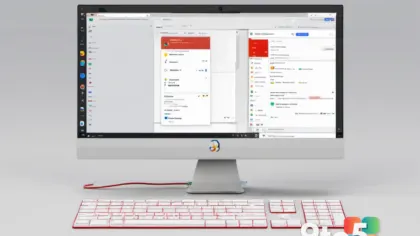
Phone Link is one of the most useful built-in tools in Windows 11, and it works far better with Android phones than most people realize. Once you pair your device, you can read and reply to text messages, view your most recent photos, see phone notifications, and even make calls without ever picking up your phone. Instead of juggling two screens, you get a single window on your PC that keeps you connected to your Android device. This guide shows you exactly how to set up Phone Link, from installing the app to unlocking every feature.
Before You Start: Make sure your PC is running Windows 11 (version 22H2 or later works best) and your Android phone is running Android 8.0 or newer. You will also need a Microsoft account, since both Windows and the Link to Windows app sign in with one. Keep both devices within a few feet of each other during setup so the pairing QR code can connect quickly.
Step 1: Open Phone Link from the Start Menu
Click the Start button and type “Phone Link,” then press Enter. Windows 11 includes this app by default, so you should find it in your app list without downloading anything. If the search returns no results, the app may have been removed, and you will need to reinstall it from the Microsoft Store. Clicking the app icon launches the initial setup screen, which asks you to choose the type of phone you want to connect.
Step 2: Choose Android and Sign In With Your Microsoft Account
Select “Android” on the setup screen, then sign in with the same Microsoft account used on your PC. Phone Link ties your phone to that account, so using a different one on each device will break the pairing. After you sign in, the app checks your Windows version and confirms your phone is compatible before moving to the next screen. If you get a prompt about Windows version requirements, make sure your PC is fully updated through Settings > Windows Update.
Step 3: Install the Link to Windows App on Your Android Phone
On your Android phone, open the Settings app and search for “Link to Windows,” or install it from the Google Play Store. The app is called “Link to Windows” by Microsoft, and it is the companion piece that lets your phone talk to Phone Link on your PC. If you cannot find it in Settings, open the Play Store, search for “Link to Windows,” and tap Install. Opening the app launches a setup wizard that walks you through the pairing process.
Step 4: Scan the QR Code to Pair the Devices
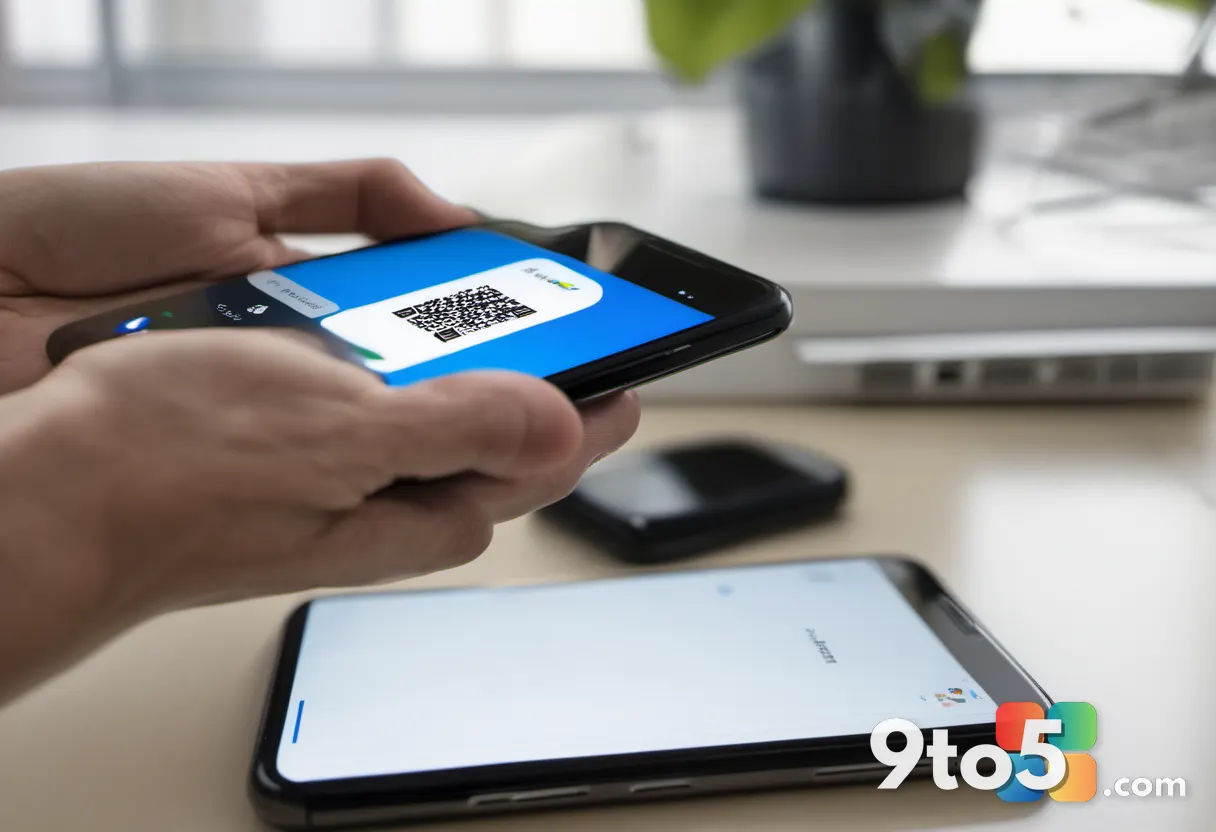
On your PC, tap “Add phone” and then “Link to Windows,” and a QR code will appear on screen. Point your Android phone’s camera at that code using the Link to Windows app and confirm the pairing request. Scanning the code is the fastest way to establish a secure connection without typing long codes by hand. If the camera struggles to read the code, choose the “Enter code manually” option and type the six-digit number shown on your PC.
Step 5: Choose Quick Set or Manual Setup
After pairing, pick “Quick Set” to grant all recommended permissions at once, or “Manual” to control each one yourself. Quick Set automatically allows the app to access your messages, contacts, photos, and notifications, which saves time if you want everything working immediately. Manual setup lets you toggle each permission individually, which is better if you want to limit what your PC can see. Either choice is safe; you can always change permissions later in the app’s Settings menu.
Step 6: Grant the Required Permissions
Accept each permission prompt on your Android phone as it appears, including messages, contacts, and notifications. Without these permissions, Phone Link cannot read your texts, show your call history, or mirror notifications to your PC. Some prompts may ask for access to your location or storage, which the app needs to attach photos or find nearby devices. If you accidentally tap “Deny,” open your Android Settings > Apps > Link to Windows > Permissions and turn them back on.
Step 7: Set Up Messages, Photos, and Notifications
Once paired, open the Phone Link app on your PC and switch to the Messages or Photos tab to start using features. The Messages tab lets you read and reply to SMS texts from your computer, including group conversations and photo replies. The Photos tab shows your most recent pictures so you can drag and drop them into documents or emails. Notifications appear in a dedicated section where you can read alerts and dismiss them without touching your phone.
Step 8: Make Calls and Enable Advanced Features
Tap the Phone tab in Phone Link to see your recent calls, or use the “Find my phone” button to locate your Android device. Calling works best with a good pair of wireless headphones, since your phone’s microphone and speaker handle the audio. Some features like the Samsung DeX desktop mode are available only on select Samsung Galaxy phones, while most Android devices get the core messaging and photo tools. If a feature does not appear, check the app’s Settings to confirm it is enabled for your specific phone model.
Pro Tip: Pin the Phone Link icon to your taskbar by right-clicking its Start Menu result and choosing “Pin to taskbar.” This puts your messages, photos, and notifications one click away whenever you work at your PC, so you never have to switch back to your phone for a quick reply.
Troubleshooting Common Connection Problems
If your phone will not pair or the connection keeps dropping, check these three common issues before assuming the app is broken.
- The devices will not connect: Make sure both your PC and phone are signed in to the same Microsoft account, and that both are on the same Wi-Fi network. Restart both apps and try scanning the QR code again if the screen is stuck.
- Messages or notifications do not appear: Open your Android Settings > Apps > Link to Windows > Permissions and confirm that Messages and Notifications access are allowed. You may also need to enable notifications in your phone’s Accessibility or Notification settings.
- The app crashes or shows a blank screen: Update Phone Link through the Microsoft Store, then reset the app via Settings > Apps > Phone Link > Advanced > Reset. Signing out and back in to your Microsoft account also clears most temporary glitches.
Final Tips for the Best Experience
Phone Link works best when both devices stay updated, so enable automatic updates on Windows and your Android phone to avoid compatibility gaps. Keep the app signed in and permissions granted so your messages and photos sync without interruption. With everything connected, you spend less time reaching for your phone and more time getting work done right at your desktop.
Over to you: What’s the first thing you want to do with Phone Link once your Android phone is connected?