
Customizing the Windows 11 context menu used to mean digging into the Registry or leaning on third-party tools. Now the controls are built right in, and that’s a meaningful shift for anyone who right-clicks regularly. If you’ve been wondering how to make the new menu work for you instead of the other way around, this guide walks through what changed and exactly where to look.
What the redesigned context menu actually is
Microsoft overhauled the right-click menu in Windows 11, replacing the long, text-heavy list with a more compact, icon-driven design. The intent was to cut clutter and make common actions easier to spot at a glance. In practice, that means fewer options show up up front, with the rest tucked behind a “More options” entry that expands into the classic, fuller menu.
For many users, that trade-off was a source of friction. Frequently used commands got buried, and the menu didn’t behave the same way across different parts of the OS. That’s the tension the new customization options aim to resolve: give you control over what appears without forcing you to live with a menu that ignores how you actually work.
How to customize the Windows 11 context menu
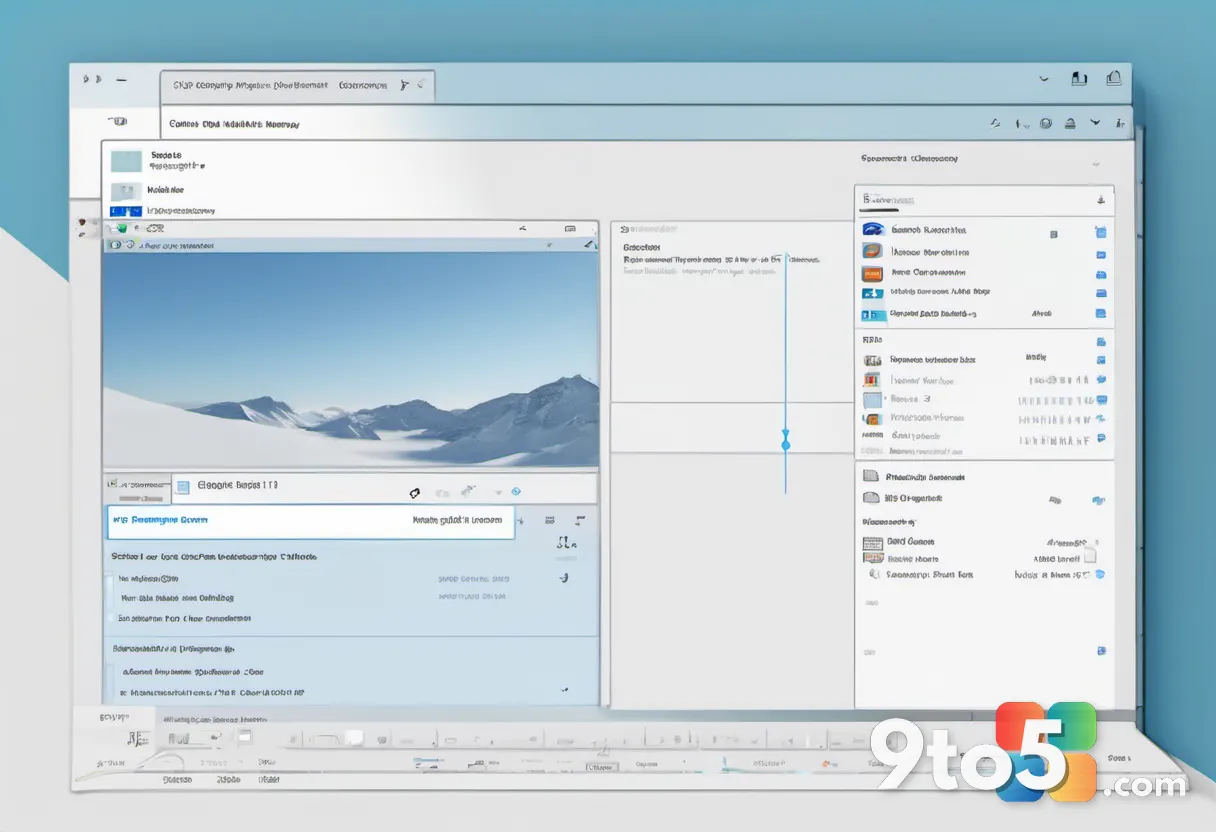
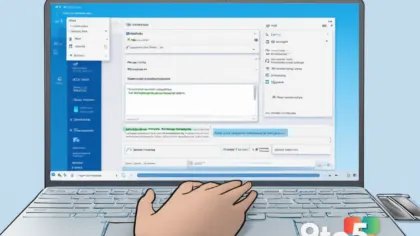
The customization controls now live inside the context menu itself, which is a departure from earlier Windows versions where such settings were scattered across the Control Panel or hidden deep in the Registry. To reach them, right-click anywhere the new menu appears — the desktop, a folder background, or a file — and look for the Customize option.
Depending on your build, this may show up as a dedicated entry or as a small gear-style control near the bottom of the menu. Selecting it opens a panel where you can adjust which items appear and how the menu is organized. If you don’t spot it immediately, try right-clicking in a different area, since availability can depend on the context you’re working in.
What you can adjust
Once the customization panel is open, the options generally fall into a few practical buckets:
- Which items show up — Turn individual actions on or off so your menu isn’t crowded with commands you never use.
- Menu layout and density — Choose between a tighter, compact view and a more spacious layout with more text.
- Default behavior — Decide whether the compact menu opens by default or whether the classic “More options” menu takes precedence.
These aren’t just cosmetic tweaks. A leaner menu means faster navigation, while keeping the commands you actually rely on one click away can save real time over a day of use. The exact set of toggles varies by build, so treat the list above as the general shape of what’s available rather than a guaranteed checklist.
How to get back the classic menu
If the redesigned menu still isn’t to your taste, Windows 11 hasn’t fully removed the escape hatch. The “More options” entry at the bottom of the compact menu expands into the classic, full-featured right-click list that long-time users recognize. You can also hold Shift while right-clicking in some contexts to reach it directly.
That classic menu remains a stable fallback for power users who need the deeper set of commands — things like advanced context actions and third-party integrations that don’t always appear in the compact version.
What this means for you
The headline takeaway is that the Windows 11 context menu is no longer a fixed, take-it-or-leave-it experience. You can now trim it down, reorder what matters, and pick how it looks — all without touching the Registry or installing third-party tools. For casual users, that means a cleaner, faster right-click. For power users, it means the option to keep the classic menu handy whenever you need its full command set.
The practical upshot: spend a few minutes setting it up the way you work, and the right-click menu becomes an asset rather than an annoyance. If the defaults don’t suit you, you now have somewhere to go.
How to get it
These customization options ship with Windows 11’s redesigned context menu, so the first step is simply making sure your copy of Windows 11 is up to date. Open Settings and check for the latest updates, since Microsoft has rolled out context-menu refinements over multiple releases. Once your build includes the redesigned menu with the Customize control, the options described above should be available.
If you’ve updated and still don’t see the customization entry, it may not have reached your build yet, or it may only appear in certain contexts. In that case, keeping an eye on Microsoft’s update channel and trying a right-click in a fresh location is the sensible next move.
Source: Neowin
Over to you: Do you prefer the compact redesigned menu, or do you reach for the classic ‘More options’ every time?