PDF files have become the universal language of digital documents. Whether you are sharing a contract, submitting a report, or distributing a presentation, the Portable Document Format ensures your content looks exactly the same on every device. However, viewing a PDF is only half the equation. When you need to modify text, rearrange pages, fill out forms, or collaborate with a team, a dedicated PDF editor becomes essential.
The market for PDF software is mature and highly competitive. For years, Adobe Acrobat Pro has sat at the top of the hierarchy, setting the standard for functionality and reliability. While it remains the most comprehensive option, its subscription costs and complex interface can be daunting for casual users. Fortunately, the gap between Adobe and its competitors has narrowed significantly. Today, you can find robust alternatives that handle 90 percent of common tasks at a fraction of the cost, or even for free.
Choosing the right tool depends entirely on your specific needs. Are you a legal professional requiring advanced redaction and e-signature capabilities? A student looking to annotate textbooks on a tablet? Or a small business owner who needs to convert scanned invoices into editable data? The following breakdown covers the best PDF editors across every category, pricing tier, and operating system. We have evaluated each based on feature depth, ease of use, cross-platform compatibility, and overall value.
#1 Adobe Acrobat Pro: Best PDF Editor Overall
Adobe Acrobat Pro remains the industry benchmark for a reason. It is the full-featured powerhouse that defines what a PDF editor should be. The recent interface redesign has made navigation significantly more intuitive, replacing the nested menus of previous versions with a clean, tabbed workspace. This update addresses one of the most common complaints from long-time users: the difficulty in finding specific tools.
The feature set is exhaustive. You get comprehensive content editing that allows you to modify text and images as if you were working in a word processor. The conversion tools are equally robust, handling exports to and from Microsoft Office formats, HTML, and plain text while preserving original formatting and hyperlinks. For legal and administrative workflows, Acrobat Pro offers advanced security features including permissions settings, password protection, and content redaction that permanently removes sensitive data. The built-in e-signature capabilities streamline the document approval process, allowing you to send, track, and collect signatures without leaving the application.
A significant addition in recent iterations is the integrated AI assistant. Unlike third-party add-ons that cost extra, this feature is included in the subscription. It can summarize lengthy documents, answer questions about the content, and extract key details automatically. For professionals who review hundreds of pages monthly, this time-saving capability can justify the investment on its own.
Pricing for Adobe Acrobat Pro is structured around a subscription model. While this ensures you always have access to the latest features and security patches, it adds up over time. The cost is higher than many competitors, but for enterprises and power users who rely on PDFs daily, the reliability and depth of the toolset make it the standard against which all others are judged.
#2 Nitro PDF: Best Runner-Up for Power Users
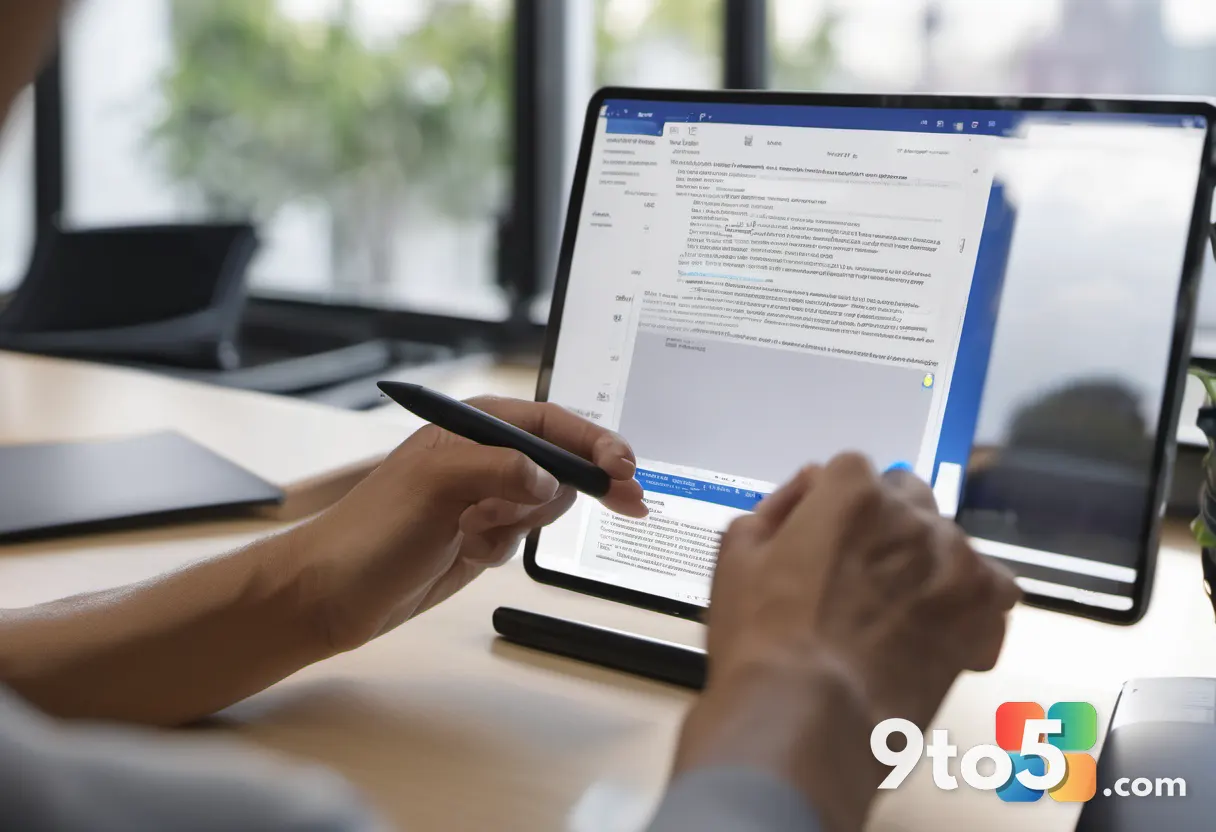
If you need a desktop experience that rivals Acrobat Pro but costs less, Nitro PDF is the strongest contender. It positions itself as a direct alternative for users who want a familiar, feature-rich environment without the Adobe ecosystem lock-in. The Standard plan subscription is approximately $60 less per year than comparable Adobe offerings, making it a compelling choice for cost-conscious professionals.
Nitro’s interface utilizes a Microsoft Office-style ribbon layout. If you have spent years working in Word or Excel, the transition to Nitro will feel seamless. Workflows for editing, reviewing, and converting documents are organized logically, reducing the learning curve. The document conversion engine is particularly strong, handling complex layouts and preserving formatting with high accuracy.
The editor includes a full suite of security and compliance tools. You can add, remove, and edit Bates numbering, which is critical for legal discovery processes. Multi-platform support ensures your documents sync across devices, and the inclusion of AI features allows for summarization and content queries. Nitro also offers a 14-day free trial with no credit card required, giving you ample time to test the full feature set before committing.
For users who find Adobe’s interface too cluttered but still require advanced functionality, Nitro provides a polished, efficient middle ground. It is especially well-suited for teams that need consistent editing capabilities across Windows and macOS environments.
#3 EaseUS PDF Editor: Best Budget-Friendly Option
EaseUS PDF Editor punches well above its weight class in terms of value. While it may not have the brand recognition of Adobe or Nitro, it delivers a complete set of editing tools at a price point that appeals to freelancers, students, and small businesses. The pricing structure is straightforward: you can pay monthly, annually, or opt for a lifetime license, which eliminates recurring fees entirely.
The interface is designed for immediate productivity. There are no hidden menus or complex onboarding processes. You open the file, and the tools are right there. This simplicity is a double-edged sword; it lacks some of the advanced enterprise features found in pricier options, but for 95 percent of users, it covers all the bases. You can edit text, merge and split pages, add annotations, and convert files with ease.
Collaboration is supported through robust annotation options, allowing you to leave comments and highlights for reviewers. The free version of the software is fully functional but adds a watermark to your edited documents. This allows you to test the workflow thoroughly before deciding if the paid version is necessary for your professional needs.
#4 PDF Candy: Best Free Web-Based Editor
For users who do not want to install software or pay for a subscription, PDF Candy stands out as a rare gem in the world of free online tools. Most web-based editors offer a skeleton of functionality and then charge for the basics. PDF Candy, however, provides access to 98 different tools, including scanning, multiple file conversion options, and OCR (Optical Character Recognition) to make scanned documents searchable and editable.
The toolset is comprehensive enough to handle complex tasks that usually require premium software. You can merge, split, compress, and convert PDFs directly in your browser. The OCR capability is particularly notable for a free tool, as it allows you to extract text from images and scanned papers with reasonable accuracy.
There are trade-offs to the free model. The interface can feel slightly disjointed, with tool icons lacking a strict organizational hierarchy. Once you become familiar with the layout, however, navigation becomes second nature. The primary limitation is the speed: the free version restricts you to one PDF task per hour. For occasional users, this is a minor inconvenience. For those who process documents in bulk, the paid tier at $6 per month removes this bottleneck and provides a smoother experience.
#5 PDF Expert: Best Editor for Apple Ecosystem
While macOS includes a capable PDF viewer in Preview, iOS devices lack a native editor. PDF Expert fills this gap perfectly, offering a seamless experience across Mac, iPhone, and iPad. It is the ideal choice for users who are deeply integrated into the Apple ecosystem and need consistent editing capabilities across all their devices.
The application features a clean, intuitive interface that prioritizes ease of use. You can manage pages, convert scanned files into editable documents, and switch between file formats without friction. The synchronization between devices is a standout feature, allowing you to start a document on your Mac and finish it on your iPad with your annotations and edits intact.
PDF Expert also includes an AI-powered chat assistant in its latest iteration. This feature is particularly useful for navigating long or complex documents. It can extract key points, summarize information, and even generate hashtags to help you locate specific sections quickly. The pricing is considerably lower than many competitors, and the annual payment option makes it a no-brainer for Apple users who need reliable PDF functionality.

#6 Apple Preview: Best Free Option for Mac Users
Before downloading third-party software, Mac users should recognize that they already have a powerful PDF editor installed. Apple Preview, included with every Mac, offers a full set of markup tools that handle most personal and business editing needs. It supports form filling, annotation, and even basic text editing.
The security features in Preview are robust. You can protect files with passwords, apply encryption, and set permission controls to restrict what others can do with your documents. For users who primarily need to sign, annotate, or slightly modify PDFs, Preview is more than sufficient. It eliminates the need for additional software installations and keeps your workflow within the native macOS environment.
The limitations are clear: it is only available on Apple hardware, and it lacks the advanced conversion and batch processing tools found in dedicated editors. If your needs extend beyond markup and basic editing, you will eventually outgrow Preview. However, for the majority of casual users, it is the most convenient and cost-effective solution available.
#7 pdfFiller: Best Online Editor for Business Workflows
pdfFiller is a browser-based editor designed with business workflows in mind. It allows you to edit, secure, share, create, and store PDF files all from a web interface that mimics the layout of a desktop application. The toolbar is positioned at the top, with document thumbnails along the side, making it easy to select pages and perform functions like adding, deleting, or copying text.
The feature set is surprisingly deep for a web tool. It includes a comprehensive set of markup tools and advanced business capabilities. The Premium plan offers a legal document library and SignNow support, which is valuable for teams that handle contracts and agreements regularly. The security options are robust, ensuring that sensitive documents remain protected during the editing and sharing process.
Pricing is structured into three tiers: Basic at $8 per month, Plus at $12 per month, and Premium at $15 per month with an annual commitment. Month-to-month options are available at a higher cost. While not all users will need the advanced business features, those who do will find pdfFiller to be a versatile and reliable solution. It is particularly useful for users who work across multiple devices and do not want to be tied to a specific operating system.

What This Means for You
The decision on which PDF editor to use ultimately comes down to your specific workflow and budget. If you are a power user or work in a legal or administrative role, investing in Adobe Acrobat Pro or Nitro PDF will pay dividends in time saved and features unlocked. The ability to edit text natively, manage complex security settings, and utilize AI for document summarization is invaluable in a professional setting.
For users who need reliable editing without the premium price tag, EaseUS PDF Editor and PDF Expert offer excellent value. They provide the core functionality required for most tasks at a fraction of the cost of industry leaders. Apple users can often rely on Preview for basic needs, reserving paid software for more complex projects.
Finally, for those who only occasionally need to edit a PDF, web-based tools like PDF Candy or pdfFiller provide a convenient, no-installation solution. The key is to assess your current needs honestly. If you are processing documents daily, a subscription to a premium editor is likely worth the investment. If your needs are sporadic, a free or low-cost option will serve you just fine.
How to Choose the Right Editor
When evaluating PDF editors, consider the following criteria to ensure the tool matches your requirements:
- Content Editing: Can you modify existing text and images as easily as in a word processor? This is a critical differentiator between basic viewers and true editors.
- Conversion Capabilities: Does the tool handle exports to and from Word, Excel, and PowerPoint while preserving formatting? This is essential for collaborative workflows.
- Security Features: Look for password protection, permissions settings, and content redaction if you handle sensitive data.
- Mobile Support: If you review documents on the go, ensure the editor has a dedicated mobile app or a responsive web interface.
- Pricing Model: Decide whether a subscription or a one-time purchase aligns better with your budget. Lifetime licenses can offer long-term savings for heavy users.
The PDF ecosystem has evolved significantly. You no longer need to pay top dollar for basic functionality, nor do you need to settle for limited free tools. By understanding your specific needs, you can select a PDF editor that enhances your productivity without breaking the bank.
Source: PCWorld
Over to you: Which PDF editor do you rely on for your daily tasks, and what features matter most to you?
You may also like
 Why Bitdefender Total Security is the smartest move for your mixed-device home
 Windows Update Blocker Drops Feature Windows 11 Users Can Live Without
 I Replaced a $29 Speechify Subscription With Microsoft Edge’s Free Read Aloud — Here’s How It Stacks Up
 Best VPN Services 2026: Top 7 Picks for Privacy, Speed, and Streaming