
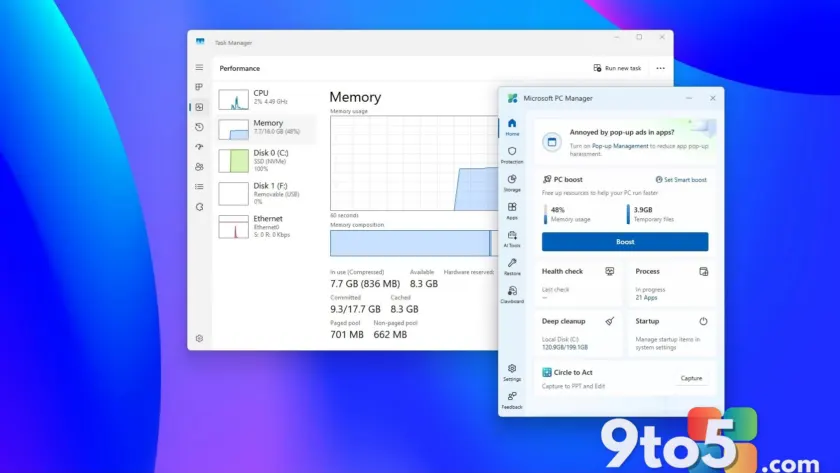
If you open Task Manager on Windows 11 and see memory utilization sitting at 70%, 80%, or even 90%, it’s easy to panic. Many users assume this means their computer is slowing down, the OS is hogging resources, or it’s time to buy more hardware. However, high memory usage is often a sign that Windows is working exactly as intended.
Microsoft PC Manager includes a one-click “Boost” feature designed to free up RAM instantly. While useful in specific scenarios, relying on it every time you see a high percentage can actually hurt performance. Here is what you need to know about how Windows 11 handles memory and when you should actually worry.
Why Windows 11 uses so much memory
Modern operating systems are designed to use available resources efficiently rather than letting them sit idle. Windows 11 uses free RAM to cache data and keep frequently used apps ready to launch faster. This makes the system feel more responsive during your daily workflow.
High memory usage isn’t necessarily a warning sign. In many cases, it proves the OS is taking advantage of the hardware you already paid for. Two computers with identical RAM amounts can show very different usage percentages in Task Manager while performing nearly identically because one may be caching more files than the other.
It is crucial to distinguish between “good” memory usage and “bad” bloat. When Windows caches files, it immediately releases that memory if another application needs it. However, if a single app or browser tab consumes several gigabytes due to poor optimization or a memory leak, that is a legitimate resource problem worth addressing.
Where Microsoft PC Manager fits in
Microsoft PC Manager can help when memory consumption becomes excessive. The Boost feature quickly closes unnecessary background processes and releases memory back to the system. If you have dozens of browser tabs open, forgotten apps running in the background, or are working on a machine with limited memory, this feature can provide an immediate improvement.
For users who prefer not to dig through Task Manager to find resource-hungry processes, PC Manager offers a simpler approach. However, the tool works best when solving an actual memory bottleneck rather than simply chasing a lower number in the performance tab.
The mistake many users make
The biggest error I see is treating memory usage as a score that should always be kept as low as possible. If Task Manager reports 85% memory usage, many users immediately feel compelled to free RAM. After using the Boost feature, they feel reassured because the percentage drops.
Lower memory usage doesn’t automatically translate into better performance. Windows 11 stores useful information in memory to speed up common tasks. Clearing that data may reduce the percentage shown in Task Manager, but it doesn’t always make the computer faster. In some situations, the operating system simply reloads the same information back into memory moments later, wasting CPU cycles.

When should you actually worry?
The percentage itself isn’t what matters most. What matters is whether you are experiencing symptoms that indicate the system is running out of available memory. Apps taking longer to open, sluggish multitasking, and random slowdowns are usually better indicators than the number shown in Task Manager.
Another sign is when the system begins to rely heavily on virtual memory, forcing it to move data between RAM and storage. That is when performance can start to suffer noticeably. Keep in mind that many other factors affect system performance, including drive speed, available disk space, thermal throttling, processor limitations, and excessive startup apps.
If your computer remains responsive throughout your normal workload, high memory usage alone usually isn’t a reason to worry. There isn’t a magic number that applies to every computer. For some users, 90% memory usage may be perfectly normal because they are running dozens of browser tabs, editing photos, or working with virtual machines.
So how much RAM usage is too much?
Context is key. On an 8GB system sitting at around 85% memory usage, there is very little room left to work with. At that point, Windows 11 has to rely more on memory compression and move data to the storage drive, which can lead to noticeable slowdowns or stuttering. High memory usage on a high-end computer is usually just normal caching. However, on a lower-end system, it often means the hardware is starting to struggle.
My rule of thumb is simple. If memory usage consistently stays at 85-90% and you are noticing performance issues, it is probably time to investigate and consider a RAM upgrade. If performance remains smooth, Windows 11 is likely managing memory exactly as intended.
What this means for you
Every time someone posts a screenshot showing 85 or 90% memory usage on Windows 11, the first reaction is usually, “You need more RAM.” In reality, that is often not the case. I have tested Windows 11 on systems with 8GB, 16GB, and 32GB of memory, and one thing I have learned is that the system will happily use available RAM if it can improve performance. Unused memory doesn’t make your computer faster.
This is why Microsoft PC Manager’s Boost feature is both useful and potentially misleading. It is useful because it can quickly free resources on low-memory systems or when an app is misbehaving. However, it can also reinforce the idea that high memory usage is always bad, which simply isn’t true.
The one major exception here is right before you launch a heavy workload. If you are about to open a demanding game or start rendering a 4K video, it could make sense to hit the “Boost” feature beforehand. It forces background tasks to clear out early, ensuring your heavy application has immediate access to raw blocks of memory without waiting for the system to reallocate resources on the fly.
If you open Task Manager and see memory usage sitting at 80 or even 90%, I wouldn’t rush to upgrade your memory. Instead, ask a different question: Is the device actually slow? If apps open quickly and multitasking feels smooth, Windows 11 is probably managing memory exactly as intended. The real sign that it is time for more RAM isn’t a percentage in Task Manager; it is when you start noticing slowdowns, app reloads, stuttering, or other performance issues during your normal workflow.
Source: Windows Central
Over to you: Do you regularly use memory-boosting tools on your Windows 11 PC, or do you let the OS manage RAM automatically?