
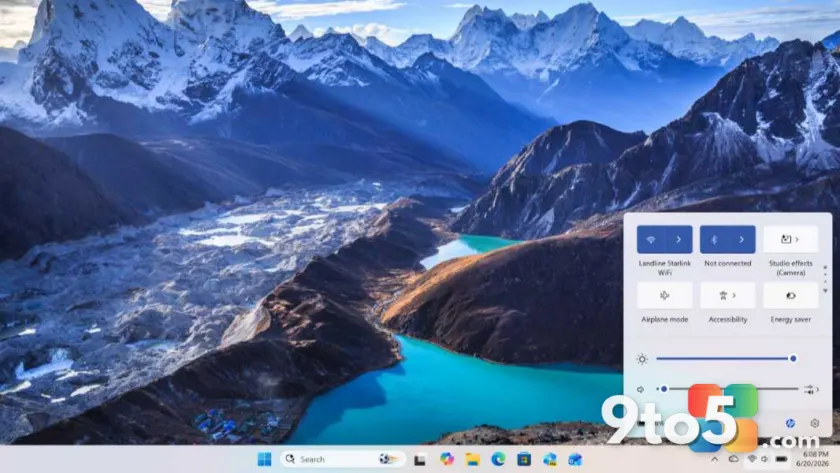
Quick Settings in Windows 11 serves as your primary hub for managing frequently used system configurations without digging through the full Settings app. It provides immediate control over connectivity and power options that most users adjust on a daily basis.
Core Connectivity Controls
The interface prioritizes network management by placing Wi-Fi, Bluetooth, and Airplane mode at the forefront. Tapping these toggles instantly enables or disables the respective radios, allowing you to switch between connection types or conserve battery life by cutting off wireless signals entirely.
Power and Display Management
Beyond connectivity, Quick Settings includes direct access to Battery saver mode. This feature helps extend laptop runtime by limiting background activity when power is low. You can also adjust display brightness and night light settings directly from this panel to reduce eye strain or save energy on OLED screens.
What this means for you
For everyday Windows users, mastering Quick Settings reduces the time spent navigating menus. By keeping these essential toggles visible, you can maintain productivity and device health with minimal interruption to your workflow.
Source: Thurrott.com
Over to you: Which Quick Setting do you use most often: Wi-Fi, Bluetooth, or Battery saver?