Windows 11 continues Microsoft’s push toward a unified hardware experience, whether you are using a desktop tower or a convertible tablet. Understanding how the OS interacts with your physical devices can save time when troubleshooting connectivity issues or setting up new peripherals.
USB and plug-and-play simplicity
Universal Serial Bus (USB) remains the standard for connecting external storage, keyboards, mice, and printers. Windows 11 generally handles these connections automatically through its plug-and-play architecture. When you insert a USB device, the system detects it, installs necessary drivers if they are missing from the local cache, and makes the device available for use.
If a device fails to appear in File Explorer or Device Manager, checking the physical port and trying a different cable is often the first step. Windows 11 also supports USB-C ports natively, allowing for data transfer, video output, and power delivery over a single connection on compatible hardware.
Bluetooth pairing and management
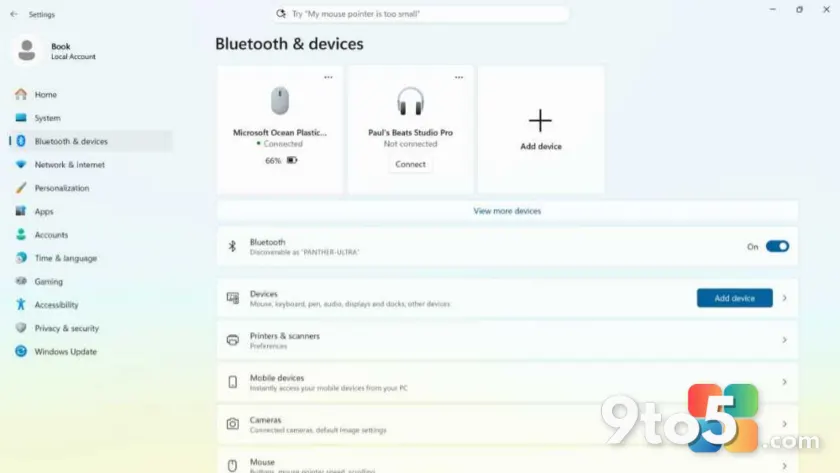
Wireless connectivity via Bluetooth has become more streamlined in recent Windows updates. To pair a new device, such as wireless headphones or a mouse, you can access the Quick Settings panel or navigate to Settings > Devices. The interface allows you to put your peripheral into discovery mode and select it from a list of available devices.
Once paired, Windows 11 maintains the connection profile. If a device disconnects unexpectedly, the system will often attempt to reconnect automatically when the device is powered on and within range. For stubborn connections, removing the device from the Bluetooth settings list and re-pairing it usually resolves handshake errors.

Input devices: Keyboards, mice, and touch
Windows 11 treats standard keyboards and mice as universal input methods, but it also offers deep customization for precision. In Settings, you can adjust mouse pointer speed, scroll lines per notch, and keyboard repeat rates. For users with high-DPI mice or mechanical keyboards, ensuring the correct driver is installed prevents latency issues.
Touchpad gestures have been refined in Windows 11 to mimic touch-screen interactions. Two-finger scrolling, pinch-to-zoom, and three-finger swipes for virtual desktops are enabled by default on most modern laptops. These gestures rely on the precision touchpad drivers included with Windows Update, so keeping your system updated ensures smooth gesture recognition.
Specialized input: Pens and tablets
For users of 2-in-1 devices or external drawing tablets, Windows 11 provides robust support for smart pens. Features like palm rejection and pressure sensitivity are handled at the driver level, allowing for natural writing and drawing experiences in apps like Microsoft Whiteboard or OneNote.
Tablet mode is less prominent than in Windows 10, as the OS now assumes a hybrid approach by default. However, you can still adjust how touch input behaves, such as disabling accidental touches when typing on a physical keyboard attached to a convertible device.
Printers and scanners
Connecting printers and scanners remains largely unchanged but benefits from improved driver integration. Windows 11 can automatically detect networked printers and install basic drivers via Windows Update. For complex multifunction devices, downloading the manufacturer’s specific software suite may still be required for advanced scanning features.
If a printer stops working, the built-in troubleshooter in Settings > Devices often resolves common spooler errors or connectivity drops. This tool checks for paused print queues and restarts necessary services without requiring manual command-line intervention.
What this means for you: Whether you are upgrading an old PC or setting up a new Surface, understanding these basics helps you avoid driver conflicts and ensures your peripherals work as expected from day one. Regular Windows Updates often include critical driver improvements that enhance compatibility with newer hardware standards.
Over to you: Which peripheral gives you the most trouble connecting to Windows, and how do you usually fix it?