- Status: Confirmed known issue — affects some Windows PCs.
- Product: VLC Media Player (slow startup, sometimes up to ~30 seconds).
- Root cause: Microsoft Defender quarantining VLC’s plugin cache (plugins.dat).
- Triggering updates: Defender signature update version 1.455.50.0; Windows Update KB5121003 (released August 11th).
- Affected platforms: Windows 10 and Windows 11 (24H2/25H2).
For months, online forums have been flooded with complaints that VLC Media Player takes several seconds — sometimes as long as half a minute — to launch. The slowdown hits regardless of the media file’s size or format, and it’s left countless users reaching for their keyboards to blame the VideoLan developers. Some even accuse Microsoft of deliberately throttling the open-source player.
But the culprit isn’t the developers, and it isn’t necessarily your operating system. According to investigations shared by VideoLan and its lead developer Jean-Baptiste Kempf, the real cause of your slow VLC startup is Microsoft Defender itself — and there’s a simple fix.
Why Microsoft Defender Is Causing Your Slow VLC Startup
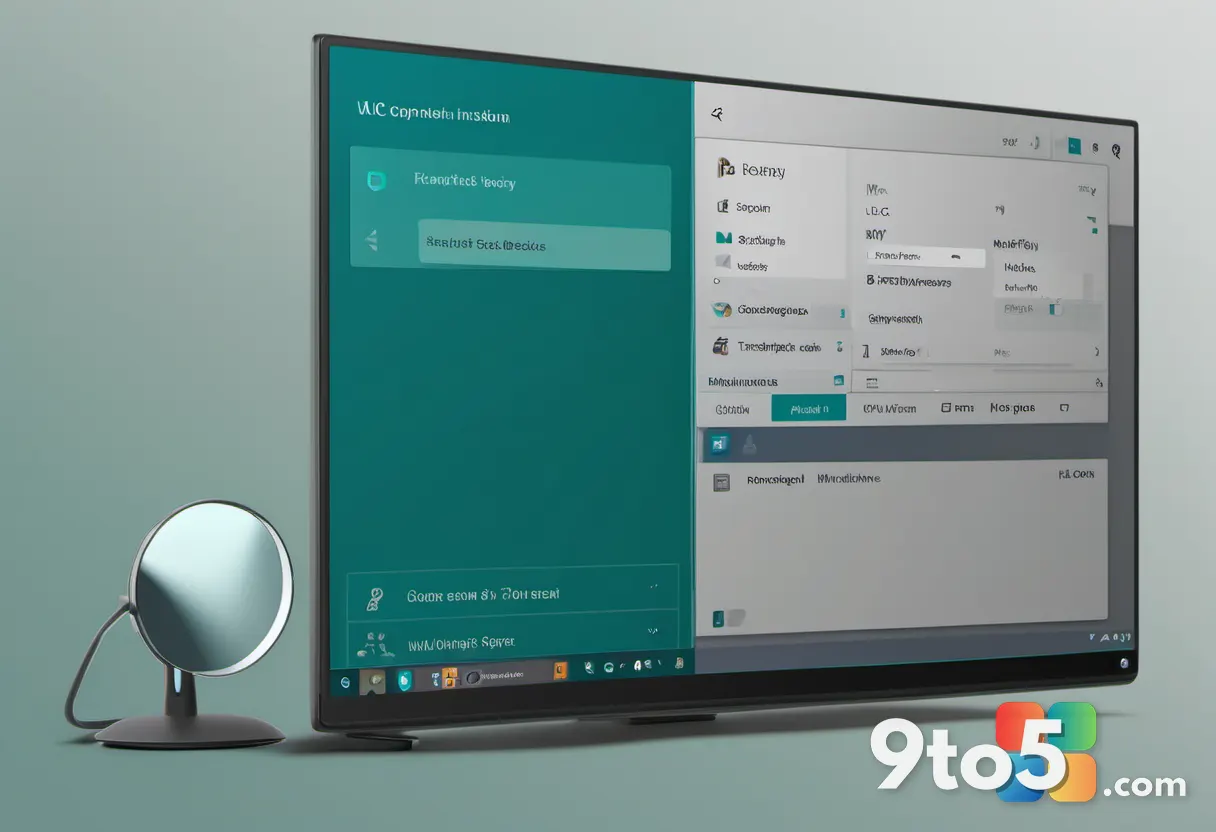
The pattern is surprisingly consistent: every affected machine has Microsoft Defender running. There are no comparable reports involving other antivirus suites, which points squarely at Defender’s scanning behavior rather than VLC’s code.
Here’s what’s actually happening under the hood. Following a Windows update a few weeks ago, Defender has been quietly placing VLC’s plug-in cache — the plugins.dat file — into quarantine. When VLC launches, it has to wait for that cache to be restored or re-evaluated, which is exactly what produces the awkward “moment of silence” before the program finally responds.
The two updates blamed for the mess are specific. VideoLan points to a faulty Defender signature update running version 1.455.50.0, paired with the Windows Update patch KB5121003. Microsoft shipped KB5121003 as part of its Windows 11 24H2/25H2 security update on August 11th, and it’s been tied to a string of problems ever since.
The Fix: Reset VLC’s Plugin Cache
Getting VLC to boot normally again usually takes under a second — and you don’t have to fiddle with the registry or delete files by hand. Your options are straightforward.
The easiest route is to let VLC do the work for you. Click the search icon (the magnifying glass) in the bottom-left corner of the taskbar and type VLC. The top result should read VLC media player — reset preferences and cache files. Launch it, and it’ll wipe and regenerate your settings and cache in one go.
Alternatively, you can simply reinstall VLC Media Player from the official VideoLan site, which achieves the same result. Or, for the more hands-on users, you can regenerate the cache manually with vlc-cache-gen.exe from the command line.
Prevent the Recurrence: Add a Defender Exclusion
Because Microsoft hasn’t yet pulled or patched the bad signature, the same thing could happen again after your next update. The practical workaround is to tell Defender to leave VLC’s folder alone.
An exclusion simply instructs Defender to stop scanning a specific directory for threats. It’s a small trade-off: you’re lowering your guard on one folder, so only do this if you grabbed VLC from the manufacturer’s official site. If it came from a third-party mirror, you might want to reconsider the risk.
On Windows 10, set the exclusion here:
- Settings → Windows Security → Virus & Threat Protection → Virus & Threat Protection Settings → Manage Settings → Exclusions → Add or remove exclusions
- After the User Account Control prompt, choose Add exclusion → Folder, then select
C:\Program Files\VideoLAN\VLC\plugins.
On Windows 11, the path is nearly identical — start at Settings → Privacy and Security → Windows Security, then follow the same steps described above.
What This Means for You
For the everyday Windows user, this is a nuisance rather than a security disaster. Your videos will still play; they’ll just take a few extra seconds to open until you reset the cache. The exclusion route is the more durable fix, but it does mean trusting one folder that Defender was originally trying to scan.
IT admins managing a fleet will want to keep an eye on this. If you’re pushing updates via WSUS or Intune, you may see a wave of support tickets about slow media players — and the signature update version 1.455.50.0 is the signature to look for when troubleshooting.
As of writing, Microsoft hasn’t issued an official response to VideoLan’s public accusations, nor has it pulled the faulty signature. Until then, the manual reset and exclusion route remains your best bet for a snappy VLC launch.
Source: PCWorld
Build details:
- kb5121003
Over to you: Will you add the Defender exclusion for VLC, or just keep resetting the cache after each update?