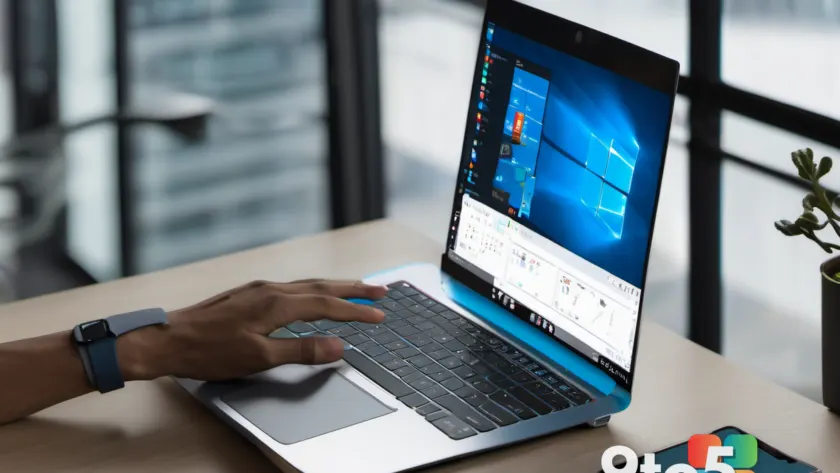
Windows 11 touchpad scrolling has gained a new single-finger option, but hands-on testing from Neowin suggests it doesn’t feel quite right. The gesture works, but it comes across as awkward rather than natural.
Microsoft has spent the past several years refining touchpad gestures on Windows 11, and one-finger scrolling is the latest addition to that lineup. In theory, it should let you flick through long web pages, chats, and documents without ever reaching for a mouse. In practice, the experience is a bit clumsy, and it may not replace the two-finger scroll most people have grown used to.
What one-finger scrolling actually does
The feature lets you move content up, down, left, or right by dragging just one finger across the touchpad. Instead of the familiar two-finger swipe, you place a single digit on the pad and glide it in the direction you want to go.
On paper this sounds convenient: one hand, one finger, and no need to coordinate two digits at once. It’s the kind of gesture that feels natural on a phone or tablet, where a single-finger swipe is second nature.
But a touchpad isn’t a touchscreen, and that difference shows up in how the gesture actually behaves. The pad has to tell a deliberate scroll apart from an accidental tap, drag, or cursor move, and that distinction is where things start to feel off.
Why it feels awkward
Neowin’s testing found that while the gesture registers and scrolls, the motion doesn’t feel as smooth or precise as two-finger scrolling. The single-finger drag can feel less controlled, and it’s easy to lose track of where you are on the page.
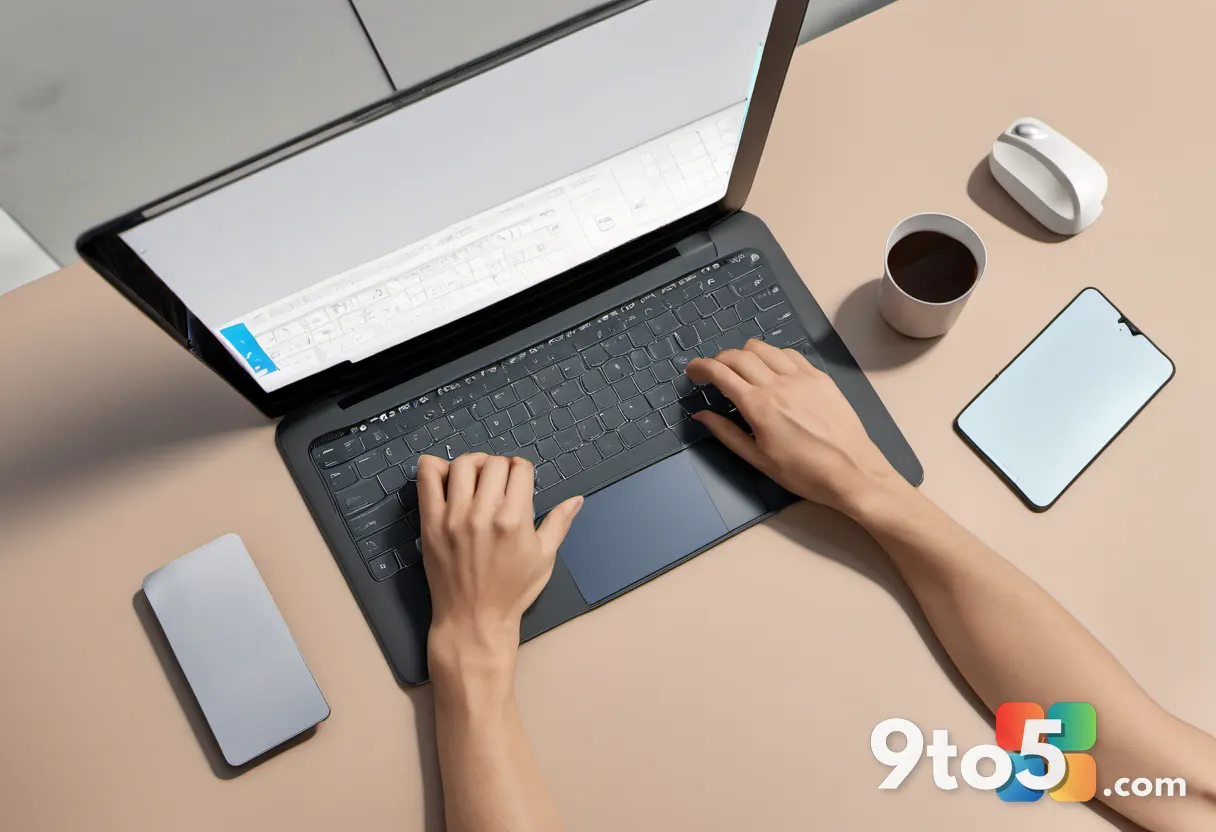
Part of the awkwardness is likely ergonomic. When you scroll with two fingers, your hand stays in a relaxed position and the pad tracks movement cleanly. Dragging with one finger tends to put your wrist and fingers in a slightly unnatural posture, forcing you to reach and anchor differently than you would with a mouse.
There’s also the question of speed and control. A quick two-finger flick gets you to the bottom of a long page in one motion. A single-finger drag often needs repeated, smaller strokes, which can feel tedious during extended reading or editing sessions.
How Windows 11 touchpad scrolling has evolved
When Windows 11 launched, Microsoft overhauled the touchpad experience that had carried over from Windows 10. The update brought smoother, more responsive gestures, refined trackpad sensitivity, and a cleaner settings menu organized under Settings > Bluetooth and devices > Touchpad.
Two-finger scrolling, zooming, and navigation between apps became the standard, and Microsoft has continued to tweak the underlying drivers and gestures in subsequent updates. One-finger scrolling appears to be another experiment in that broader push to make touchpad navigation feel more natural — and, in some cases, more smartphone-like.
It’s worth noting that not every laptop will offer the same experience. Touchpad quality, driver support, and manufacturer customizations all affect how a gesture feels, which is likely why Neowin’s assessment is framed around a single device’s behavior rather than a universal verdict.
How to try it
If you want to test one-finger scrolling yourself, head to Settings > Bluetooth and devices > Touchpad and look through the gesture options. Depending on your build and hardware, you may find a setting that lets you enable or adjust single-finger scrolling behavior.
Because this is a relatively new gesture, availability can vary. If you don’t see the option, make sure your touchpad drivers are up to date through Windows Update or your laptop manufacturer’s software, and check for the latest Windows 11 updates, where features like this typically land.
What This Means for You
For everyday users, the takeaway is simple: one-finger scrolling is an available option, but it isn’t necessarily the one you’ll want to use. If you’re comfortable with two-finger scrolling — which remains the fastest and most precise method for most people — there’s no rush to switch.
The feature is most useful as a fallback, or for people who prefer a single-finger gesture or who are transitioning from a phone or tablet where that motion is familiar. But if it feels awkward on your machine, that’s a normal reaction, not a sign that something’s wrong with your setup.
Microsoft’s broader goal is clearly to give you more ways to navigate without a mouse, and gestures like this are part of that ongoing refinement. Until the experience smooths out, two-finger scrolling stays the default recommendation for speed and accuracy. If you do try the single-finger option and dislike it, you can simply turn it off in the same Touchpad settings and return to the two-finger standard.
Source: Neowin
Over to you: Do you prefer the speed of two-finger scrolling, or would you give one-finger scrolling a real try?