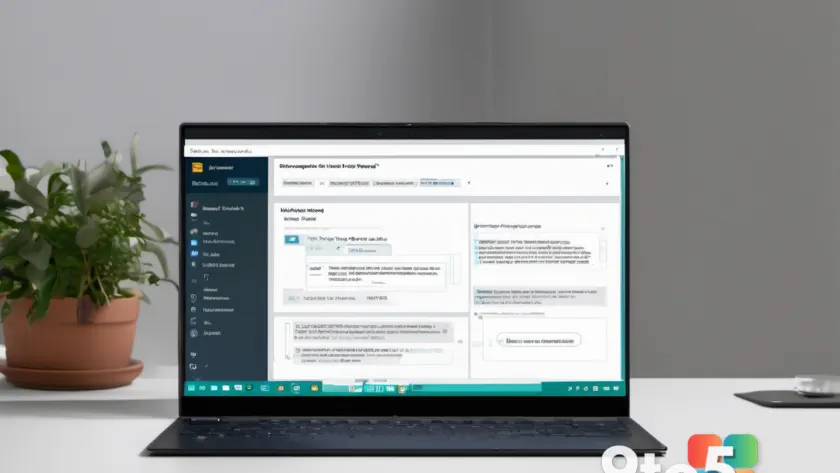
Windows Copilot has evolved well beyond a quick-answer chatbot. With the right setup, it can open your files, read through lengthy documents, and hand you a clean summary along with answers to specific questions you ask. This guide walks you through the entire process, from launching Copilot to getting a digestible breakdown of a PDF or Word file, so you can stop scrolling through dozens of pages.
Whether you are a student reviewing lecture notes, a professional digesting a report, or someone looking to save time, Copilot’s document-reading ability can do the heavy lifting. The steps below work on Windows 11, including the enterprise-focused Windows 11 Enterprise editions, so you can follow along regardless of your setup.
Before You Start
- Windows 11 (version 24H2 recommended, though the feature works on earlier builds)
- A Microsoft account signed in on your PC
- Copilot installed — search for it in the Start menu, or grab it from the Microsoft Store if it is missing
- The document you want to summarize (PDF, Word, plain text, or another supported file type)
Once those basics are in place, you are ready to begin.
Step 1: Launch Windows Copilot
Press Win + C on your keyboard, or click the Copilot icon located on your taskbar. If you do not see the icon, open the Start menu and type “Copilot” in the search box, then click the app when it appears.
You should see the Copilot sidebar or a full window slide in from the right edge of your screen, complete with a chat box at the bottom. If nothing opens, check that you are signed into Windows with a Microsoft account, since Copilot requires an active sign-in to function.
Pro Tip: Use the Win + C shortcut to launch Copilot instantly instead of hunting for its icon every time you need it.
Step 2: Open your document inside Copilot
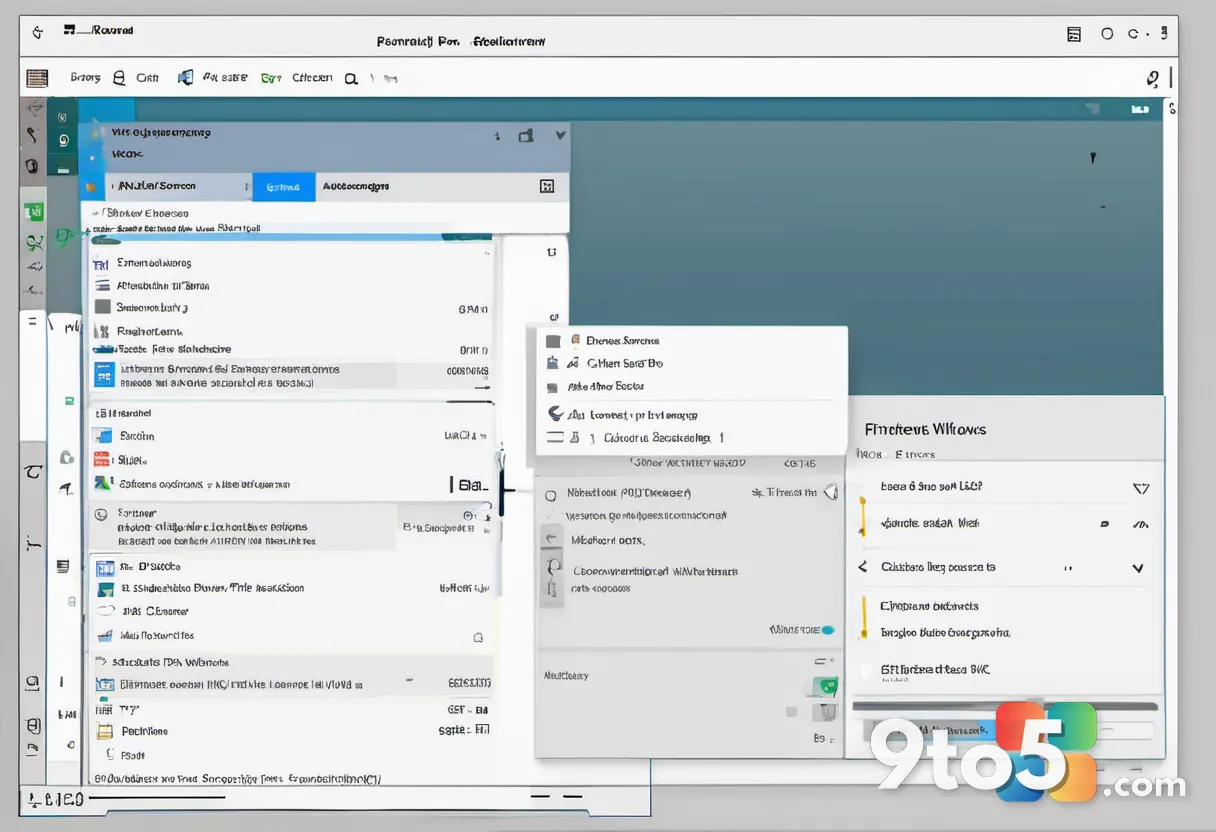
There are two reliable ways to bring a file into Copilot. The fastest method is to drag the document file directly onto the Copilot window and drop it into the chat area. Copilot will detect the file and load it so it can read the contents.
Alternatively, click the attachment or “Open” button near the chat box (it often looks like a paperclip or a small folder icon), then browse to your file and select it. You will see a confirmation that Copilot has opened the document, sometimes with a short preview of its contents.
If the file will not open, confirm that the file type is supported. Copilot handles common formats like PDF, DOCX, TXT, and PPTX, but exotic or password-protected files may be rejected.
Step 3: Ask Copilot to summarize the file
Type a clear instruction into the chat box, such as “Summarize this document” or “Give me the key points from this file.” Press Enter or click the send button to submit your request.
Copilot will process the document and return a structured summary, usually broken into short paragraphs or bullet points that capture the main ideas. Longer documents may take a few seconds to process, so give it a moment to finish before assuming something went wrong.
If the summary feels too vague, refine your request by asking for a specific length, like “Summarize this in five bullet points” or “Focus on the conclusions and recommendations.”
Step 4: Ask follow-up questions
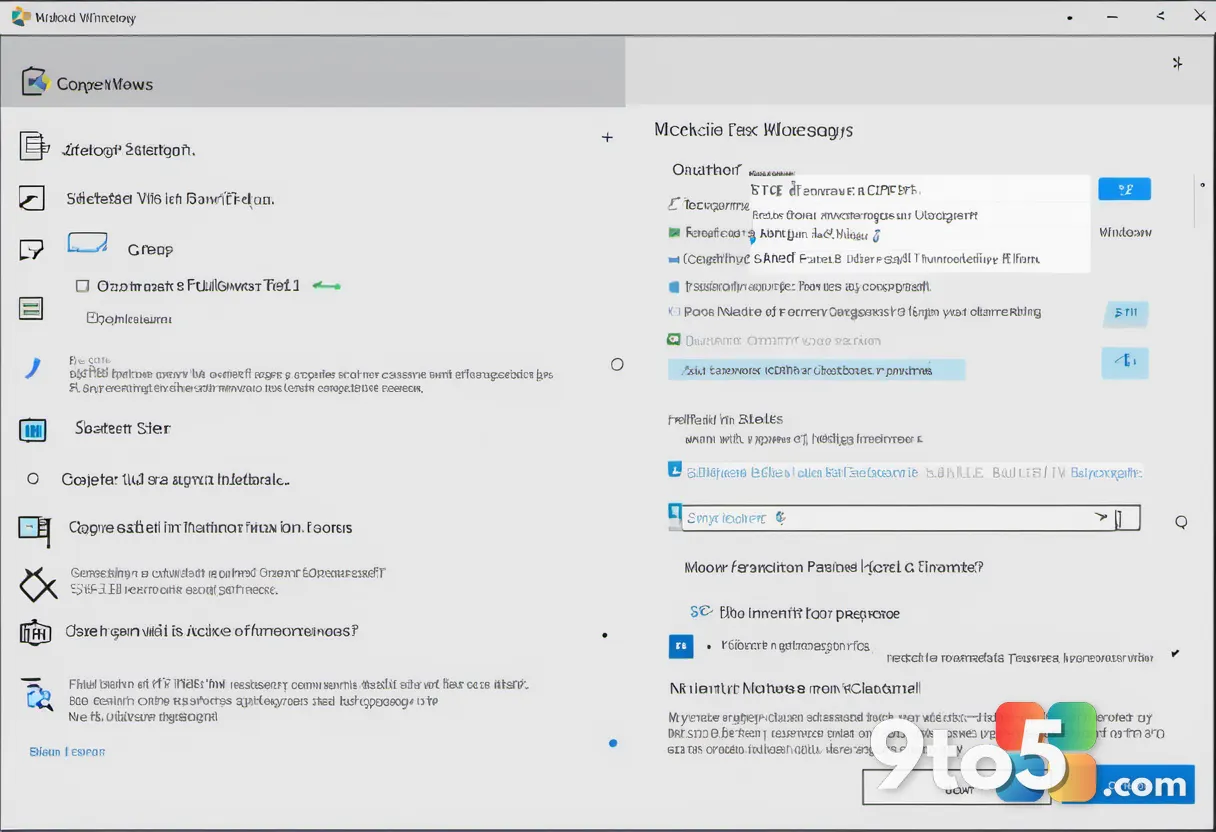
Once Copilot has summarized your document, you can keep the conversation going. Ask targeted questions that relate to the file, such as “What are the main deadlines mentioned?” or “Explain the third section in simpler terms.”
Copilot remembers the document you opened, so it can pull details directly from that file without you re-uploading anything. This makes it ideal for digging into specifics without reopening the original document and searching manually.
If Copilot seems confused or gives an answer that does not match your file, remind it which document you are working with, or close and reopen the file to reset the context.
Step 5: Refine and save your results
Not happy with the first summary? Ask Copilot to adjust it. You can request a shorter version, a longer breakdown, a tone change, or a focus on particular sections.
To keep your work, copy the summary text and paste it into your own document, or use the copy button that appears near Copilot’s response. Some versions of Copilot also let you export or share the output, depending on your build.
If the copy button is missing, highlight the response text with your mouse, press Ctrl + C, and paste it wherever you need it with Ctrl + V.
Step 6: Work across multiple documents (optional)
For larger projects, you can open more than one document at a time. Open each file in Copilot as described above, then ask questions that compare or combine them, such as “What are the common themes across these files?”
This is especially useful when cross-referencing reports, research papers, or meeting notes. Keep in mind that loading many large files at once can slow things down, so add documents one at a time and give Copilot time to read each one.
Troubleshooting
If you run into trouble, the issues below cover the most common failure points and how to fix them.
Copilot will not open my document
- Confirm the file type is supported (PDF, DOCX, TXT, and PPTX are the most reliable).
- Make sure the file is not password-protected or locked by another program.
- Try moving the file out of a restricted folder, such as certain OneDrive sync folders, and open it from your local Documents folder.
The summary is incomplete or generic
- Be specific in your prompt — ask for bullet points, a word count, or a focus on particular sections.
- For very long documents, ask Copilot to summarize section by section rather than all at once.
- Ensure you actually opened the correct file, since Copilot can only summarize what it has loaded.
Copilot gives an answer that does not match your file
- Reset the conversation by closing and reopening the document so Copilot starts fresh.
- Verify you are signed in with a valid Microsoft account, since a broken sign-in can limit functionality.
- Update Copilot through the Microsoft Store to make sure you have the latest document-reading capabilities.
Closing Tips
- Keep your prompts clear and specific — the better you describe what you want, the more useful the summary.
- Use Copilot for understanding and quick extraction, but always verify critical facts against the original document.
- Remember that Copilot processes your files in the cloud, so avoid feeding it sensitive or confidential documents unless your organization permits it.
- Pin Copilot to your taskbar so you can reach it in a single click next time.
Now that you know how to summarize documents and answer questions with Windows Copilot, you can cut down the time you spend reading through long files. What kind of documents do you plan to run through Copilot first?
Over to you: What kind of documents do you plan to run through Windows Copilot first?