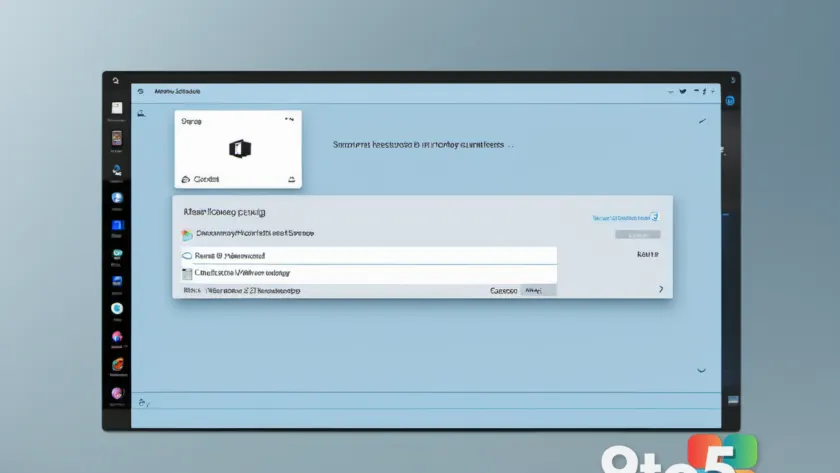
Microsoft’s ongoing effort to polish Windows 11 has reached one of the operating system’s most stubborn holdovers: the AutoPlay dialog box. In the latest Windows Insider build, the company rebuilt the long-ignored window with WinUI, the modern design framework that powers the current look of Windows 11.
According to the release notes, this is more than a cosmetic refresh. The redesigned Windows 11 AutoPlay dialog delivers better performance, stronger visual consistency with the rest of the OS, and improved responsiveness to text scaling and display settings. It’s a small change on paper, but one that touches a feature nearly everyone uses whenever they plug in a USB drive, camera, or phone.
#1 A WinUI redesign for the Windows 11 AutoPlay dialog
The AutoPlay dialog is one of the oldest remaining pieces of Windows 11’s interface. It pops up whenever you connect a device or removable media, asking which experience you want — open a photo app, sync a phone, or browse a drive. For years it kept a dated look that never matched the rounded corners, fluent animations, and Mica materials of the rest of the system.
Microsoft rebuilt it from the ground up using WinUI, the same framework behind Settings, the Start menu, and other modern apps. The result supports dark mode out of the box, tracks your text-scaling preferences more accurately, and feels more at home alongside newer parts of Windows 11. Notifications for the dialog are now docked in the notification center, so they’re easier to find and dismiss.
Even though AutoPlay is a minor feature, it’s exactly the kind of low-risk polish Microsoft is pushing as part of a broader cleanup that also includes optimizing Windows 11 for systems with 8GB of RAM. Fixing the small, frequently used pieces is a deliberate strategy before tackling larger performance work.
#2 A new ‘Open apps maximized’ setting
Also arriving in this build is a straightforward accessibility improvement called Open apps maximized. Once enabled, Windows automatically maximizes application windows as they launch, so you no longer have to stretch them to full screen every single time.
To turn it on, head to Settings > Accessibility > Visual effects and switch on the new option. Microsoft says it’s designed to remove a bit of everyday friction, whether you rely on a screen reader or magnification, work in tablet mode, or simply prefer a consistent full-screen workspace.
#3 Per-app camera, microphone, and location controls for desktop apps
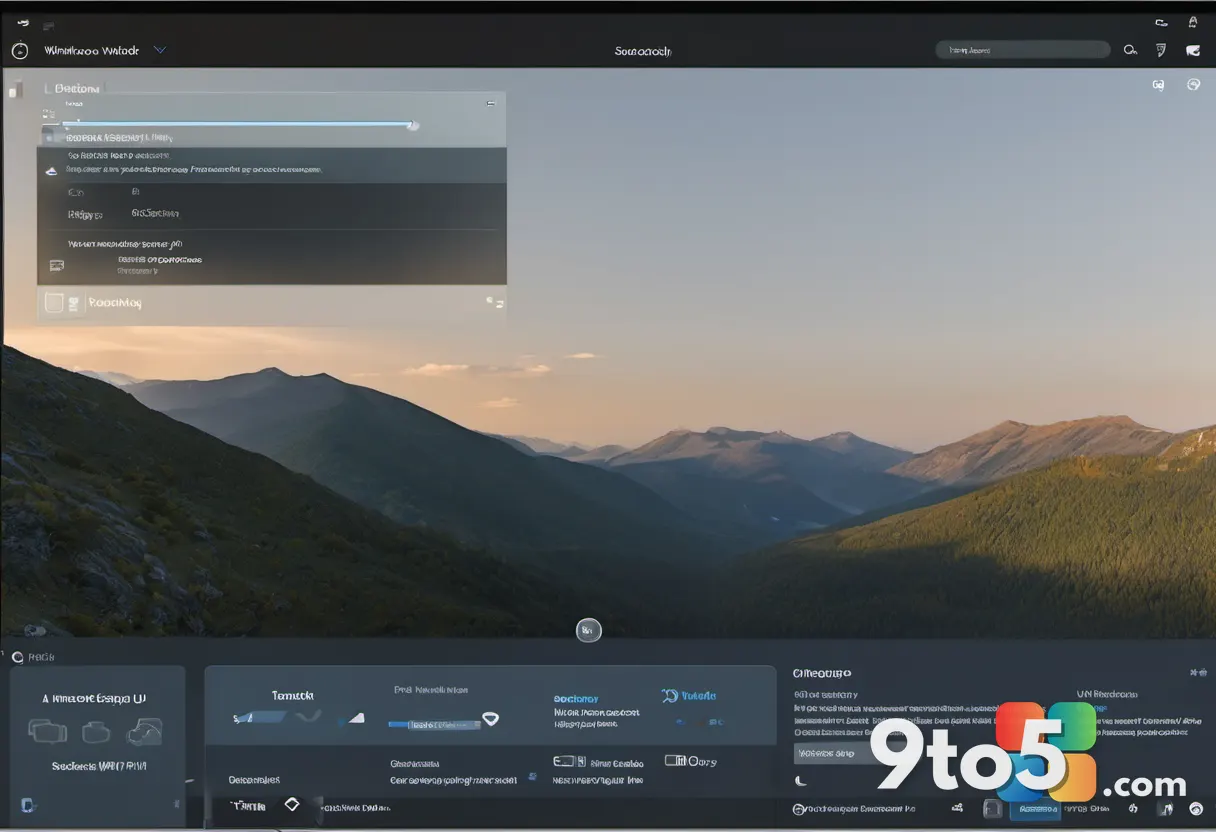
Perhaps the most substantive privacy change in this build lets you manage camera, microphone, and location permissions on an app-by-app basis for traditional desktop applications. Previously, access for classic desktop apps was controlled through a single device-wide toggle, giving you little granularity.
You can now review and adjust these permissions individually by going to Settings > Privacy & security > Camera, Microphone, or Location. Apps that haven’t yet used a resource will prompt for permission the first time they request it, giving you a clear moment to decide.
Microsoft stresses that nothing changes for existing decisions: apps previously granted access keep it, apps previously denied stay denied, and no settings are reset. Existing enterprise policies continue to work as designed, though the company says it’s exploring additional management options for IT admins.
One caveat worth noting: some apps that rely on shared system components or browser-hosted experiences may appear under a different name than expected, and a few may show up as Unsigned if Windows can’t verify publisher information. Only grant access to apps you recognize and trust.
#4 Preview PDFs and other files in File Explorer
File Explorer gets a small but handy upgrade: PDF and non-HTML files downloaded from the web can now be previewed automatically in the preview pane. Instead of double-clicking to open each download, you can hover over it in the pane to see its contents first, which speeds up triage for files you’re not sure you need.
#5 In-app purchases for elevated WinUI 3 apps
On the developer side, this build adds support for in-app purchases in packaged WinUI 3 apps that require elevation. That means developers can offer purchases through Microsoft’s integrated commerce platform even in apps that need administrator-level permissions, opening up a wider range of software to the Store’s built-in payment system.
#6 Taskbar animation and mouse cursor fixes
Microsoft also addressed two bugs that had surfaced in recent builds. The first caused taskbar animations to briefly work and then stop, leaving the taskbar looking static. The second made the mouse cursor disappear in certain apps, which can be jarring when you’re mid-task.
#7 Smaller tweaks and fixes
The build rounds out with a handful of minor corrections. One fixed an issue from the previous flight that left Settings > Windows Update > Windows Insider Program > Flags appearing empty even when flags were available. Another updated Settings > Apps > Installed apps to display the version number at the top level for packaged apps, matching how it already works for other apps.
What this means for you
For most users, the headline takeaway is the AutoPlay redesign and the new per-app privacy controls. The redesigned dialog is purely a quality-of-life improvement, but per-app camera, mic, and location access gives you finer control over which programs can reach sensitive resources — a meaningful privacy win, especially for the many desktop apps that previously shared a single switch.
The ‘Open apps maximized’ setting is a genuine convenience for anyone tired of resizing windows, and the File Explorer preview upgrade saves a click or two on downloads. Nothing here requires action on your part; the changes take effect automatically once you install the build.
How to get it
Build 26340.9233 is rolling out through the Windows Insider Experimental Channel. If you’re part of the Insider program and want to try it, you can check out Microsoft’s collection of release notes for the smaller builds shipped alongside it. As always, Experimental Channel builds are experimental, so expect the occasional rough edge.
Source: Latest from Windows Central
Build details:
- Build 26340.9233
Over to you: Which of these changes are you most excited to try — the redesigned AutoPlay dialog or the new per-app privacy controls?
You may also like
 Microsoft Upgrades Windows 11 Task Manager for Enhanced Hardware Monitoring
 Microsoft Rebuilds Windows 11 Print Management in WinUI 3, Rollout Begins Soon
 Microsoft Releases PowerToys Preview v0.101.2282.0 with Command Palette Fixes
 Windows 11 Legacy Media Player Loses Caption Controls in New Experimental Build