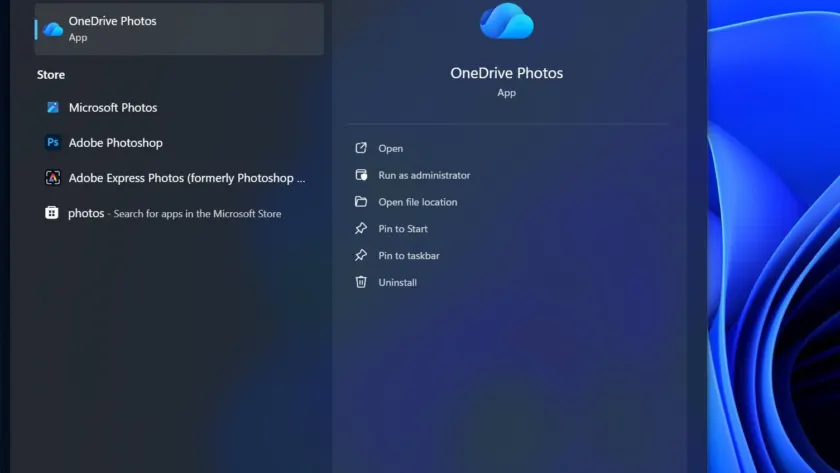
If you have noticed a new entry appearing in your Start menu that you do not remember installing, you are not alone. Microsoft is quietly rolling out a new OneDrive Photos app to Windows 11 users, likely delivered through a routine Windows Update or a background update to the OneDrive sync client. This addition arrives without fanfare, catching users off guard as they search for familiar tools like Microsoft Photos.
The new app is not a standalone installation but rather a component bundled directly within the existing OneDrive setup. It appears to be designed to offer a more integrated photo viewing experience, though it raises questions about redundancy and privacy for users who prefer to keep their local files separate from cloud services.
What is the OneDrive Photos app?
For those wondering about the technical details, the OneDrive Photos app is built on WebView2 technology, meaning it is essentially a web application wrapped in a native shell rather than a fully native Windows app. The executable file is located at C:\Program Files\Microsoft OneDrive\OneDrive.App.exe, confirming its deep integration with the OneDrive sync client.
One notable aspect of this app is that it does not require a Microsoft account to function. It can detect and display images stored on your local drives, making it accessible even if you have never signed into OneDrive. This suggests Microsoft is positioning the tool as a general photo viewer, potentially aiming to compete with or supplement the existing Microsoft Photos app.
Features and Interface
The interface of the OneDrive Photos app mimics the design language of Windows 11, featuring an acrylic effect and a clean layout. On the left side, you will find dedicated sections for Moments, Gallery, People, Albums, Favorites, and This PC. These sections align closely with the organization found in the OneDrive web app, with the addition of a local “This PC” view for users who prefer offline access.
When you open the Gallery section without signing in, the app automatically displays your local images. Users can customize the viewing experience by switching between two layout options: River and Square. Additionally, there are density settings for Roomy or Compact views, along with adjustable thumbnail sizes to suit different preferences.
Editing capabilities are also built into the app. Once you open an image, you can edit, share, favorite, copy, delete, print, or set it as your lock screen or desktop background. These features are similar to those found in the Microsoft Photos app, which also relies on OneDrive for certain image editing functions. This overlap may lead to confusion for users who expect distinct functionalities between the two applications.
Privacy and Face Scanning
One of the more significant aspects of the OneDrive Photos app is its People section, which groups similar faces in your photos. This feature requires explicit permission and includes a warning that facial data may be considered biometric data in certain regions. Microsoft states that only you can view the grouped faces and that the data is not shared with third parties. However, users who are concerned about privacy should be aware that the app scans images for facial recognition purposes.
Once you sign in to your Microsoft account, the app transforms into a full OneDrive gallery, unlocking AI-powered cloud search. This search function can locate images based on vague descriptions, using OCR and other AI technologies to find the most appropriate file. While this can be convenient for users with large photo libraries, it further emphasizes the app’s reliance on cloud services and data processing.
The combination of local and cloud features means the OneDrive Photos app serves as both a photo viewer and a management tool. However, the silent installation and the inclusion of face scanning may lead some users to question the necessity of this addition, especially if they already have a preferred photo management solution.
What This Means for You
For everyday Windows users, the appearance of the OneDrive Photos app means you now have another option for viewing and managing photos. If you are already using OneDrive, this app might offer a more seamless experience by integrating your cloud and local photos in one place. However, if you prefer to keep your photos strictly local, you may find the app’s features unnecessary or intrusive.
The redundancy with the Microsoft Photos app could also lead to a fragmented experience, where users are unsure which application to use for different tasks. Microsoft’s decision to bundle this app with OneDrive suggests a strategic push to increase engagement with their cloud services, even if it means adding more complexity to the Windows ecosystem.
How to Remove OneDrive Photos
If you decide that the OneDrive Photos app is not for you, you can remove it by uninstalling the OneDrive sync client entirely. To do this, navigate to Settings > Installed apps, find OneDrive in the list, and select the option to uninstall. Please note that this will stop your files from syncing to the cloud, so ensure you have backed up any important data before proceeding.
While you cannot simply remove the OneDrive Photos app without affecting the rest of the OneDrive functionality, this step will eliminate the app from your system. Users who wish to avoid future installations of this type might consider monitoring their Windows Update settings or using group policy options to control which components are installed.
As Microsoft continues to evolve the Windows experience, the introduction of the OneDrive Photos app highlights the ongoing integration of cloud services into the operating system. Whether this addition proves beneficial or becomes another layer of unnecessary complexity remains to be seen, but users should stay informed about the changes happening on their devices.
Source: Windows Latest
Over to you: Do you prefer the new OneDrive Photos app for managing your images, or will you stick with the traditional Microsoft Photos?