Microsoft is giving a broader group of Outlook users a smoother way to work alongside its AI assistant. The company is rolling out a new Copilot multitasking Outlook experience that keeps the assistant accessible without forcing users to abandon their current email or calendar view. According to Microsoft’s official Copilot announcements, the update is designed to reduce the friction that often comes with switching between AI prompts and your actual inbox.
What Copilot Multitasking in Outlook Actually Changes
For months, Copilot in Outlook has relied on a combination of inline suggestions and dedicated sidebars. While functional, the experience often required users to click through modals or shift focus away from their active message. The new rollout introduces a persistent, floating Copilot pane that sits alongside your email client. This means you can draft replies, summarize long threads, or pull up calendar availability without closing the window you are currently reading.
The change is part of Microsoft’s broader push to embed AI directly into daily productivity workflows rather than treating it as a separate tool. By keeping Copilot anchored to the side of the Outlook interface, the company is moving away from interrupt-driven interactions toward a continuous, background-assistant model. This aligns with similar updates seen across the Microsoft 365 suite, where AI features are increasingly designed to run parallel to core tasks.

How the New Interface Handles Your Workflow
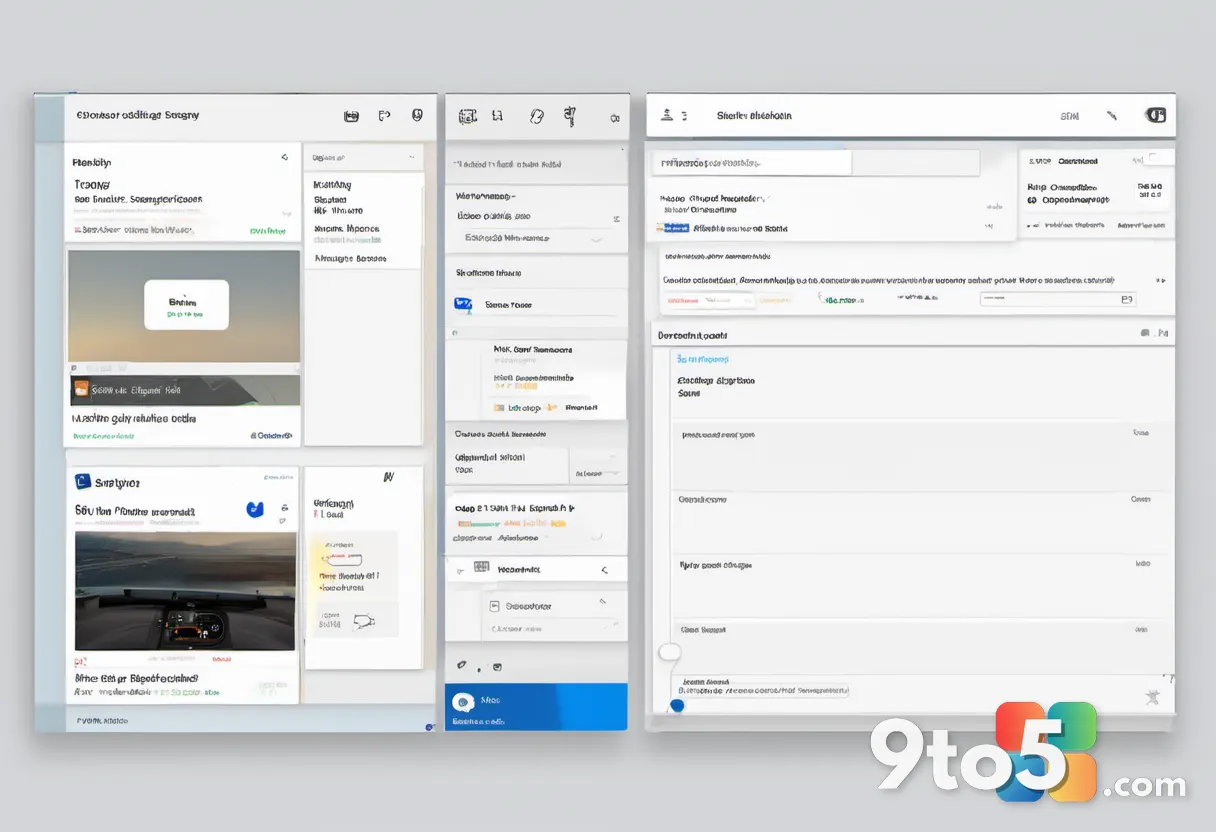
The updated interface places a resizable Copilot panel directly next to your message list or reading pane. You can pin it open while composing, switch between emails, or reference a calendar invite without the AI window disappearing. The pane supports natural language commands, allowing you to ask for thread summaries, request draft rewrites, or pull meeting notes without leaving your current view.
Microsoft has also refined how Copilot handles context. Instead of relying solely on the open email, the AI now maintains awareness of your active session, meaning follow-up prompts stay relevant to the conversation you are currently managing. If you switch to a different folder or open a new message, Copilot adjusts its suggestions accordingly rather than resetting to a blank state.
From a technical standpoint, the persistent pane reduces the number of API calls needed to maintain context. Rather than re-initializing the AI session every time you interact with it, the floating window keeps the connection alive in the background. This results in faster response times and a more fluid experience when juggling multiple tasks.
What This Means for You
If you spend a significant portion of your day managing email, the shift to a persistent Copilot pane is a practical upgrade. You will no longer need to toggle between AI prompts and your inbox, which has historically been one of the most common complaints about early Copilot rollouts. The ability to keep the assistant visible while reading, drafting, or triaging messages turns it from a novelty into a genuine productivity tool.
For teams and IT administrators, the change also signals a shift in how Microsoft plans to distribute Copilot features. Rather than releasing major updates in large waves, the company is increasingly favoring gradual rollouts tied to specific licensing tiers and tenant configurations. This means availability will vary by region, subscription plan, and organizational policy.
How to Get It
The updated Copilot multitasking feature is rolling out gradually to Microsoft 365 Copilot subscribers. If you do not see the persistent pane immediately, it is likely still in the early stages of deployment. Microsoft typically distributes these updates through standard Microsoft 365 channels, so no manual installation or registry tweaks are required.
To check if the feature is available in your tenant, navigate to Outlook on the web or the desktop client and look for the Copilot icon in the ribbon or sidebar. If it is not visible, verify your subscription status and ensure your organization has enabled Copilot features in the Microsoft 365 admin center. Enterprise admins can also monitor rollout progress through the Copilot deployment dashboard, which tracks feature availability by user group and region.
Source: Neowin
Over to you: Are you keeping Copilot pinned to the side of Outlook, or do you prefer launching it only when you need it?