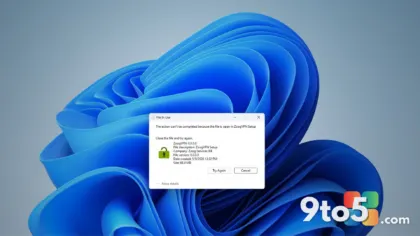
Sometimes an application you installed decides to phone home without your permission. Whether you are trying to stop a background updater from consuming your bandwidth, prevent a new program from syncing telemetry data, or restrict a game from calling home, Windows Defender Firewall gives you full control. By creating an outbound rule, you can cut off a specific program’s network access while leaving everything else running normally.
Before You Start: You will need administrator privileges on your Windows 11 or Windows 10 machine. This method works across all editions, including Home, Pro, and Enterprise, though the underlying firewall engine remains identical. If you are using a third-party antivirus suite that includes its own firewall, you will need to disable its network protection temporarily or create rules inside that program instead.
-
Step 1: Open Windows Security
Launch Settings and navigate to the security dashboard. Press the
Win + Ikeyboard shortcut to open the Settings app. Click on System in the left navigation pane, then scroll down and select Windows Security. This action opens the central security hub where Microsoft consolidates firewall management, virus scanning, and account protection. You will see a grid of tiles representing each security feature. -
Step 2: Access Advanced Firewall Settings
Click through to the classic firewall console. Select Firewall & network protection from the grid. At the top of the page, you will see your active network profiles listed as Domain, Private, and Public. Do not click the blue Allow an app through Windows Defender Firewall link near the bottom, as that only manages inbound exceptions. Instead, scroll down and click Advanced settings. This launches the Windows Defender Firewall with Advanced Security window, which provides the granular controls required to build outbound rules.
-
Step 3: Open the Outbound Rules Section
Navigate to the outbound rules list. In the left-hand Actions pane of the Advanced Security window, click Outbound rules. The center panel will populate with a list of every existing rule your system currently enforces. Outbound rules specifically control which programs are allowed to initiate connections to external networks. You will notice that most rules are enabled by default, which is why the target application currently has internet access.
-
Step 4: Create a New Outbound Rule
Initiate the rule creation wizard. Click the New Rule… link located in the right-hand Actions pane. A dialog box titled Create Outbound Rule will appear. This wizard guides you through the four stages required to define exactly how Windows should handle the program’s network traffic. Take your time reading each screen, as selecting the wrong option here will prevent the rule from working later.
-
Step 5: Select the Program Path
Point the rule at the specific application executable. On the first screen, select Program and click Next. You will then be prompted to browse for the program’s executable file. Click Browse, navigate to the installation folder (usually
C:\Program FilesorC:\Program Files (x86)), and select the.exefile for the application you want to block. Click Open and then Next. Windows will validate the file path and move you to the next stage. -
Step 6: Choose the Block Action
Configure the rule to deny network access. On the Action screen, select Block the connection. This is the critical step that actually stops the program from communicating with the internet. Click Next to proceed. You will see three checkboxes representing the network profiles: Domain, Private, and Public. Leave all three checked to ensure the application cannot bypass the block on any type of network, whether you are at home, work, or using a coffee shop Wi-Fi.
-
Step 7: Name and Save the Rule
Label the rule for future reference. On the final screen, type a descriptive name in the Name field, such as
Block [App Name] Internet. You can add a brief description in the text box below if you plan to manage multiple rules later. Click Finish to save the rule. The new entry will immediately appear at the top of your Outbound rules list, and the application will lose internet access the next time it attempts to connect.
Troubleshooting
If the application continues to use the internet after you create the rule, check these common failure points before assuming the process failed.
- The rule is disabled or assigned to the wrong profile: Click the newly created rule in the Outbound rules list and look at the Profile column. If it shows a checkmark only on Domain but you are on a Private network, the rule will not trigger. Right-click the rule, select Properties, go to the Profiles tab, and ensure the correct network types are checked. Also verify that the Enabled column shows a green checkmark.
- You blocked the wrong executable: Many modern applications run multiple background processes. If the main
.exeis blocked but a helper service likeupdater.exeortelemetry.dllremains active, the app may still sync data. Open Task Manager (Ctrl + Shift + Esc), find the application under the Details tab, and note every related process. You may need to create additional rules for each helper executable. - A third-party firewall is overriding Windows: If you recently installed software like Norton, McAfee, or a gaming optimizer, it may have disabled Windows Defender Firewall and taken over network control. Open your third-party security app, locate its firewall settings, and either create the block there or temporarily disable its firewall to let Windows manage the rules again.
Pro Tip: If you ever need to temporarily restore internet access for testing, do not delete the rule. Right-click it and select Disable Rule. This preserves your configuration while allowing you to re-enable it instantly with a single click.
Closing Tips: Once you have blocked the unwanted application, restart the program to confirm the change took effect. You can verify the block by opening the application and trying to load any online feature; it should display a network error or fail to connect. If you need to manage multiple apps, consider exporting your rules by right-clicking Outbound rules in the left pane and selecting Export. This saves a .csv file that you can import onto another Windows machine, making it easy to replicate your network restrictions across devices.
Have you ever blocked an app from calling home, or do you prefer to let everything run unrestricted? Share your experience in the comments below.
Over to you: Have you ever blocked an app from calling home, or do you prefer to let everything run unrestricted?