The August 2026 Windows 11 security update has quietly activated a performance feature that significantly changes how applications start on your PC. If you have installed KB5121003, you may have noticed that apps like the Epic Games Store, Chrome, and even system utilities like Calculator open noticeably faster than before. The culprit is the Windows 11 Low Latency Profile, a scheduling mechanism that was previously limited to shell elements like the Start menu and Search.
Microsoft confirmed via the Windows Insider Blog that this feature, which relies on a “race to sleep” philosophy, is now rolling out to general application launches. This expansion means that the CPU boost previously reserved for system interfaces is now applied whenever you interact with installed software, reducing the time your system spends in a high-utilization state.
How the Low Latency Profile works
Traditional Windows power management ramps CPU frequency gradually as demand increases. The Low Latency Profile inverts this approach. When you click an app icon, the scheduler immediately spikes the CPU to near-maximum frequency for one to three seconds. This allows the application to complete its initial loading tasks rapidly, after which the processor returns to a deep idle state much sooner than it would have under standard scheduling.
The engineering logic here is straightforward: a CPU that spends more time asleep draws less power than one running at moderate speeds for an extended period. This concept, known as “race to sleep,” has been standard practice in macOS and Linux for years and is particularly effective on ARM architectures like the Snapdragon X2, where power state transitions occur in microseconds.
Scott Hanselman, Microsoft VP and member of technical staff, publicly defended this approach back in May when critics dismissed it as a lazy fix. He noted that the technique is industry-standard and that the effect is even more pronounced on modern hardware. Microsoft has now extended this logic from shell flyouts to all application launches, marking a significant shift in how Windows 11 handles performance by default.
Verifying the feature is active on your PC
Since this rollout is managed through Controlled Feature Rollout, not every device will have the feature enabled immediately after installing the August update. To verify if the Low Latency Profile is active, you can monitor your CPU frequency in real-time.
The most precise method involves using a free tool called HWiNFO. Open the application and watch the CPU frequency panel while launching an app. If the feature is active, you will see an immediate spike in clock speed across all Performance cores (P-cores) toward their maximum frequency, with Efficiency cores (E-cores) climbing to approximately 80% of their ceiling. On our test system, an Intel Core i5-13420H, this meant P-cores hitting close to 4.6GHz instantly upon launch.
Alternatively, you can use Task Manager. Navigate to the Performance tab and ensure you are monitoring Clock Speed rather than CPU Utilization. Utilization percentages can be misleading in this context, as a short burst of high frequency may not register as high utilization over a longer sampling window. A visible jump in clock speed at the moment of app launch confirms the feature is working.
Impact on battery life and thermals
One of the most common concerns regarding CPU boosting features is their impact on battery life and heat output. Microsoft has addressed this by ensuring the boost is extremely brief. The CPU spends only one to three seconds at high frequency before returning to idle.
Our testing, which included before-and-after comparisons on both battery and charger, showed no measurable difference in battery drain. Because the feature reduces the total time the CPU spends in a high-utilization state, it can actually be more efficient than traditional ramping. The short burst does not generate significant heat, and users should not notice any thermal changes during normal operation.
This efficiency is particularly beneficial for laptops and budget PCs. By minimizing the time the processor spends grinding through initial load tasks, the system can return to a low-power state faster, potentially extending battery life during light usage scenarios.
How to force-enable the feature manually
If the Low Latency Profile has not yet reached your device through the Controlled Feature Rollout, you can manually enable it using a third-party utility called ViVeTool. This tool allows users to toggle hidden Windows features by their internal IDs.
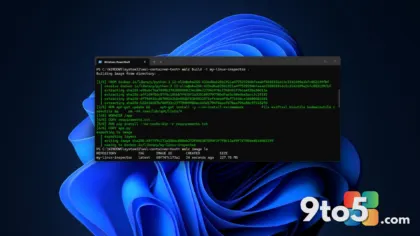
To proceed, download the latest release of ViVeTool from the official GitHub repository. Extract the contents to a folder, such as C:\ViVeTool. Open Command Prompt as an Administrator and navigate to this folder using the command cd C:\ViVeTool.
Once in the directory, run the following command to enable the feature:
vivetool /enable /id:58989092
You should receive a confirmation message indicating the feature configuration was set successfully. Restart your PC to apply the changes. After rebooting, the Low Latency Profile should be active for both shell elements and application launches. However, we recommend waiting for the official rollout if possible, as Microsoft is deploying this broadly and it should reach your device naturally within the coming weeks.
What this means for Windows 11 users
The expansion of the Low Latency Profile is part of a broader effort by Microsoft to optimize Windows 11 performance across all hardware tiers. The company has acknowledged that the OS can be resource-heavy and has committed to improvements for PCs with 8GB of RAM and above by the end of 2026.
This feature, combined with ongoing migration to WinUI and memory optimizations, signals a clear direction: Windows 11 is being refined to feel faster and more responsive on modern and legacy hardware alike. For users with high-performance CPUs, the benefit is immediate responsiveness. For those on budget or ARM-based devices, the advantage lies in improved power efficiency and reduced thermal load.
As Microsoft continues to refine these scheduling mechanisms, Windows 11 is positioning itself as a more efficient operating system, leveraging techniques that have long been standard in other platforms. The result is a smoother user experience that prioritizes quick interactions and lower power consumption.
Source: Windows Latest
Build details:
- kb5121003
Over to you: Have you noticed a difference in app launch speeds after installing the August update, or is your PC still waiting for the rollout?
You may also like
 Microsoft Drops Picture Password Setup in Windows 11 July Update
 Why Windows 11 Still Can’t Shake Its Old Interface, Explained by a 2003 Microsoft Blog Post
 Windows Quick Machine Recovery: The Hidden Risks of Cloud-Based Boot Fixes
 Microsoft to Let Windows 11 Users Remove OneDrive Photos Without Breaking Sync