Engineering students rarely work in one place. You bounce between lectures, lab sessions, and library study groups, which means your machine has to survive the commute while handling software that would stall a typical office laptop. CAD modeling, MATLAB simulations, SolidWorks assemblies, and compiler workloads demand a specific balance of processing headroom, dedicated or efficient integrated graphics, and reliable battery life. According to testing and evaluation data from PCWorld, which reviews more than 70 Windows laptops annually using standardized GPU, CPU, and battery benchmarks, the right pick comes down to matching your major’s software requirements with your campus logistics. Below are the four machines that consistently clear that bar.
#1 Asus Zenbook 14 OLED
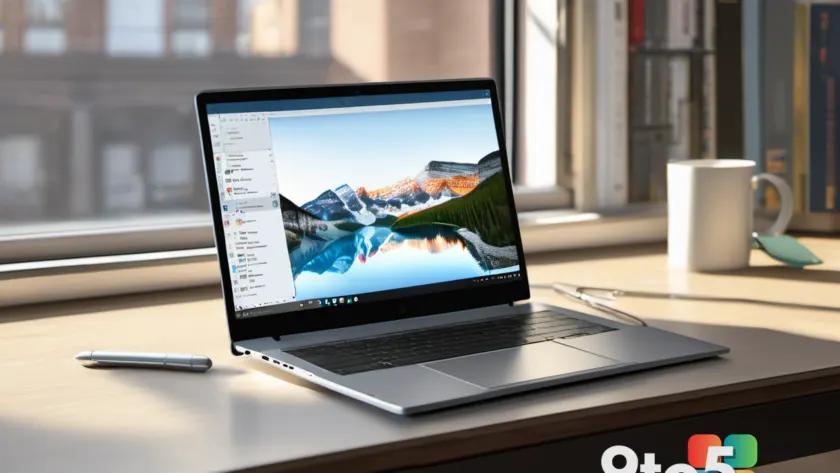
The Asus Zenbook 14 OLED tops this list because it delivers the most balanced combination of processing power, display quality, and endurance for a base price of $699. It runs on an AMD Ryzen 7 processor paired with integrated Radeon graphics, which handles 2D drafting, code compilation, and moderate 3D viewport navigation without throttling. The 14-inch 1920×1200 OLED touchscreen is where this machine earns its keep: OLED panels produce deeper blacks and more accurate color reproduction than standard IPS displays, which matters when you are reviewing schematics, color-coded circuit diagrams, or rendering architectural models.
Battery performance is the standout metric here. PCWorld’s testing recorded over 16 hours of mixed-use runtime on a single charge. For a student running CAD software, a web browser with dozens of reference tabs, and a document editor simultaneously, that runtime translates to a full day of classes without hunting for an outlet. The chassis measures 0.59 inches thick and weighs 2.82 pounds, making it easy to slide into a backpack alongside a water bottle and a notebook. Audio output also punches above its weight class, delivering clear volume for remote lectures and recorded lab demonstrations.
The trade-offs are predictable for this form factor. The design leans toward a conservative, matte finish that prioritizes durability over flair. The keyboard uses slightly undersized keys, which some typists find less comfortable during long writing sessions, though it remains perfectly functional for day-to-day coursework. Connectivity is limited to the standard port count for a 14-inch ultrabook, so you may want a compact hub if your lab requires wired Ethernet or legacy peripheral adapters.
What this means for you: If your engineering track involves a mix of coding, 2D drafting, and occasional 3D modeling, this machine covers the workload without forcing you to carry a gaming rig to campus. The OLED panel also reduces eye strain during late-night study sessions, which is a practical benefit most reviewers overlook.
#2 Dell 14S
The Dell 14S is built around a single priority: endurance. Powered by an Intel Core Ultra 7 355 processor and a 69 watt-hour battery, it delivered nearly 36 hours of continuous video playback in PCWorld’s standardized battery test. That runtime is exceptional for a Windows laptop in this weight class, and it directly addresses the reality of engineering schedules where you might move from a morning thermodynamics lecture to an afternoon lab to an evening study group without access to power.
The aluminum chassis feels sturdy under daily use and keeps the total weight at 3.28 pounds. The display is colorful and accurate, though it does not reach the peak brightness levels of higher-end panels, which can make outdoor campus use slightly harder to read on sunny days. The keyboard is comfortable for extended typing, and the port selection is practical enough for most dorm and library setups.
Where the Dell 14S draws a clear line is in dedicated graphics. It relies entirely on Intel integrated graphics, which means it is not optimized for heavy 3D rendering, large finite element analysis simulations, or real-time physics modeling. If your coursework stays in the office productivity, coding, and 2D documentation range, the integrated GPU is more than sufficient. If you are in mechanical, aerospace, or civil engineering and your syllabus requires sustained GPU acceleration, you will need to look at machines with a dedicated graphics card.
What this means for you: Choose this build if your priority is surviving a 12-hour academic day on a single charge and your software demands lean toward compilation, documentation, and data analysis rather than heavy 3D simulation. The efficiency-first design also means less fan noise in quiet library environments.
#3 Acer Nitro V 16 AI
When your coursework requires actual GPU horsepower and your budget sits near $800 to $900, the Acer Nitro V 16 AI is the machine that clears the bar. It packs an NVIDIA RTX 5050 graphics card alongside an AMD Ryzen 5 240 processor, which together deliver smooth 1080p performance in demanding titles and provide the rendering acceleration that CAD and simulation software rely on. PCWorld’s testing recorded 72 FPS in Cyberpunk 2077 on Ultra settings, which demonstrates the card’s headroom, but the real engineering value is in how that dedicated GPU handles viewport navigation, ray-traced previews, and parallel compute workloads.
The 16-inch 1920×1200 IPS display adds meaningful vertical workspace compared to the standard 15.6-inch 1080p panels found on most budget laptops. That extra screen real estate matters when you are juggling a code editor, a terminal window, and a documentation browser simultaneously. The touchpad is generously sized, the keyboard layout avoids the cramped key spacing that plagues many gaming-focused chassis, and the machine managed a 12-hour battery life in mixed-use testing, which is unusually strong for a device with a dedicated GPU.
The compromises are visible in the specs sheet. The Ryzen 5 240 is not the fastest CPU in its class, and the built-in speakers deliver flat, undetailed audio. Wireless connectivity is locked to Wi-Fi 6 standards rather than the newer Wi-Fi 6E or 7 options, which may matter if your campus network has already upgraded. At this price point, a few dollars more can sometimes secure better value elsewhere, but the Nitro V 16 AI avoids the most common budget gaming laptop pitfalls: thermal throttling, poor input comfort, and abysmal battery life.
What this means for you: If your major requires dedicated GPU acceleration for rendering, simulation, or game engine work, and you also want a machine that can handle leisure gaming without breaking the bank, this is the functional sweet spot. Just verify that your specific software licenses support the RTX 5050’s VRAM capacity before committing.
#4 Microsoft Surface Pro
The Microsoft Surface Pro takes a different approach to engineering portability. Weighing just over a pound and running on a Snapdragon X Plus processor, it delivers a completely fanless experience that is ideal for library study, lecture halls, and lab environments where noise discipline matters. The 12-inch 2196×1464 touchscreen offers sharp color reproduction and supports the optional Slim Pen for sketching schematics, annotating PDFs, and drafting quick diagrams directly on the display.
Battery life varies significantly based on workload. PCWorld’s testing recorded up to 19 hours under light office and web browsing tasks, but heavy computational loads dropped that figure to two or three hours. The chassis includes only two USB-C ports, which means you will likely need a docking station or a compact hub if your lab requires wired peripherals. The device also ships without a charger, so factor that accessory into your total cost.
There is a critical compatibility note for engineering students: the Snapdragon X Plus runs on ARM architecture. While Microsoft has improved Windows on ARM compatibility through emulation and native app optimization, certain engineering suites, legacy MATLAB toolboxes, older SolidWorks plugins, and specialized compiler chains still run natively on x86 processors. If your department’s required software list includes applications that have not been ARM-optimized, an x86 Windows laptop remains the safer choice for performance and compatibility reliability.
What this means for you: Pick the Surface Pro if your coursework leans toward coding, documentation, data visualization, and light drafting, and if you value a truly pocketable form factor above all else. Verify your department’s software compatibility list before purchasing, particularly if you are in a hardware-focused engineering track.
What This Means for You
Picking a laptop for engineering is less about chasing peak benchmark scores and more about matching your specific software stack to your campus routine. Mechanical and aerospace tracks typically require dedicated GPUs and higher RAM counts for simulation and finite element analysis. Electrical and computer engineering students often prioritize CPU single-core performance for compiler work and debugging. Software and systems engineering students usually benefit most from large RAM pools, fast SSD storage, and high-resolution displays for multi-window coding environments. Battery life matters across all tracks, but it is non-negotiable for students who do not have guaranteed desk access between classes.
How to Choose the Right Build
Start by listing the software your department requires. If CAD, MATLAB, or SolidWorks are on that list, verify whether they demand a dedicated GPU or if integrated graphics will suffice for your coursework level. Aim for at least 16GB of RAM if your budget allows, since modern engineering suites and virtual machines consume memory quickly. Storage should start at 512GB, with 1TB preferred for project archives, software installations, and dataset storage. Display size between 13 and 16 inches balances portability with usable workspace. Finally, check the charging ecosystem: campus outlets are never where you need them, so prioritize machines that support fast charging or include a charger in the box.
Source: PCWorld
Over to you: Which engineering discipline will you be using your new laptop for, and does battery life or GPU power matter more to you?
You may also like
 New Statista Data Shows the Real Gap Between Xbox and PlayStation in the US
 Microsoft’s New OneDrive Photos App Sparks IT Admin Backlash on Windows 11
 Unofficial Copilot App for Linux Finally Arrives, Built by a Community Developer
 Grand Theft Auto VI’s Next Trailer Will Be a GTA VI Netflix Exclusive Trailer Event