Microsoft continues to expand its Copilot integration across the Microsoft 365 ecosystem, and the latest target is your inbox. A new feature called the New Outlook Wrap up your day prompt has appeared in New Outlook for Windows and Android, automatically prompting users to summarize their daily emails and plan for tomorrow. While the concept sounds helpful on paper, the implementation has drawn criticism for bypassing user consent and aggressively pushing the AI assistant.
How the New Outlook Wrap up your day Feature Works
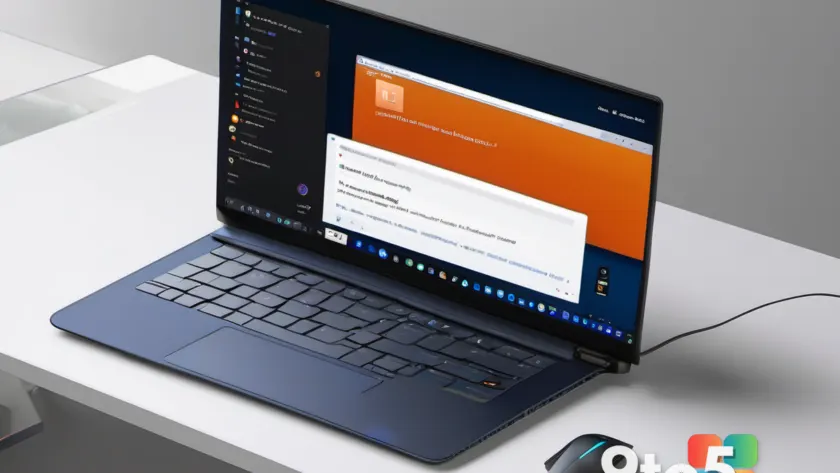
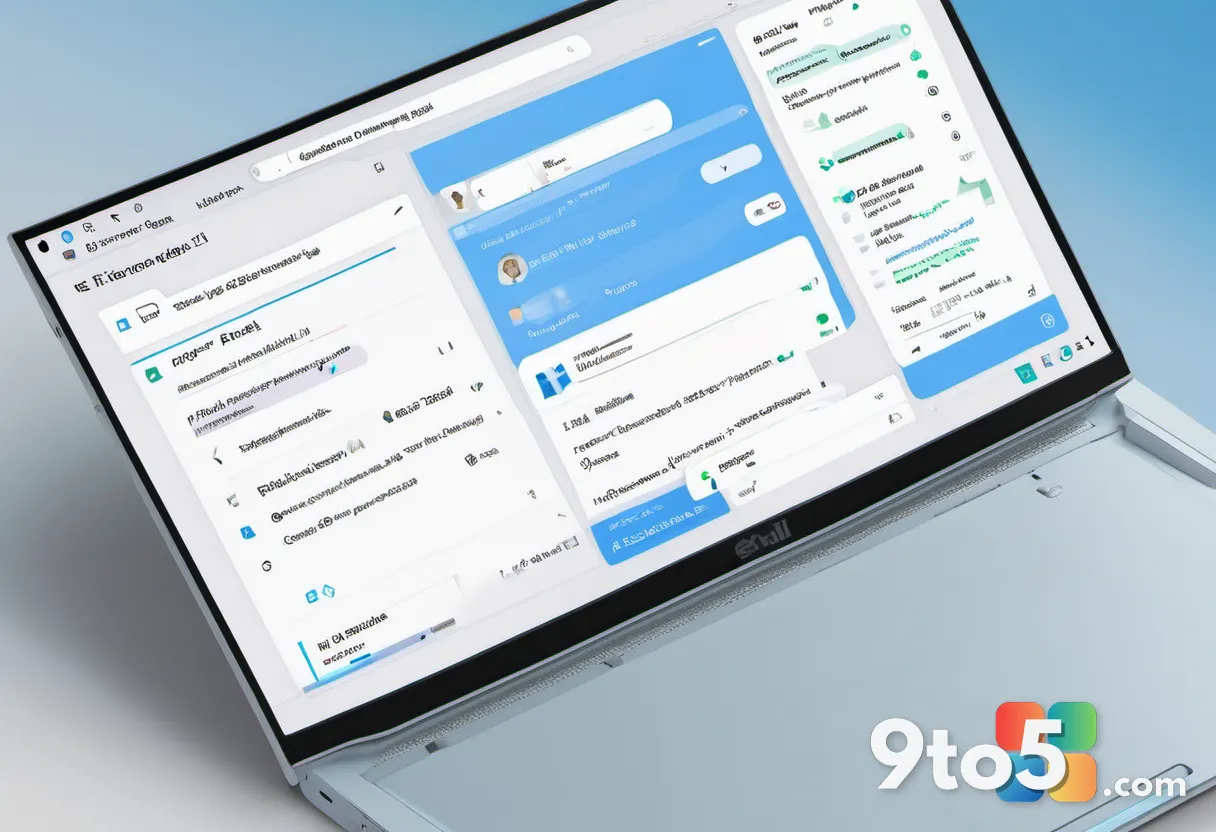
When you launch New Outlook, you will notice a floating bubble or prompt labeled Wrap up your day sitting directly in your inbox view. Clicking it does not simply open a settings menu or a help article. Instead, it immediately launches Copilot in the right sidebar with a pre-written, hardcoded prompt. This prompt instructs the AI to scan your Focused and Other inbox tabs, as well as your Sent folder, for the last eight hours.
Once the scan completes, Copilot generates a structured summary. It organizes the output into three distinct sections: what you accomplished today, the top three items you should focus on based on detected urgency, and your top three priorities for the following day. To add a touch of corporate cheerfulness, the AI is also instructed to conclude the summary with a motivational phrase acknowledging your progress.
The technology itself is fairly straightforward. It relies on the same natural language processing models that power Copilot across Word, Excel, and Teams. However, the execution is where friction arises. The feature does not ask for permission before scanning your emails. It simply begins indexing your inbox, Sent items, and other accessible folders the moment you interact with the prompt. For users who handle sensitive client data or prefer to keep their digital workspace strictly compartmentalized, this lack of transparency is a significant concern.
Why Users Are Pushing Back
The primary complaint is not necessarily the summary itself, but the constant, unavoidable presence of Copilot. Microsoft has been steadily embedding the AI assistant into every corner of New Outlook, including the left sidebar, the ribbon menu, the compose box, and the search bar. The New Outlook Wrap up your day feature is just the latest iteration in what many power users describe as an aggressive rollout strategy.
Reports from early testers indicate that the generated summaries often fall short of expectations. Because the AI is restricted to an eight-hour window and relies on basic keyword detection for urgency, the resulting priorities can feel generic or misaligned with your actual workflow. Furthermore, the motivational sign-off at the end of every summary strikes many users as unnecessary corporate filler that clutters an already busy interface.

This push comes at a time when competitors are also experimenting with AI-driven email management. Google’s Gemini integration in Gmail and Apple’s upcoming intelligence features in iOS Mail are drawing similar scrutiny. The market is clearly moving toward AI-assisted productivity, but Microsoft’s method of deployment—bypassing explicit opt-in dialogs—has left a sour taste among a segment of its user base.
How to Disable or Work Around It
If the constant prompts are disrupting your workflow, you will be glad to know that Microsoft has not provided a dedicated toggle to turn off the New Outlook Wrap up your day alerts. The settings menu simply does not contain an option to disable this specific inbox feature. This means you are stuck with it unless you take one of the following steps:
- Switch to Outlook Classic: The legacy desktop application does not currently include the Copilot-powered Wrap up alerts. It remains the most stable environment for users who want full control over their interface.
- Downgrade your Microsoft 365 plan: Some lower-tier consumer plans do not include Copilot access, which would effectively remove the feature since the AI cannot run without a valid license.
- Disable Copilot in Settings: You can navigate to Outlook Settings and turn off Copilot entirely. However, this is a blunt instrument that removes the AI from the sidebar, compose box, and search as well. Additionally, reports indicate that the Wrap up prompt may reappear the following day, suggesting Microsoft is hardcoding the reminder to bypass this setting.
For IT administrators managing enterprise deployments, this lack of granular control is particularly frustrating. Group Policy options currently allow you to manage Copilot visibility in some contexts, but the inbox-level prompt appears to be exempt from standard enterprise management tools. This means you cannot easily push a configuration to disable the feature across a fleet of devices.
What This Means for You
The New Outlook Wrap up your day feature highlights a broader trend in software development: the tension between proactive AI assistance and user autonomy. Microsoft is clearly betting that most users will find the daily summary useful enough to tolerate the aggressive placement. However, for those who value a clean, distraction-free inbox, the feature feels more like a notification than a tool.
If you rely on New Outlook for Windows or Android and find the prompts intrusive, your best immediate option is to stick with Outlook Classic until Microsoft introduces an opt-out toggle. Keep an eye on the next Insider builds, as user feedback on this rollout could influence future changes. In the meantime, the feature remains a clear example of Microsoft prioritizing AI adoption metrics over granular user preference.

Source: Windows Latest
Over to you: Will you keep the ‘Wrap up your day’ summary in your inbox, or switch back to Classic Outlook to avoid the constant Copilot nudges?